Customer Service: 888-269-7477 SETTINGS • 99
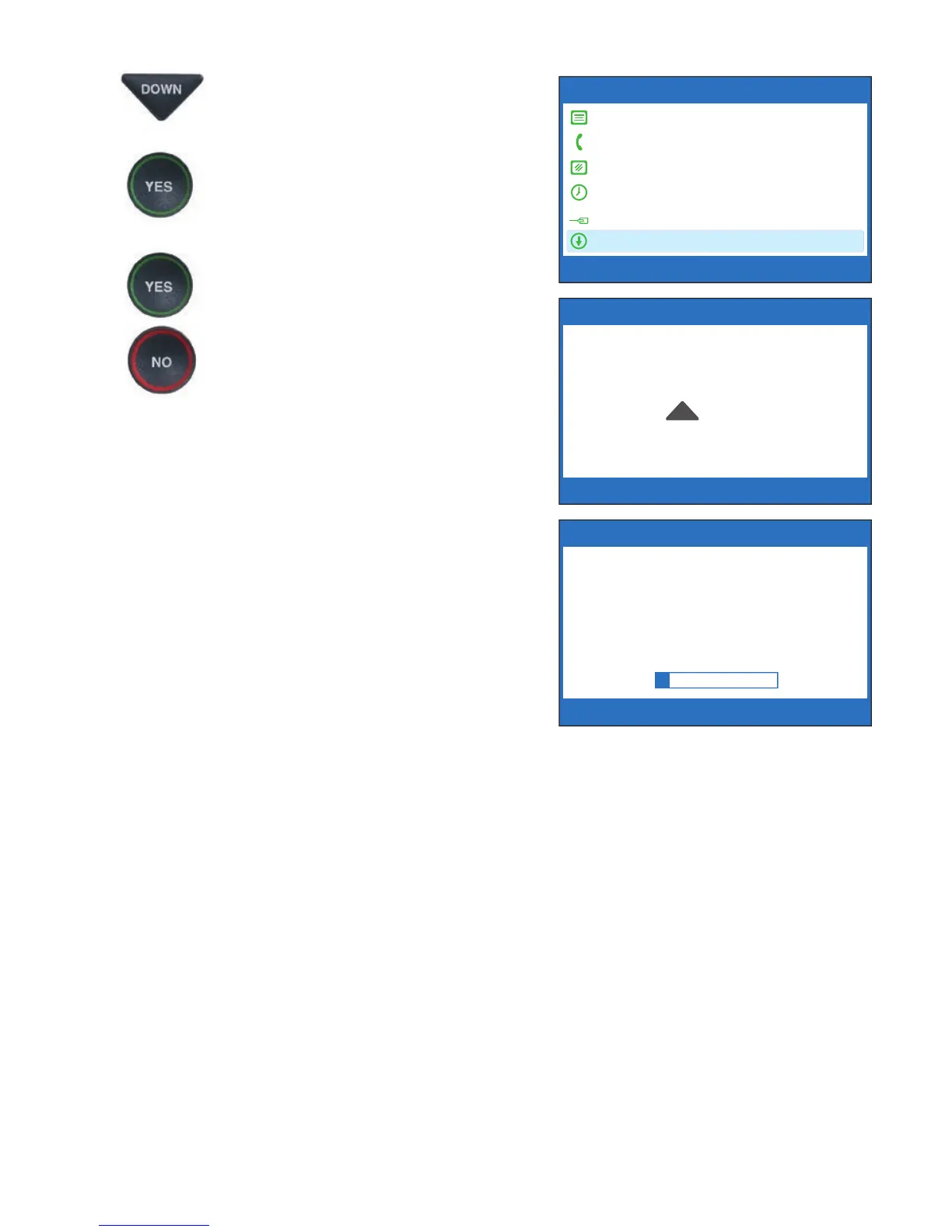
3. Press the DOWN arrow button
repeatedly until Update
Phone is highlighted.
Press the YES button to select.
4. Press the YES button to begin
updating your phone, or press
the NO button to exit. You
can also set a timed delay by
pressing the UP arrow button.
NOTE: You can set the update to
begin automatically at a more
convenient time. Press the UP
arrow button to set up a timed
delay. Select when you want the
update to begin (in 1 hour, in
2 hours, etc.) using the UP and
DOWN arrow buttons. Once a
delay has been set, you can
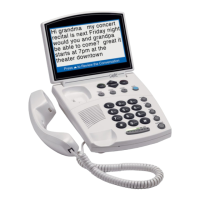
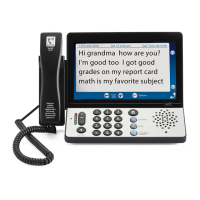
continue using your CapTel phone
to make/answer calls. This will not
disrupt the planned update process.
5. The CapTel phone checks to make sure that your software is up
to date. If a new software version is available, your CapTel phone
automatically updates to the most current version, then resets
itself so you are ready to make calls. If there are no updates
available, the CapTel display screen will show “No Update
Available” and revert to the main CapTel screen.
NOTE: You need to reset the Time and Date after your CapTel phone updates.
Please see “Setting the Time and Date” on page 96 for instructions.
Update Phone
*Warning*
Update process could take
15 to 30 minutes.
Press YES to Update Now or
Press to set a Delay or
Press NO for Options
UP
SETUP - UPDATE CAPTEL
Contacting Update Server. OK.
Downloading Update
Press NO to exit
SETTINGS
Caption Settings
Phone Settings
Display Settings
Set the Time and Date
Telephone Line Quality Test
Update Phone
Press YES to select or press NO to exit



 To Next Page