40 • VIEWING CAPTIONS Customer Service: 888-269-7477
5. The display screen shows what
the current font size setting is.
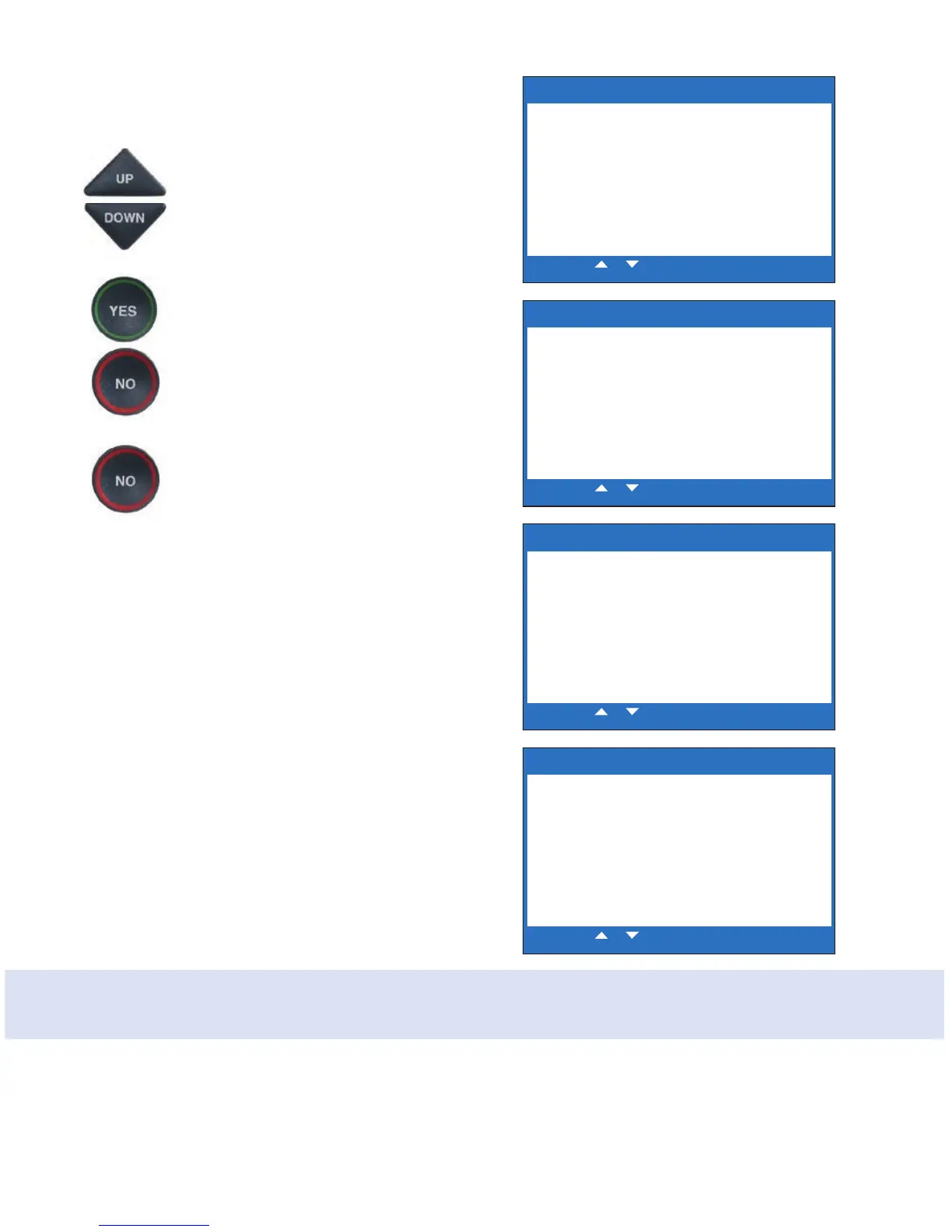
6. Press UP or DOWN arrow
buttons to select the font size
you want: SMALL, MEDIUM,
LARGE or EXTRA LARGE.
7. Once you’ve selected the font
size, press the YES button to
accept or press the NO button
to exit.
8. Press the NO button
repeatedly to exit out of
the menu system.
NOTE: You need to adjust/select the caption
font size before or after a call. You cannot
adjust the caption font size during a live call.
WARNING: Changing the font size will delete all previously saved conversations.
SET CONVERSATION FONT SIZE
Conversation Font is:
SMALL
Use or to select Conversation Fonts
Press YES to accept Font or NO to exit
SET CONVERSATION FONT SIZE
Conversation Font is:
Medium
Use or to select Conversation Fonts
Press YES to accept Font or NO to exit
SET CONVERSATION FONT SIZE
Conversation Font is:
LARGE
Use or to select Conversation Fonts
Press YES to accept Font or NO to exit
SET CONVERSATION FONT SIZE
Conversation Font is:
EXTRA LARGE
Use or to select Conversation Fonts
Press YES to accept Font or NO to exit



 To Next Page