70 • USING THE PHONE BOOK Customer Service: 888-269-7477
Adding a New Contact to your Phone Book
You can save 97 names and phone numbers in the CapTel 840 PLUS Phone
Book. To add a new contact to the Phone Book:
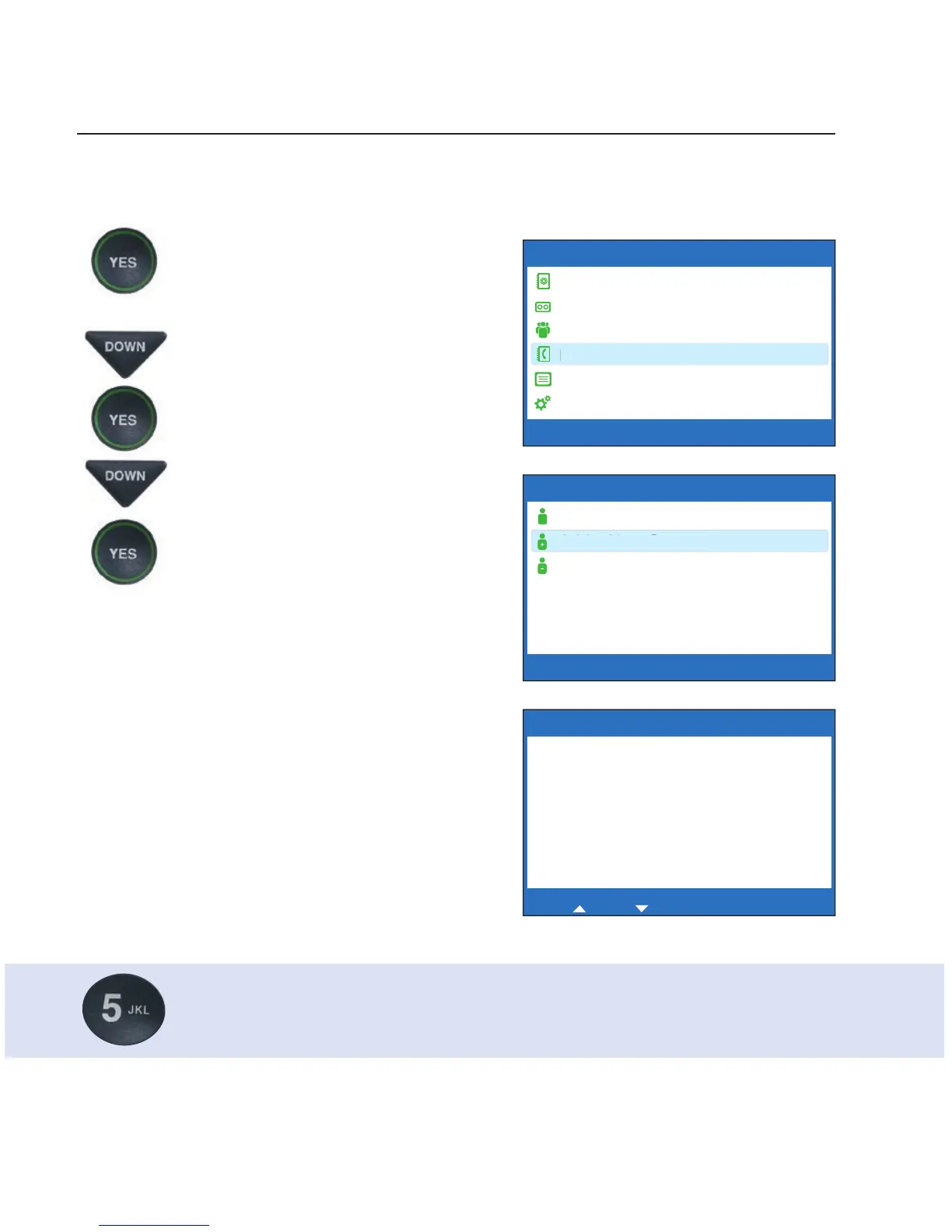
1. With the handset hung up,
press the YES button to see the
Options menu.
2. Press the DOWN arrow button
repeatedly until Edit Phone
Book is highlighted. Press the
YES button to select.
3. Press the DOWN arrow button
until Add a New Contact is
highlighted. Press the YES
button to select.
4. Use the dialing pad to enter
the letters of the name of the
person you wish to add. Look
for the letters listed on the
number keys to know which
number key to press. For some
letters, press the number key
several times until the correct
letter appears on the display
screen.
Example: To enter the letter “L”, press the number 5 key three
times until you see “L” on the display screen.
OPTIONS
Dial from Phone Book
Answering Machine
Call History
Edit Phone Book
Conversations
Settings
Press YES to select or press NO to exit Options



 To Next Page