96 • SETTINGS Customer Service: 888-269-7477
Setting the Time and Date
To set the time and date:
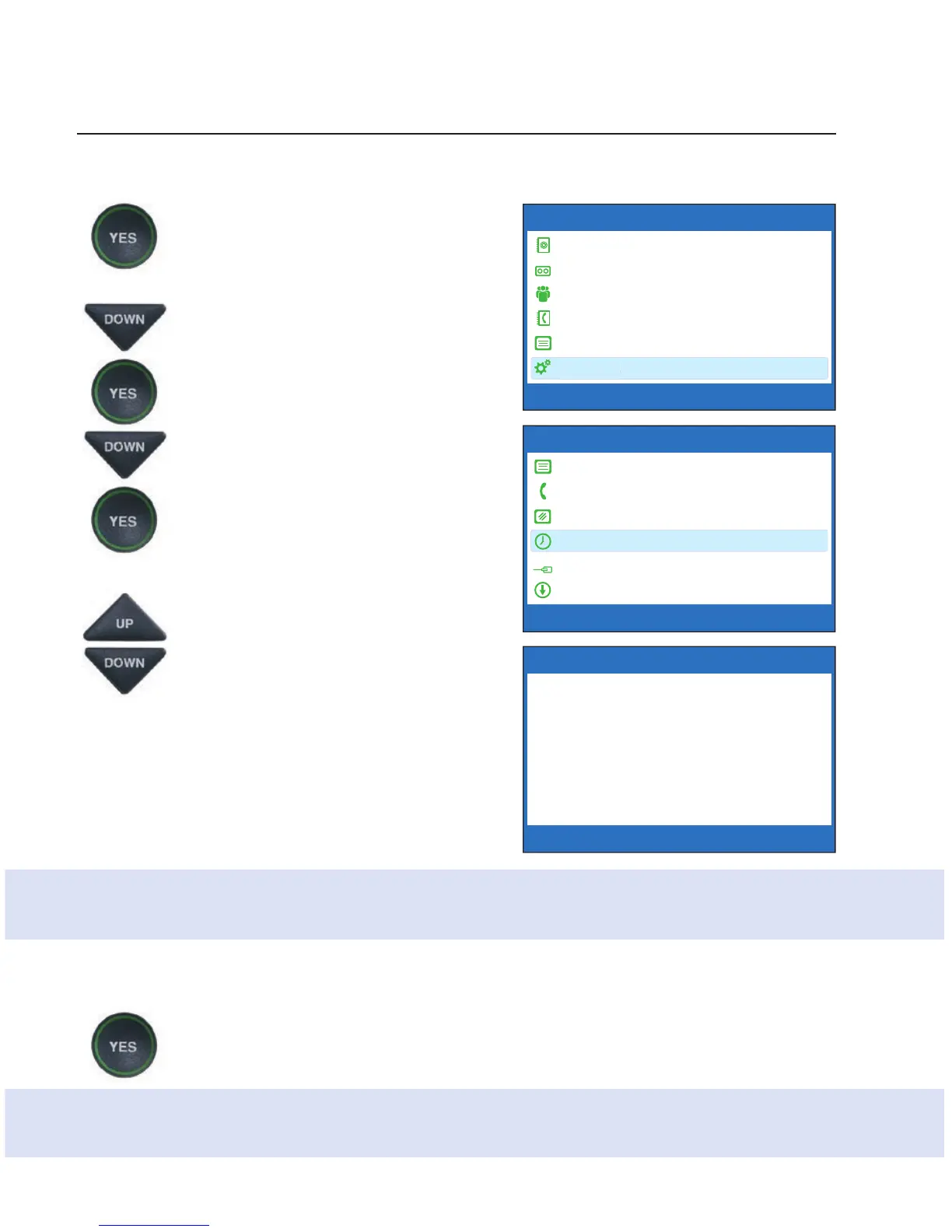
1. With the handset hung up,
press the YES button to see the
Options menu.
2. Press the DOWN arrow button
repeatedly until Settings is
highlighted. Press the YES
button to select.
3. Press the DOWN arrow button
repeatedly until Set the Time
and Date is highlighted. Press
the YES button to select.
4. CapTel shows you the current
time and date setting. Use the
UP/DOWN arrow buttons to
move the blue highlight over
the number that you want to
change.
5. On the dialing pad, press the
key that lists the number you
want to use.
Example: To set the time for 11:30, press the “1” key twice, then press the
“3” key followed by the “0” key.
NOTE: When setting the date, only the last two numbers in the year can
be changed.
6. When you have set the time and date, press the YES button
to save.
TIP: To change the time from AM to PM, press the 2 key for “AM” and the
7 key for “PM”.
Set the Time and Date
12:00 PM
01/01/2016
Use 2 for AM
Use 7 for PM
Use the keypad to enter the Time and Date
Press YES to accept or NO to exit
OPTIONS
Dial from Phone Book
Answering Machine
Call History
Edit Phone Book
Conversations
Settings
Press YES to select or press NO to exit Options



 To Next Page