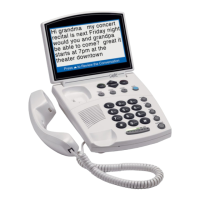
42 • VIEWING CAPTIONS Customer Service: 888-269-7477
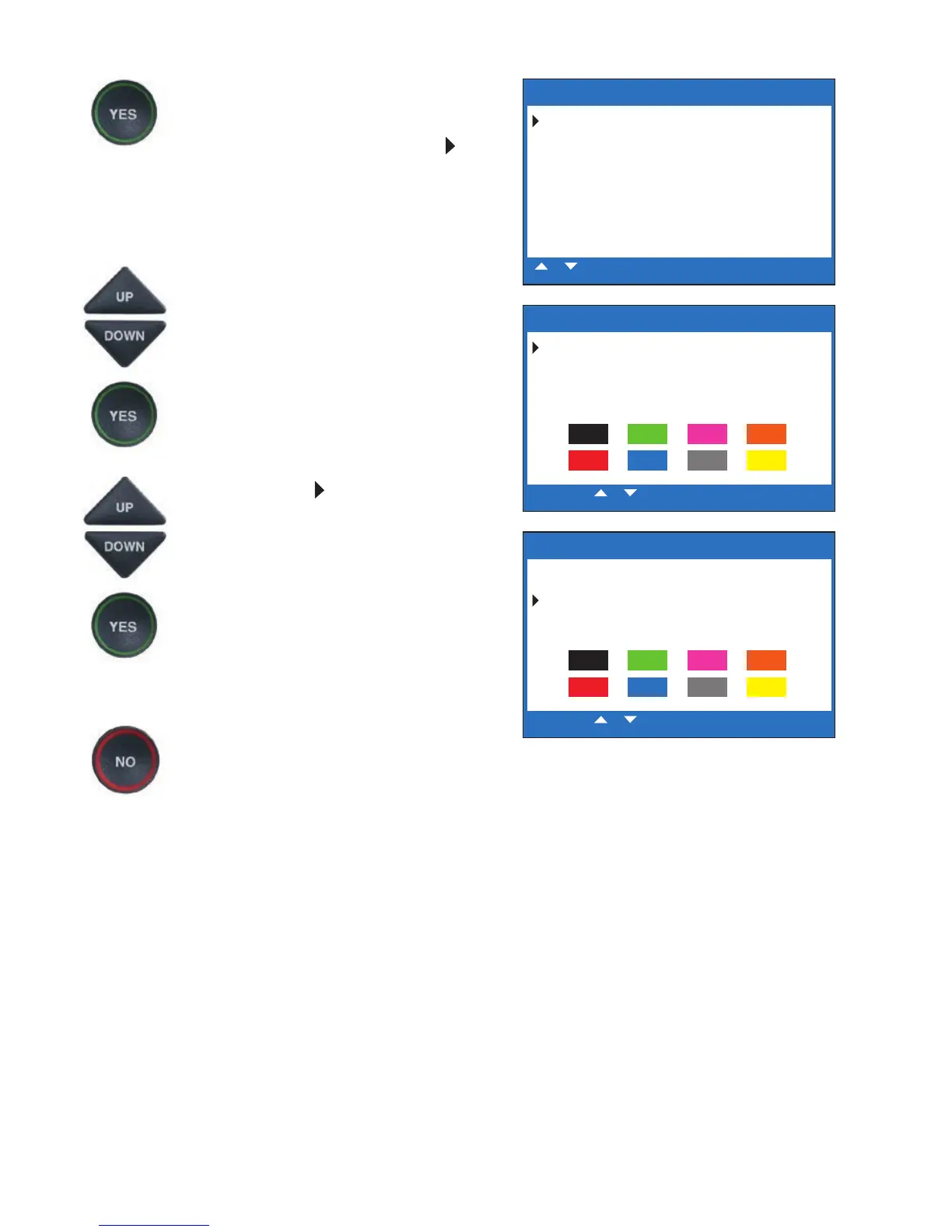
5. The display screen shows what
the current text and background
colors are set to, with an
pointing toward the Text
Color setting. Press the YES
button to select Text Color.
6. A color palette appears on the
bottom of the display. Use the
UP and DOWN arrow keys to
move through the various font
color choices. When you find a
font color you prefer, press the
YES button to accept.
7. The display
moves down to
indicate Background Color.
Press the UP and DOWN arrow
keys to move through the
various background color
choices. When you find a
background color you prefer,
press the YES button to accept.
8. Press the NO button repeatedly
to exit out of the menu system.
NOTE: Whichever color you select for
text will not be available as a background
color choice.
SET CONVERSATION COLORS
Text Color: BLUE
Background Color: WHITE
or to select Text, Background, or Correction Colors
Press YES to change Colors or NO to exit
SET CONVERSATION COLORS
Text Color: BLUE
Background Color: WHITE
Use or to select Conversation Colors
Press YES to accept Colors or NO to exit
SET CONVERSATION COLORS
Text Color: BLUE
Background Color: WHITE
Use or to select Conversation Colors
Press YES to accept Colors or NO to exit



 To Next Page