CHAPTER 3 – INSTRUMENTS AND CONTROLS
3-20
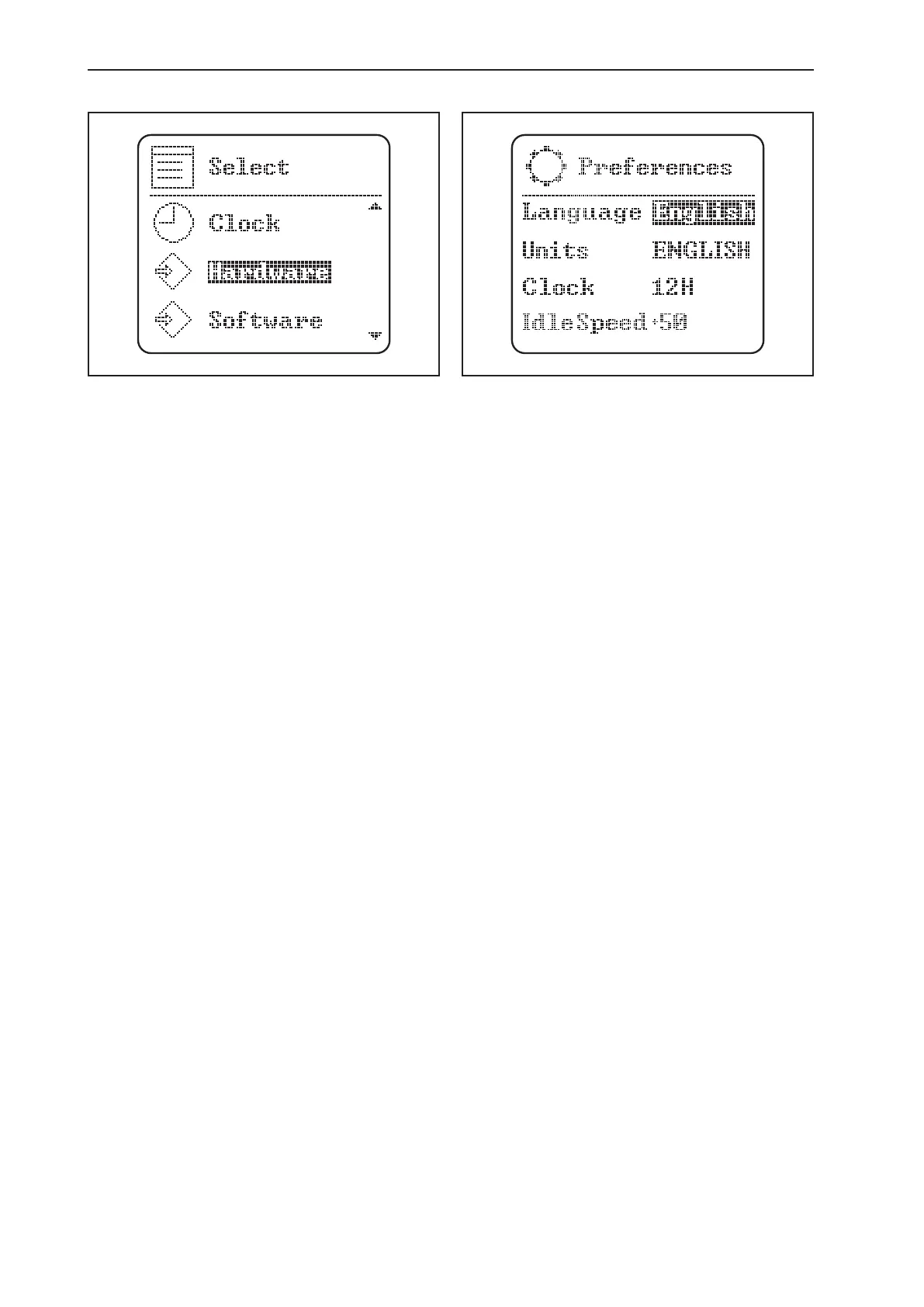
Select Screen
The select screen will allow you to make time settings as
well as give access to machine information. Navigate this
screen also by highlighting your selection and pressing
conrm. This will allow you to change clock settings or view
the hardware and software screens. No operator changes
can be made to the hardware or software screens.
NOTE: Pressing the escape key will return the LCD back
to the normal driving screen. In order to lock the changes
into memory, the operator must press the conrm key,
then use the escape key to page back to the main scre-
en. Turning the machine off will also lock the settings into
memory.
Options and Preference Screens
LANGUAGE SCREEN,
MEASUREMENT UNITS AND CLOCK
The LCD screen can be set with language, measurements,
and/or clock preferences. Use the arrow keys to scroll to
the preferences menu. Press the conrm key on the cor-
rect selection. Press the escape key to return to the main
driving screen and lock the selection into memory.
Choose the preferences desired:
LANGUAGE: English, Spanish, Portuguese, Italian,
•
German, French;
MEASUREMENT UNITS: Metric, English, Imperial;
•
CLOCK UNITS: 12 or 24 hour cycles;
•
CUSTOMIZED IDLE: 0, +50, +100, +150, +200, +250,
•
+300 RPM.
Highlight the preference you wish to change and press
the conrm key. The preference will ash and allow you to
scroll through the choices. When the correct preference
is chosen, press the conrm key, then use the escape key
to return to the main driving screen in order to lock the
preference into memory.
CLOCK
From the select screen,
choose the clock designation and press the conrm key.
Use the arrow keys to show eld for time and date by
pressing the arrow key. When the correct time and date
have been entered by using the up and down arrow keys
(up increases the numbers – down decreases the num-
bers), press the conrm key to lock in correct time. Press
the escape key to return to the main driving screen and
lock selections into memory.
DISPLAY MENU
The display menu can be used to change the background
and brightness of the screen. Use the arrow keys to make
your selection from the display menu and press the con-
rm key until the screen reverts to the main driving scre-
en to lock the selection into memory. The screen display
can be changed to suit working conditions. The screen
will change to night function illumination when the head
lamps are turned on.



 To Next Page