DRSplus – Operating Manual
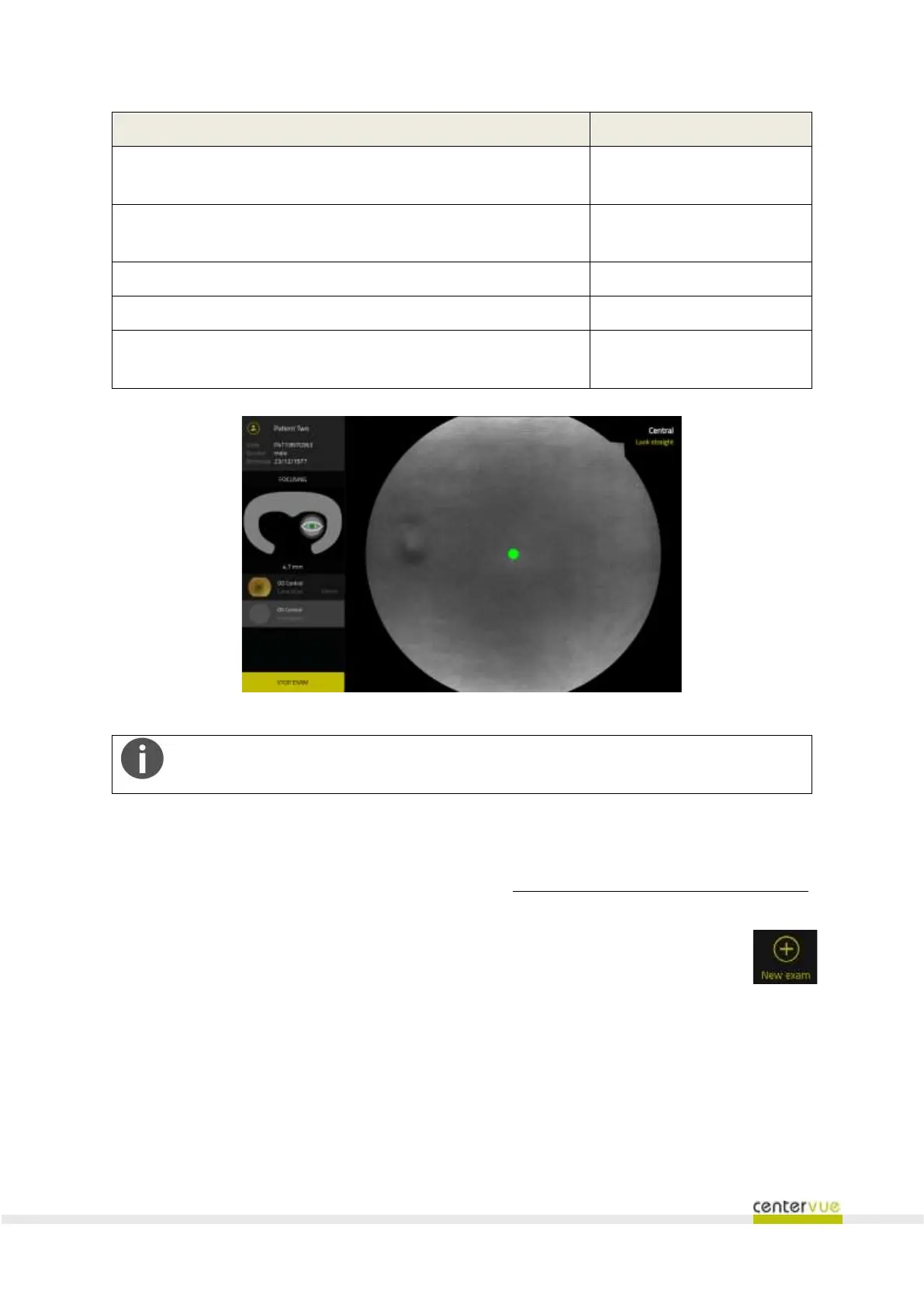
Estimated pupil size: when yellow, indicates that the pupil size is
below the minimum suggested value
Under the graphics of the eye
position
Acquisition status of every field set for the current examination
(pending, acquiring, completed)
Under the estimated pupil
size
Live image of the retina, acquired using infrared light
At the center of the screen
Position of the internal fixation target
The retinal field under acquisition, including useful instructions for
the patient.
Fig. 23 – Running examination screen in automatic mode
The acquisition process can be interrupted at any moment by clicking the STOP EXAM
button. Being the acquisition totally automated, this is the only available control.
9.3 “Fast” exam
This functionality (Fig. 24) permits to start an examination without the need to add a new patient first.
When a “Fast Exam” is started, a new patient will be automatically created by the drsplus.
Surname and Name of the new patient are respectively “Patient”, and the date and time of
acquisition. To start a “Fast Exam”, just press the button on the right panel →
The exam configuration screen will be shown (Fig. 24). To proceed, just configure the acquisition and
press the START EXAM button.


 To Next Page