14.4.3 BACKUP
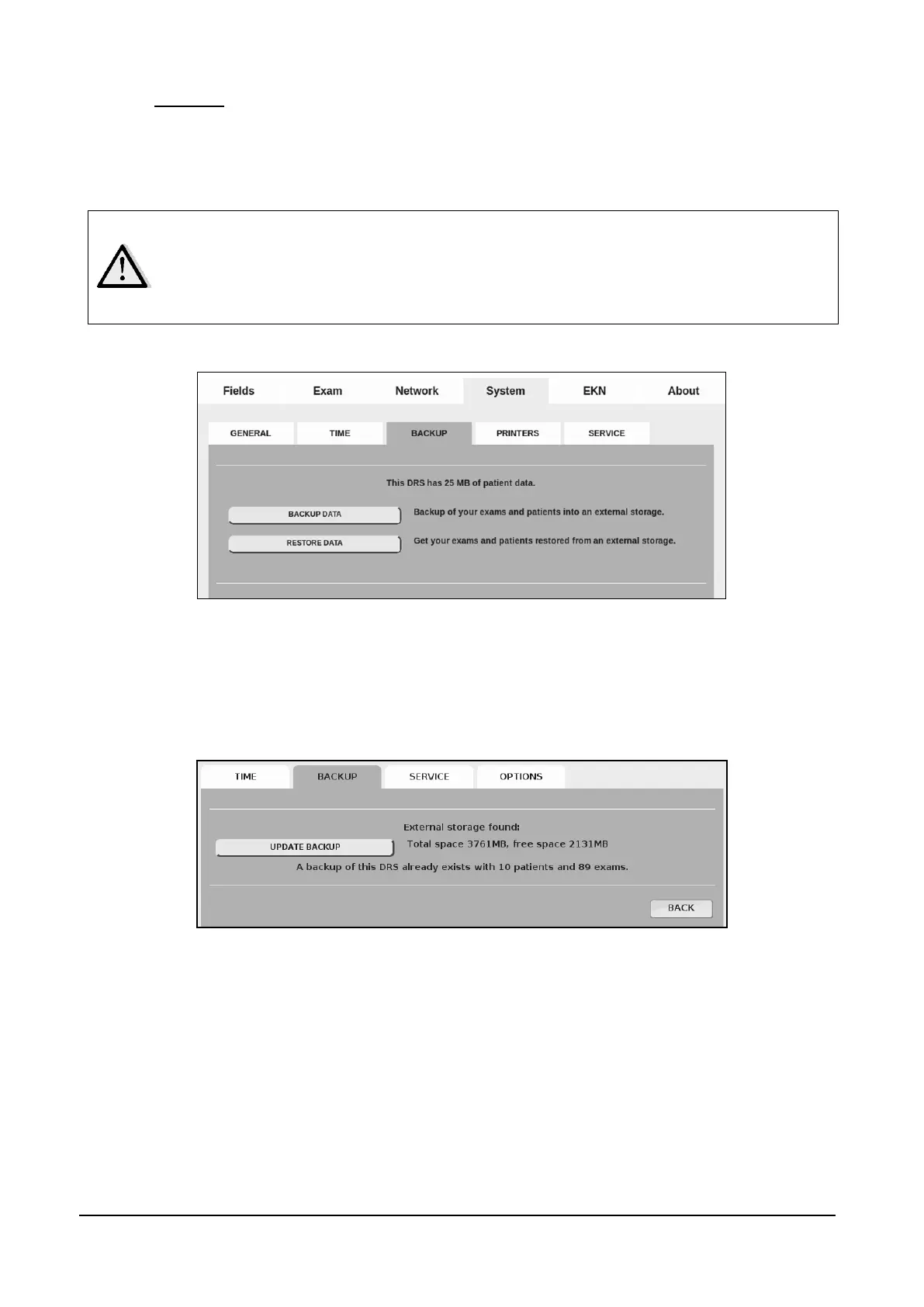
The Backup tab allows full management of the backup (and restore) of DRS data.
To perform a backup, connect a USB key or hard disk to the DRS and start the backup operation
by pressing the Backup Data button (see Figure 46).
It is very important to frequently use the backup function to store the data on
an external drive. In case of a hardware failure resulting in data loss, the data
can be then restored from the last performed backup.
Manual modification of backup files on the external drive prevents the ability to
restore that backup: do never alter those files.
Figure 46 - System tab in Settings (>> BACKUP)
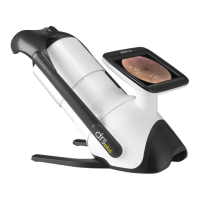
If a backup of the same unit is found in the external device, the operator is warned of the number
of exams and patients that would be lost by executing a new backup. You can cancel the operation
by pressing the Cancel button (see Figure 48) and afterwards connect another external device and
launch the backup operation again.
Figure 47 – System tab in Settings (>> BACKUP) when an existing backup file is found on external drive
To restore data from an existing backup, press the Restore Data button (see Figure 46). A wizard
will let you choose between a full restore (existing data are replaced with the ones contained in the
backup) or a fusion of the data (imported data are merged with that present in the DRS). The
restore function has a “same patient” recognition and in case of ambiguity the wizard asks for
confirmation on handling duplicate patients.


 To Next Page