3-10 Christie ACT User Manual
020-100129-05 Rev. 1 (02-2010)
Section 3: Operation
3.6.2 The Editor Tab
The Editor tab provides four sub tabs (My Devices, Script, Library, and Operator Buttons) for developing
the functionality to automate the device(s) that are connected to Christie ACT. The Editor: My Devices sub tab
enables you to create unique devices to be used in scripts. The Editor: Script tab enables you to manage and
configure scripts. The Editor: Library tab allows you to define your own library item. The Editor: Operator
Buttons tab is where you manage and configure the operator button(s).
Editor: My Devices Tab
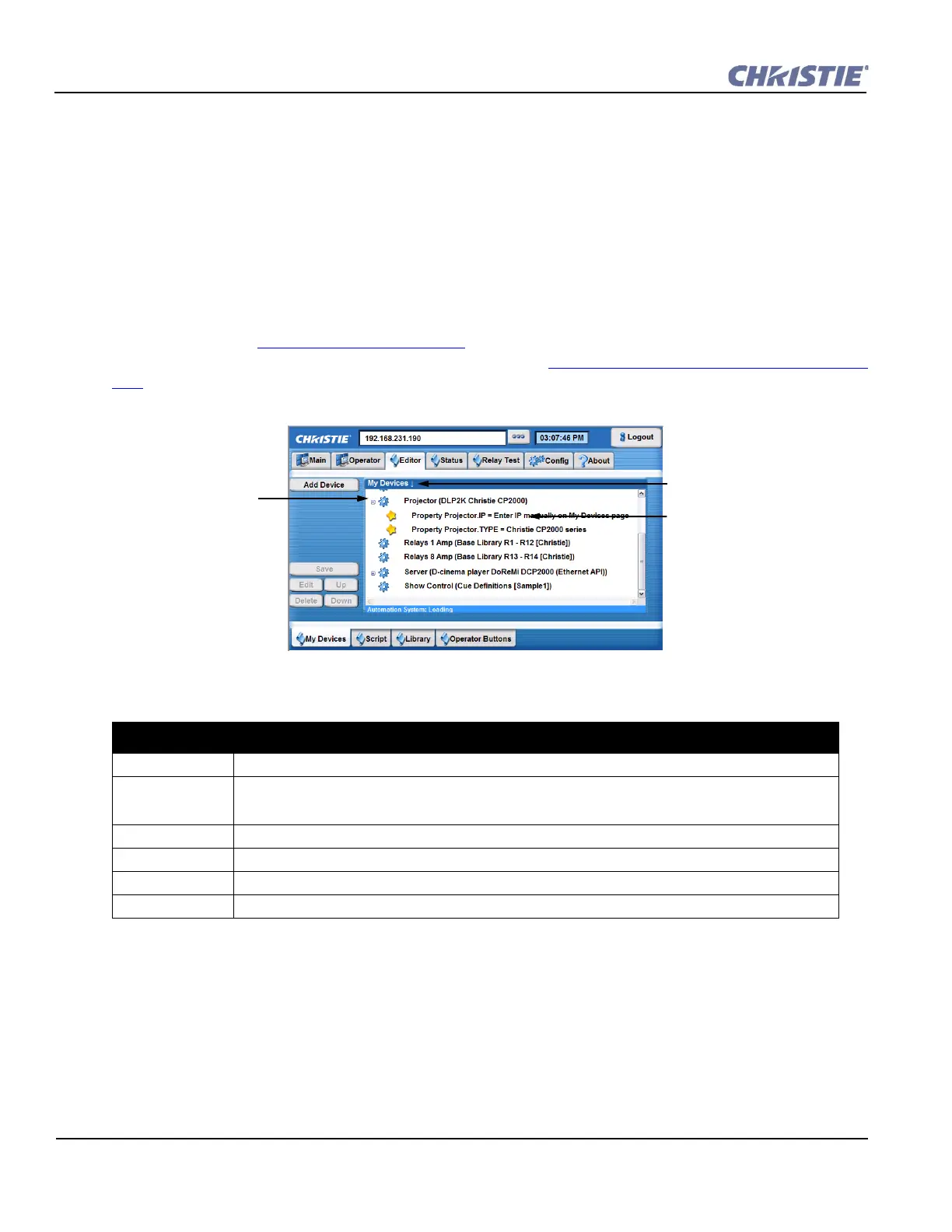
The Editor: My Devices tab provides the ability to manage devices that interact with Christie ACT. You can
select predefined devices, projectors, audio, lighting systems, etc. that are in your auditorium environment. To
add a device, refer to Section 3.9.8 Editing a Device
. NOTE: GPO will not appear in the drop-down list unless
it is configured using the Config: Communication tab. Refer to Section Config: Communication Tab, on page
3-17. Device types are built in the Editor: Library tab.
Table 3.2 Summary of the Editor: My Devices Tab
NOTE: The Save, Edit, Delete, Up, and Down buttons are available in the My Devices, Script, and Operator
Buttons tabs.
EDITOR: MY DEVICES TAB OPTIONS
Add Device Click to add an additional device.
Save Saves additions and changes made to the devices. NOTE: You must save prior to logout to save any
changes. Leaving the Editor: My Devices tab without saving will open a dialogue prompting you to save
or revert changes.
Edit Edits the contents of a cue or action. Highlight a cue or action from the cue list and click Edit.
Delete Deletes a device. Select a device from the My Devices window and click Delete.
Up Moves the action up in the scenario. Select action in the list and click Up.
Down Moves the action down in the scenario. Select action in the list and click Down.
Expand to view the drop-
down menu of actions within
the script.
Highlight the device, script
or action to edit it.
Figure 3-11 Editor: My Devices Tab
Click to alphabetically sort the
list forward or backward.


 To Next Page