3-12 Christie ACT User Manual
020-100129-05 Rev. 1 (02-2010)
Section 3: Operation
Editor: Library Tab
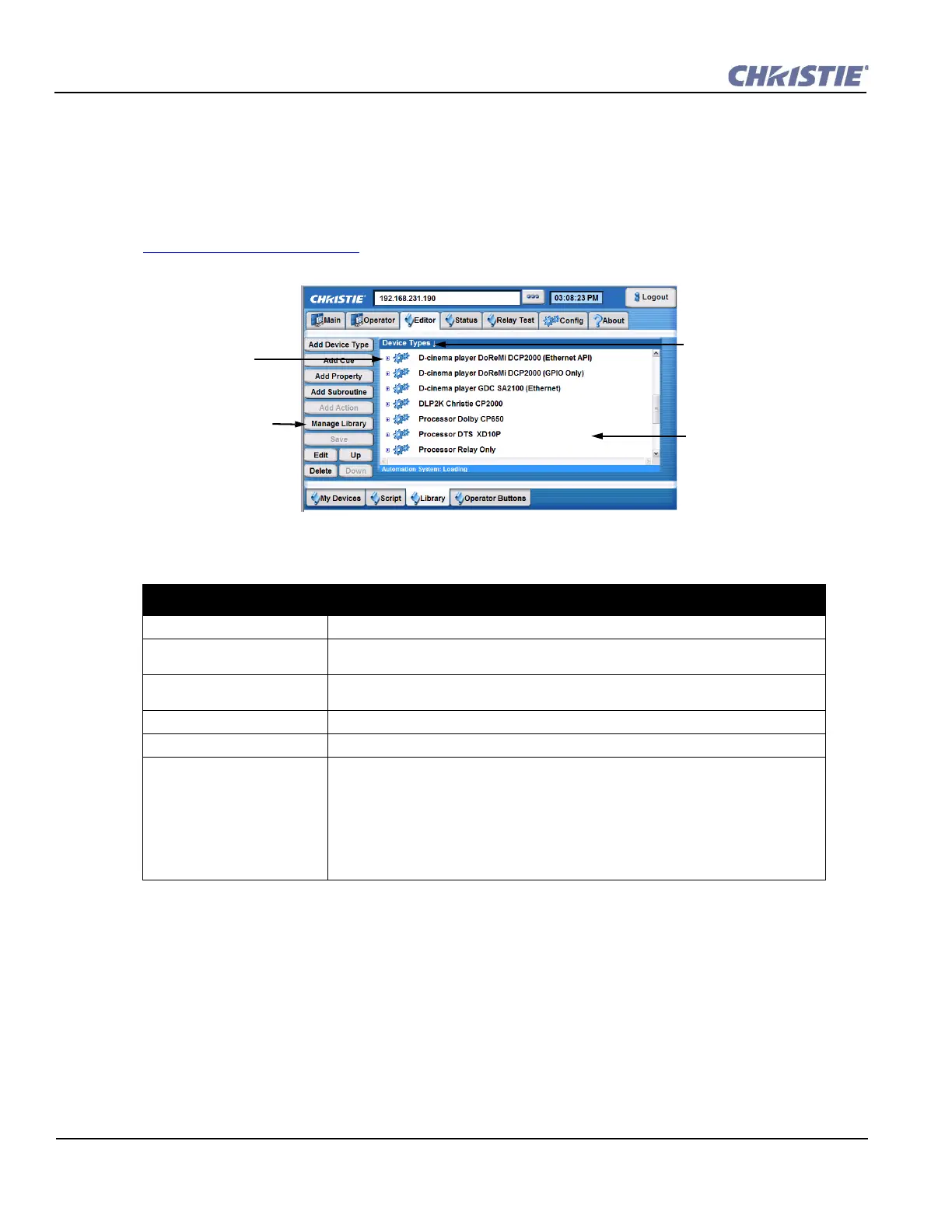
The Editor: Library tab provides access to library definitions that are pre-configured. If a device
requires specific configuration that is not provided as a part of the default set, you can define your own
and add it to the library. When a library item is selected, a drop-down menu is displayed with the
library item properties, cue(s) and subroutine(s). For more information on creating a library, refer to
Section 3.9 Using Christie ACT
.
Table 3.4 Summary Editor: Script Tab Options
EDITOR: LIBRARY TAB OPTIONS
Add Device Type Adds a library device.
Add Cue Adds a cue to the current library. Click to open a drop-down list prompting you to
define a cue.
Add Property Adds a new property. A device property is an attribute of a device type. For example,
the “cp2000” device type will contain a [device].IP property.
Add Subroutine Adds a new subroutine.
Add Action Adds a new action to a subroutine.
Manage Library This offers features to manage your library. The Manage Library window appears.
• Append Library - allows you to append a device library to the entire library
of devices.
• Export Entire Library - allows you to export the entire library.
• Export Selected Device Type - allows you to export a single device type.
Highlight the library device you want to export.
Figure 3-13 Editor: Library Tab
Pre-configured
scripts created by
Christie.
Highlight the specific
Library Item to open
the Add Cue, Add
Property, Add Sub-
routine, Add Action,
Edit, and Delete
buttons.
Select to expand the
device details.
Allows you to append the
library, as well as export
the entire library or just a
selected device type.


 To Next Page