3-16 Christie ACT User Manual
020-100129-05 Rev. 1 (02-2010)
Section 3: Operation
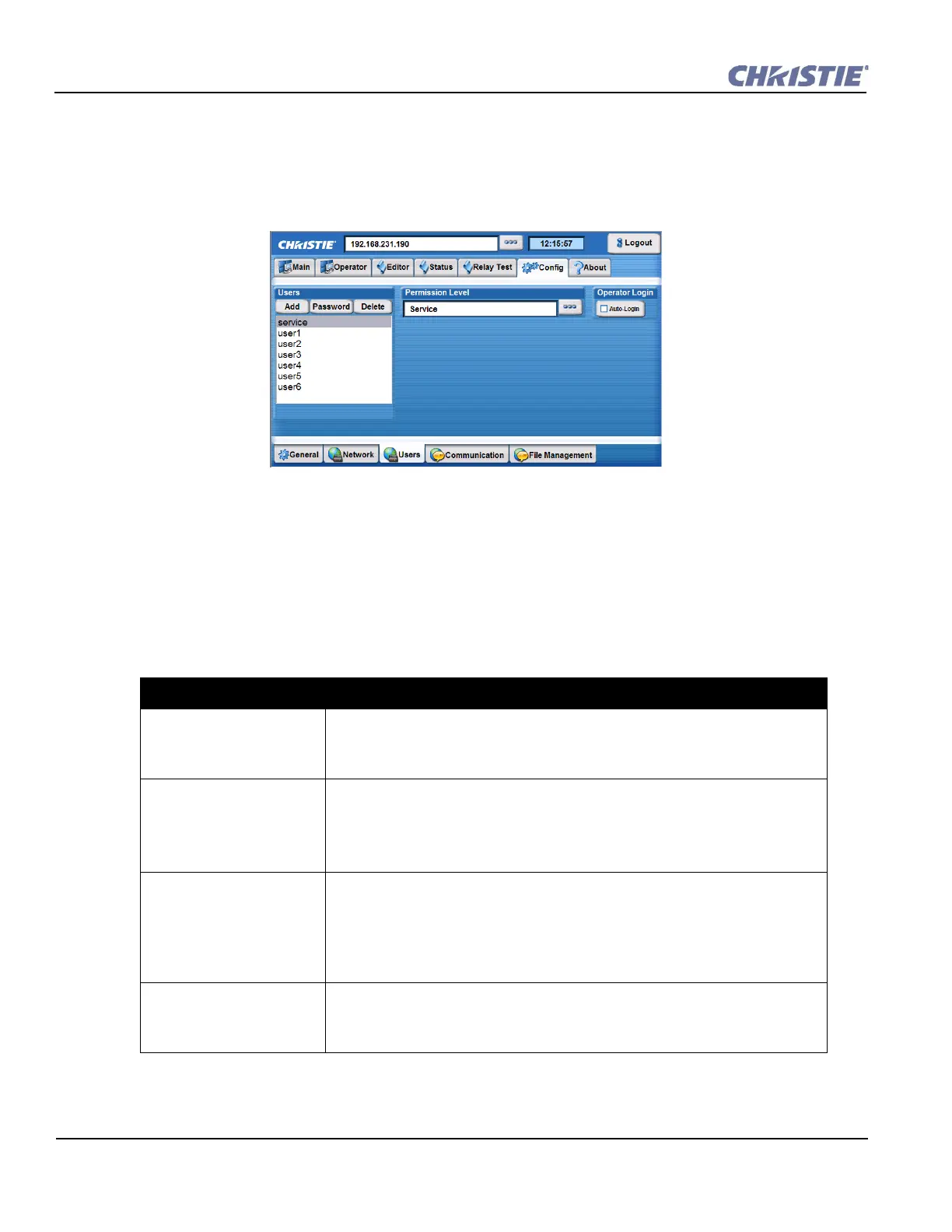
Config: Users Tab
The Config: Users tab provides options for the management of users, passwords and user access
rights. Depending on your login level, you can manage users having the same or fewer access rights
than yourself.
To configure settings for users that will have access to Christie ACT, refer to Table 3. 7 for
options and instructions. NOTES: 1) Do not use capitalization for usernames or passwords. If
Capitalization is used for the username or password, Christie ACT will automatically convert it to
lower case. 2) Usernames can be a minimum of 4 and maximum of 32 characters. Passwords can be a
minimum of 4 and maximum of 128 Characters.
Table 3.7 Configuring Users
Task Procedure
Add a user and password 1. Click the Add button to open the Add User window.
2. Type the user name and password.
3. Click OK.
Edit a password 1. Select a user from the Users list.
2. Click the Password button to open the Edit Password window.
3. Type the new password.
4. Click OK
Editing a user’s permission
level
1. Select a user from the Users list.
2. Click the Permission Level button to the right of the text region to open the
Permission Level window.
3. Select the permission level from the list.
4. Click OK.
Enabling and Disabling the
Auto-Login
1. Click Auto-Login to add a checkmark (enabled).
2. The Operator Login Verification window appears.
3. Type the Username and Password of the operator.
Figure 3-18 Config: Users Tab


 To Next Page