3-18 Christie ACT User Manual
020-100129-05 Rev. 1 (02-2010)
Section 3: Operation
Config: File Management Tab
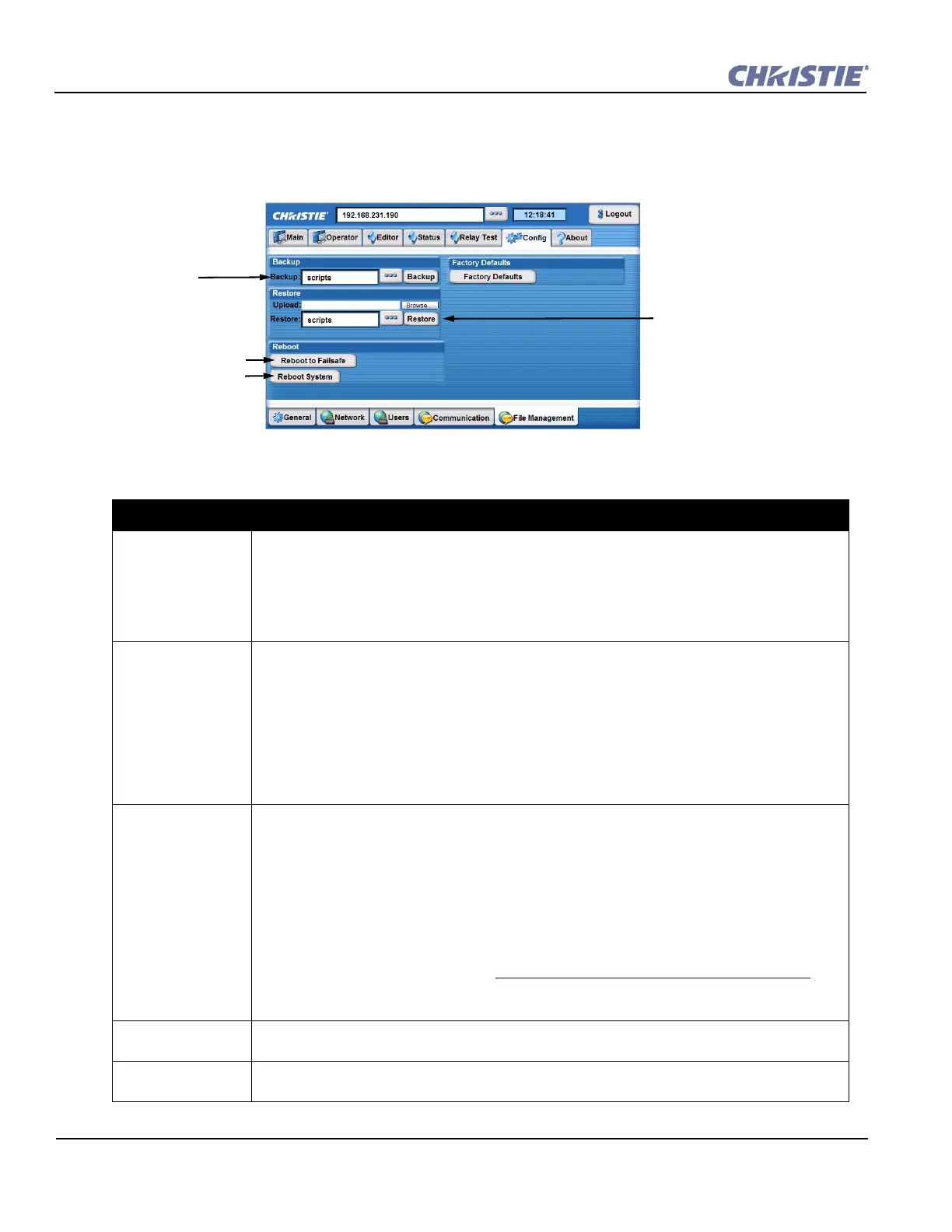
The Config: File Management tab allows you to backup and restore files, as well as reboot into fail-safe
mode.
Table 3.9 Summary of Config: File Management Tab
CONFIG: FILE MANAGEMENT OPTIONS
Backup Backing up your configuration files.
1. Click the button to open the Backup window.
2. Select an item to backup from the list.
3. Click Backup to create and save a backup .tar file for the selection. The file is automatically
assigned a name based on the selection.
Upload and Restore To restore you must have done a Backup to create the necessary files.
1. Click the Browse button to open the Windows Choose File window.
2. Navigate and select the files that were backed up on your network and click Open.
3. Click the Restore button to open the Restore window.
4. Select from the list what you are restoring (scripts, users, preferences, or config).
5. Click OK.
6. Click the Restore button.
Rebooting to Failsafe This reboots Christie ACT into a Failsafe mode which is the first step required when conducting a
software upgrade. The Upgrade/Versioning window appears.
The Upgrade tab offers 3 buttons which are used during the upgrade process.
• Refresh - once in Failsafe mode, the Refresh button reloads the Upgrade Packages list. After
you ftp a file to Christie ACT, click Refresh to view the file in the list.
• Upgrade -Upgrades the selected file.
• Reboot - Reboot Christie ACT.
To complete the upgrade process, refer to
Section 3.8 Upgrading Christie ACT Software.
The Versi onin g tab displays the software currently installed on Christie ACT.
Reboot System This will re-load / re-initialize the system as if it had just been powered on and booted up. This will also
execute the OnDeviceStartup event when boot-up is complete.
Factory Defaults Click to restore factory defaults for Christie ACT’s scripts and users. Click the appropriate radio button
to revert to Default Scripts or Default Users. NOTE: You can make only one reset option at a time.
Create a backup file for
specific settings, such as
user, configuration, and
preferences.
Retrieve backup files that
were saved on a local net-
work (PC) or restore
previously saved settings
using the restore button.
Places ACT in Fail-safe
mode. This is required
during software
Reboot will reload and
re-initialize the system.
Figure 3-20 Config: File Management Tab


 To Next Page