Introduction and Setup
13
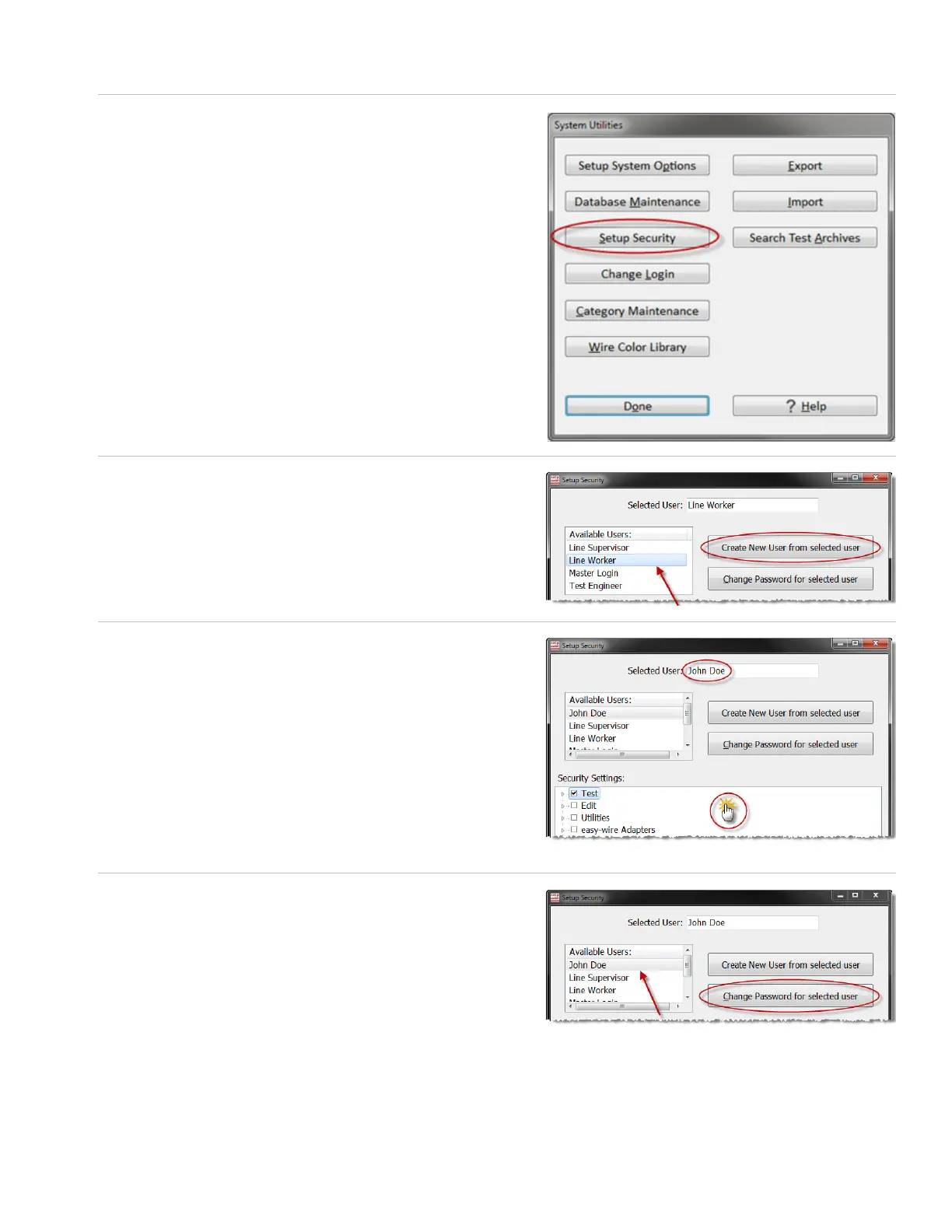
2. Press ‘Setup Security.’
3. If you want to change the password for an existing user, select
the desired user, press ‘Change Password,’ and skip to step 6.
If you want to create a new user, select an existing prole
from the “Available Users” list, and press ‘Create New User from
selected user’ as shown (the name will appear as the prole
name followed by the word “copy”).
4. Rename the user in the “Selected User” text box, then press
anywhere in the white space of the “Security Settings” box to
save the name.
Note: To delete a user, right-click on the user login and click
‘Delete.’
5. Select the user name, and press ‘Change Password for selected
user.’ If you are creating a password for the Master Login, you
would highlight “Master Login.”



 To Next Page