12
Cirris® Easy-Touch™ Pro User Manual
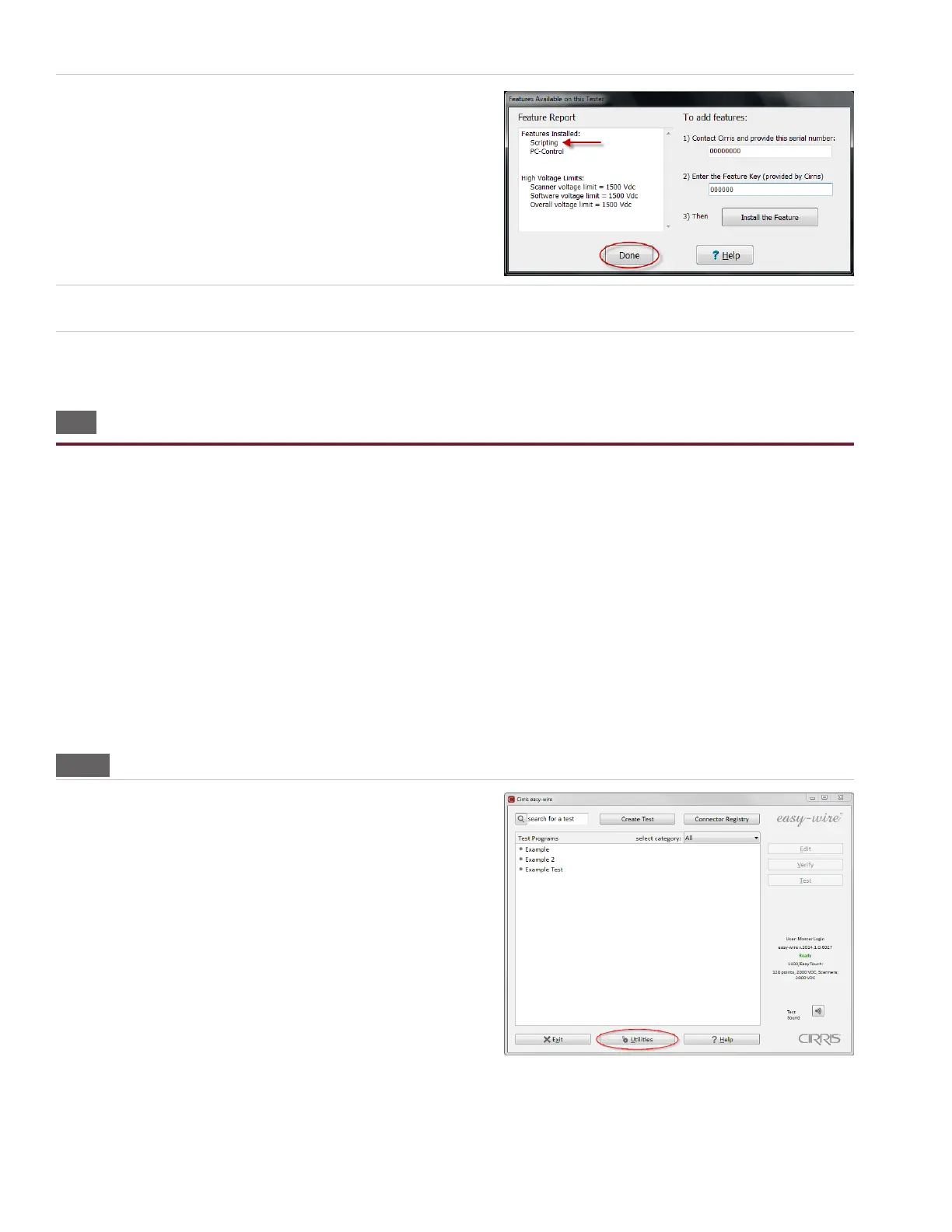
5. After you press ‘Install the Feature,’ the feature will display
under “Features Installed” on the left side of the window. After
you install a feature, you must activate the feature in your test
program(s). For more information, press ‘Help.’ Otherwise, press
‘Done.’
6. Press ‘OK.’
7. Press ‘Done’ to return to the main menu.
1.11 Setting Up Security
You can set up two dierent types of security in the Easy-Touch Pro tester:
● Windows System Security: This restricts access to the Windows 7 administrative account in your Easy-Touch Pro tes-
ter. If security is important to your environment, you can change the password that allows access into this account.
For more information, see the “I.T. Administration Addendum.”
● Easy-Wire Software Security: This allows you to restrict operator access to the Easy-Wire software via user login and
password control. If each operator on your production oor has a unique user login and password, you can track col-
lected test data down to the individual operator. User logins that do not have passwords can be accessed by any of
your Easy-Touch Pro operators. The Easy-Wire software ships with four pre-dened users: Master Login, Test Engineer,
Line Supervisor, and Line Worker. Each user has pre-dened security restrictions. You can create passwords for the
existing users and create new user logins and passwords. You can change the security settings for a pre-dened user;
however, the “Master Login” user’s security settings cannot be changed. For lost passwords, call Cirris for assistance.
1.11.1 Setting Up Easy-Wire Software Security
1. From the Easy-Wire main menu, press ‘Utilities.’



 To Next Page