26
Cirris® Easy-Touch™ Pro User Manual
Note: If your adapter part numbers are not in the list, press ‘Cancel’until the Easy-Wire main menu opens. Press ‘Connector
Type Library’ and open the “User Signature Adapters” tab. Create/import your adapter(s), close the Connector Type
Library, and repeat steps 4-7 found under the previous sub-heading “Creating Default Adapters.”
3.3 Verifying/Editing the Test Program
When the learn is complete, the Test Program Editor will open at the “Dene Instructions” tab (tab 3) where you can verify or
edit your test program.
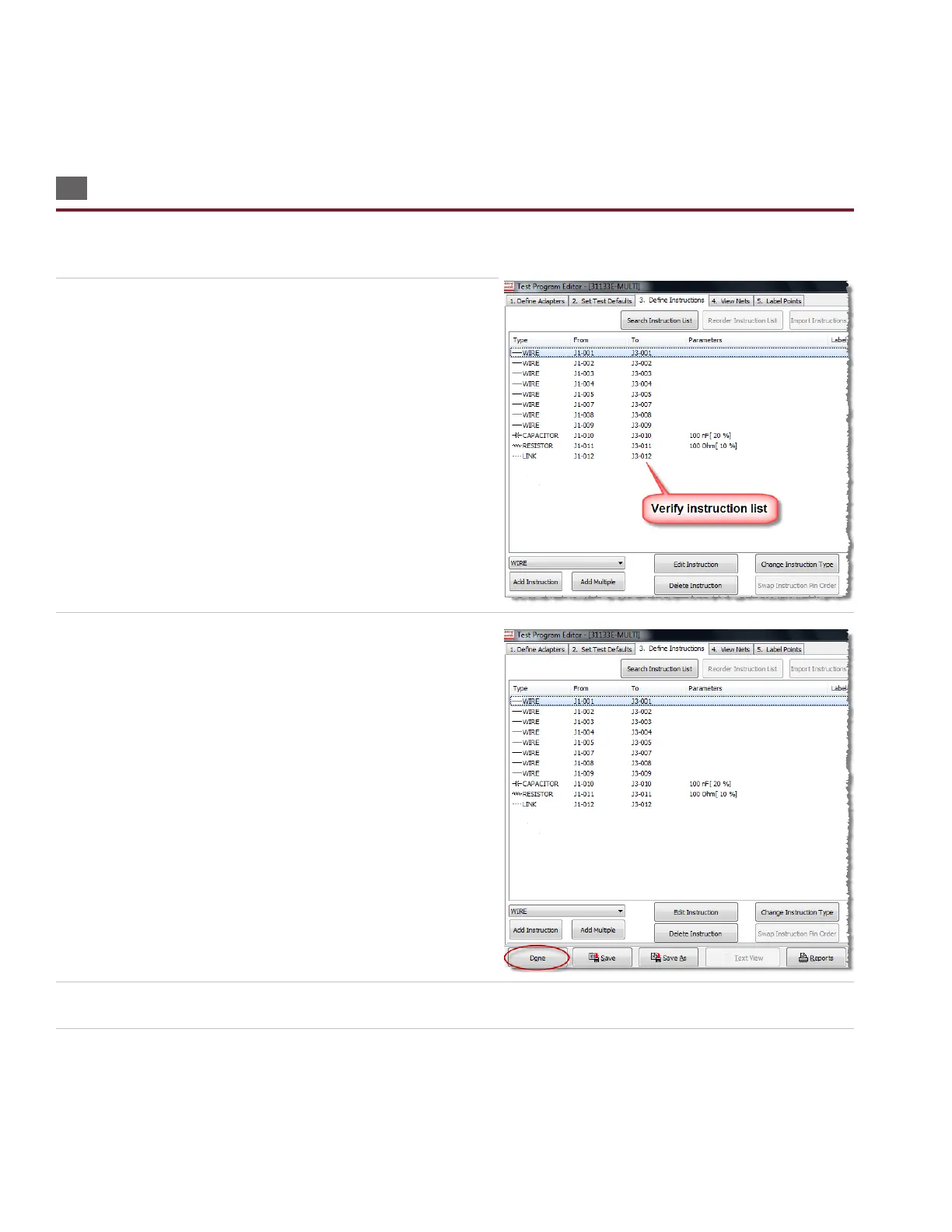
1. The “Dene Instructions” tab contains the instruction list
showing each connection and corresponding “From” and “To”
points. Verify that your instruction list is correct for the learned
cable. If necessary, you can add, delete, and edit instructions, or
change instruction types.
Note: You can open the “Set Test Defaults” tab (tab 2) to change
your test methods/parameters and set up test reports. The “View
Nets” tab (tab 4) displays the instruction list in a “net list” format.
The “Label Points” tab (tab 5) allows you to create custom test-
point labels. For more information on any of these tabs, press the
‘Help’ button at the bottom of the “Test Program Editor” window.
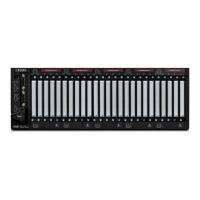
2. When you have veried/edited your test program, press ‘Done.’
3. Select “Yes, save changes...” then press ‘OK.’
4. The default test program name is the Signature of the learned cable. You can save the test program under this name, or
enter your own test program name. When nished, press ‘OK.’



 To Next Page