14
Cirris® Easy-Touch™ Pro User Manual
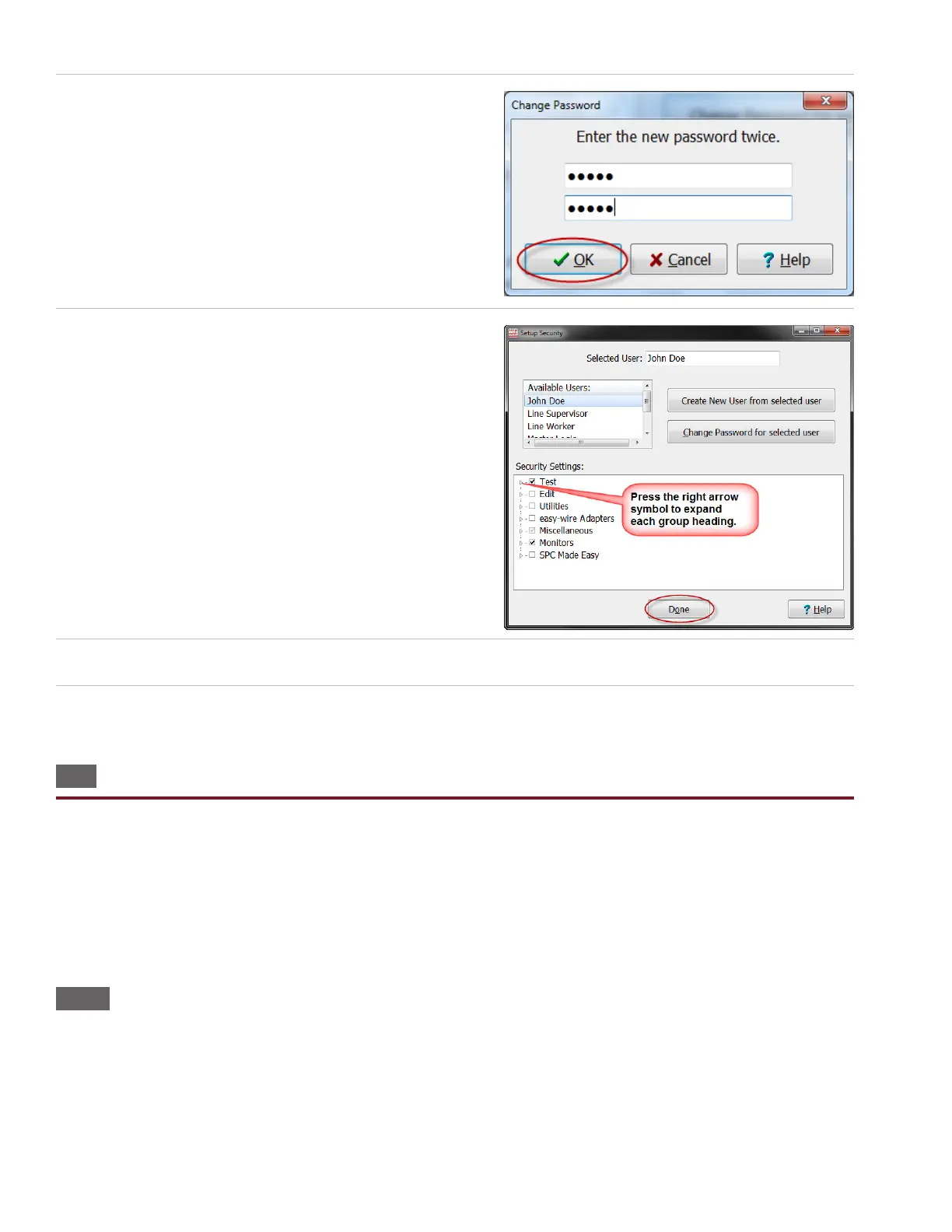
6. Enter the same password into each text box and press ‘OK.’
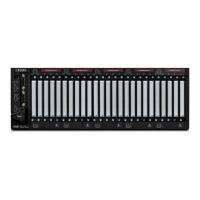
7. If desired, you can now customize the security settings of the
user in the “Security Settings” section. Check the boxes to turn
the settings on or o, and then press ‘Done.’
8. Press ‘Yes’ to save the changes.
9. Press ‘Done’ to return to the main menu.
1.12 Printing from the Easy-Touch Pro Tester
You can print from stand-alone Easy-Touch Pro testers or from a network. For stand-alone testers, printers should be added
in the Windows shell of the “Cirris” administrative user. See “Adding a Printer” below. If you have more than one printer, you
may need to select the desired printer each time you print. If the printer you most commonly print to does not display rst
in the list of printers on the print screen, you should change the default printer. See “Selecting a Default Printer for the ‘Easy-
Touch Pro’ User” in the “I.T. Administration Addendum” on page 7. For further information on network printing, see the “I.T.
Administration Addendum” on page 8.
1.12.1 Adding a Printer
1. Log into the “Cirris” administrative user account:
2. Attach a USB keyboard to the Easy-Touch Pro tester.
3. Press the power button for about two seconds to power on the tester.
4. The “User Login” window will display. Press Ctrl+Alt+Delete on the keyboard and choose the “Log O” option.



 To Next Page