Cirris Easy-Wire™ Software
25
3.2 Learning a Sample Cable
You can create a test program in Easy-Wire by “learning” a sample cable. For instructions on how to manually create a signa-
ture test program, see the Easy-Wire help system.
1. If the Easy-Touch Pro tester is o, press the power button for about two seconds to power on the tester and log in to
Easy-Wire.
2. Install the adapters that mate to the sample cable.
3. Attach the sample cable to the tester.
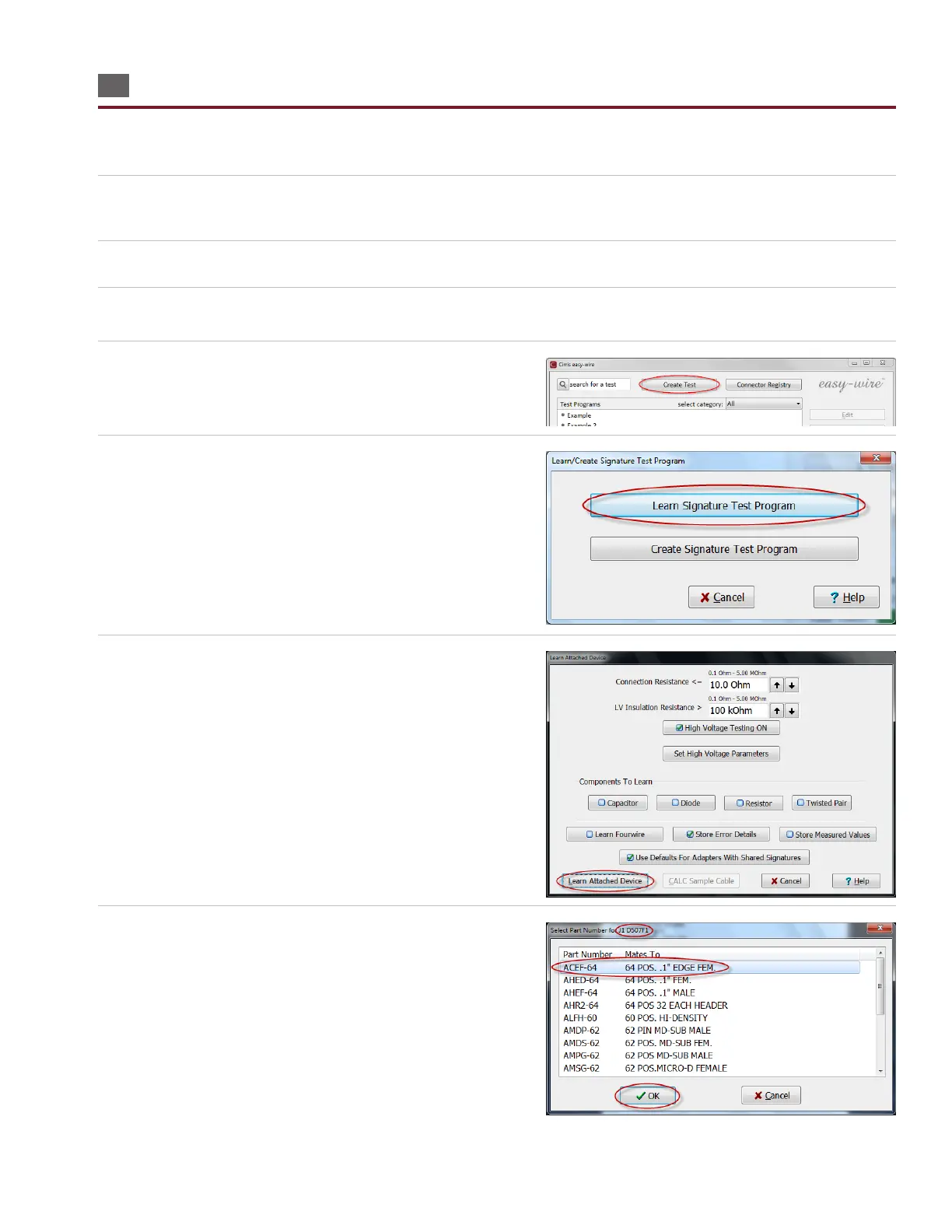
4. From the Easy-Wire main menu, press ‘Learn/Create Test
Program.’
5. Press ‘Learn Signature Test Program.’
6. In the “Learn Attached Device” window, you can set test
parameters, turn hipot testing on, and select components.
When done, press ‘Learn Attached Device.’
Note: In this window, “Use Defaults For Adapters With Shared
Signatures” is selected by default. This allows you to skip the next
step if your adapter type is set as a default adapter.
7. If you are not prompted to select a part number, the tester
will learn the sample cable. Skip to “Verifying/Editing the Test
Program” on the next page.
If you are prompted to select a part number, select the part
number of the attached adapter from the adapter part number
list and press ‘OK.’ If multiple adapters are attached to the
tester, you may be prompted to select each part number in the
subsequent adapter positions. After your adapters have been
selected, the tester will learn the sample cable.



 To Next Page