ESIGNO_SYSTEM_USER_MANUAL_101.DOCX 41/71
C
CC
CATEGORY
ATEGORY ATEGORY
ATEGORY M
MM
MANAGER
ANAGERANAGER
ANAGER
M
MM
MENU
ENU ENU
ENU
(
((
(2
22
2)
))
)
TIP
TIPTIP
TIP
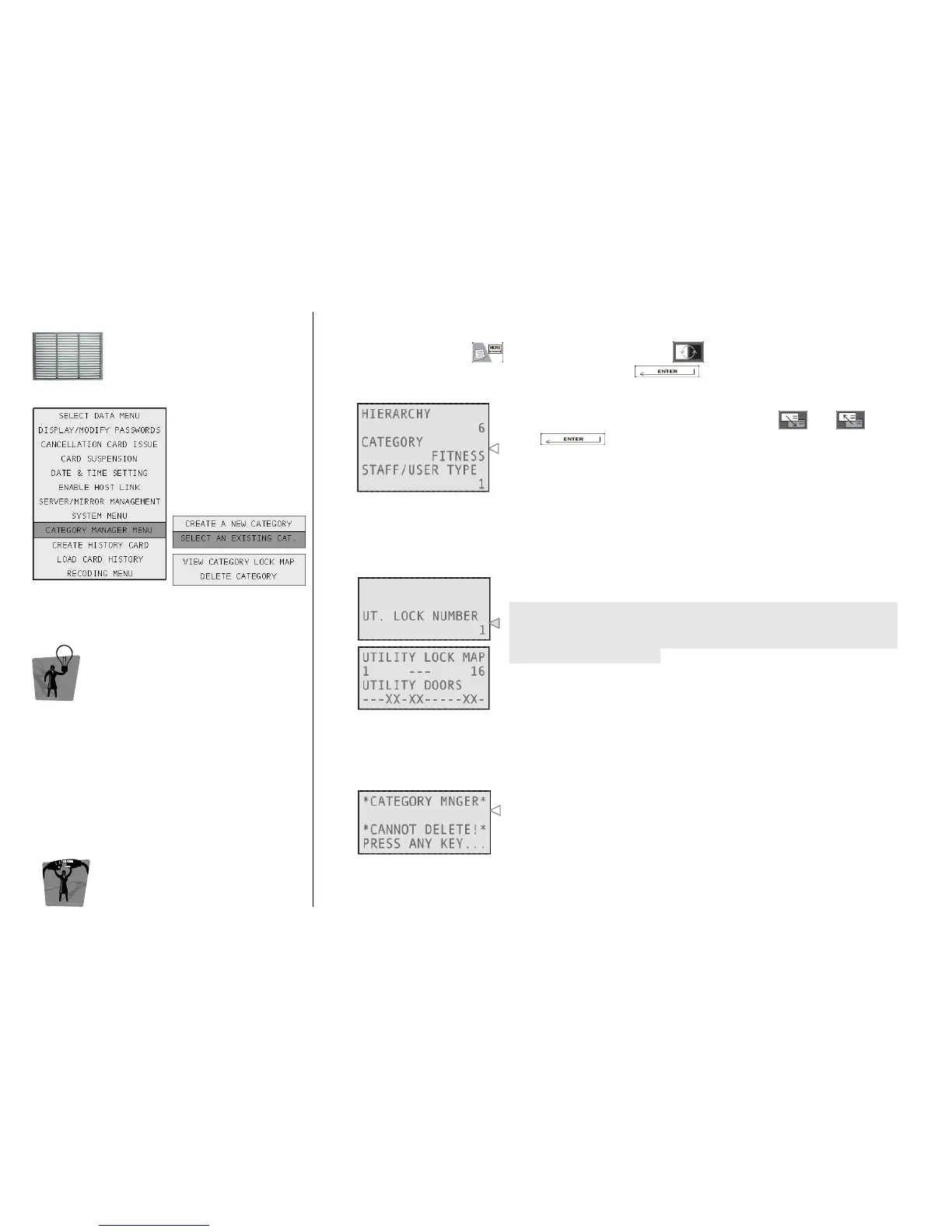
From this menu it is possible to choose an
existing category and delete it, print it or view its
utility lock map.
E
EE
ENCODER
NCODER NCODER
NCODER M
MM
MODE
ODE ODE
ODE
M
MM
MENU
ENUENU
ENU
SELECT AN EXISTING CATEGORY
SELECT AN EXISTING CATEGORYSELECT AN EXISTING CATEGORY
SELECT AN EXISTING CATEGORY
To access this menu, press , navigate into the menu with and select Category Manager
Menu and then Select an Existing Category by pressing .
1
11
1
Select the category you want to manage, using and , then
press .
Now choose one of the following functions: View Category Lock
Map or Delete Category.
VIEW
VIEW VIEW
VIEW CATEGORY
CATEGORY CATEGORY
CATEGORY LOCK MAP
LOCK MAPLOCK MAP
LOCK MAP
The system shows the utility pattern of the selected category. This pattern cannot be edited after
creation.
2a
2a2a
2a
Type here the number of the utility you want to see, considering that
the system will visualize utilities in groups of 16 (e.g. typing a random
number between 1 and 16, you can see all the first 16 utilities, then
17 - 32, 33 - 48 and so on).
DELETE CATEGORY
DELETE CATEGORYDELETE CATEGORY
DELETE CATEGORY
The system cancels the selected category.
2b
2b2b
2b
This function can be used only:
• if no active card is using the selected category;
• if the category has not been defined as default category for guest
or staff cards.
Otherwise, this message will be prompted.


 To Next Page