To activate Plug-in Demo mode, do the following steps:
1. Click the Demo Mode button at the bottom of the MANAGE
PLUG-INS dialog.
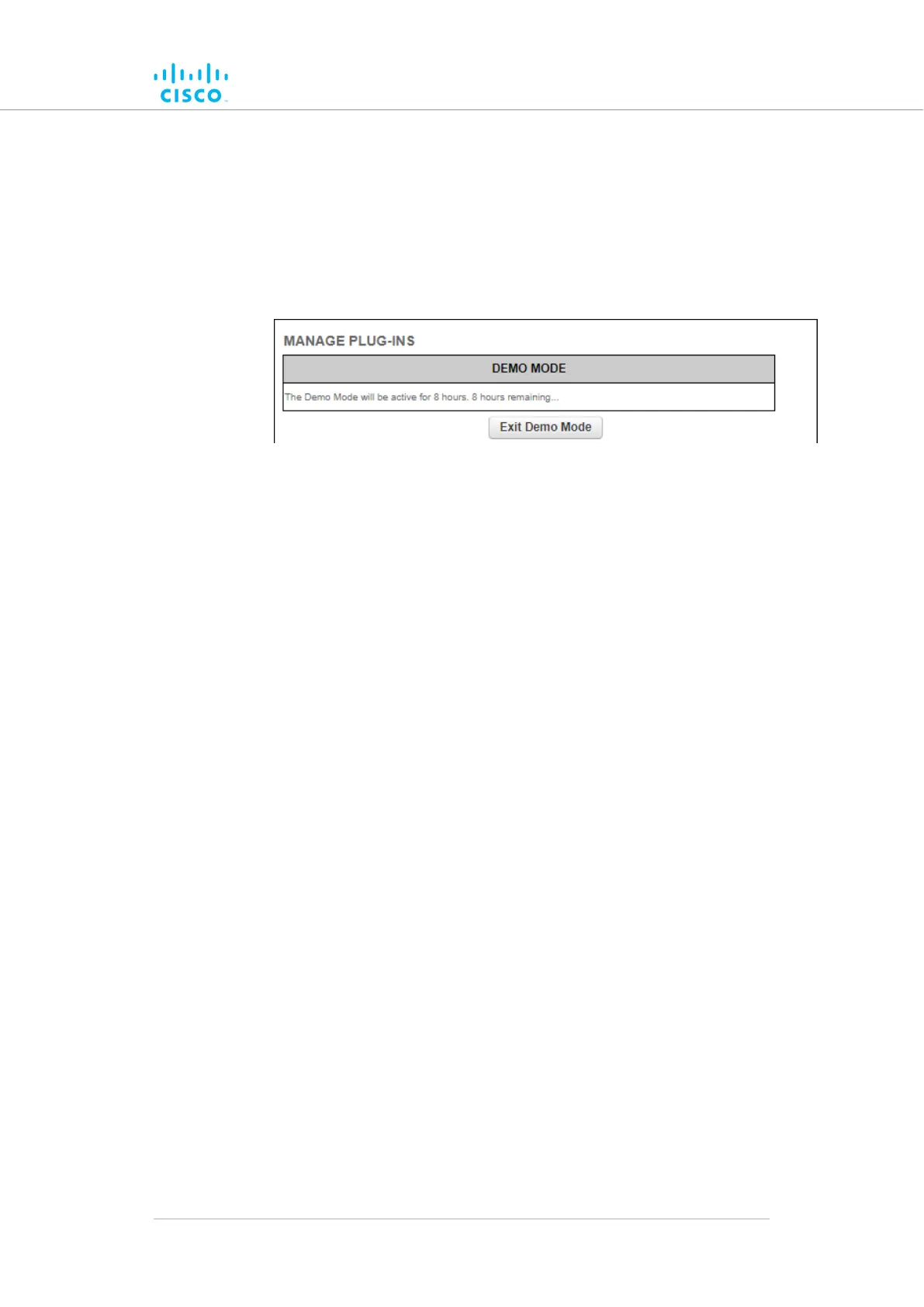
• The Demo Mode activation dialog will be shown (Figure 60
(page 149)). A countdown timer shows how much Demo
time remains.
Figure 60. MANAGE PLUG-INS dialog (Demo Mode
activated)
2. To leave Demo mode before expiry of the 8-hour trial period, click
the Exit Demo Mode button.
• Demo mode will be deactivated, and the unit will reboot.
3. If the 8-hour Demo mode limit is reached, the unit will reboot and
Demo mode will not be accessible again.
To upload one or more plug-in activation codes, refer to “Plug-in
management procedures” (page 161).
To assign a software plug-in on the Partner Portal to the unit, do the
following steps:
1. Enter the activation code for the plug-in in the Plug-in Activation
Code: field.
Click the2. Add button.
• The plug-in will be activated, and the plug-in functionality
can be used.
• A REMOVE link will be shown in red to the right of the
relevant plug-in description in the Plug-in List.
To deactivate an uploaded software plug-in for use with another
Cisco unit, refer to “Plug-in management procedures” (page 161).
To show and erase the plug-in installation log files, do the following steps:
1. Click the Show Logs button in the Plug-in Installation Logs:
section.
• The log files for plug-in installation will be shown in the
Plug-in Installation Logs: section.
2. If needed, erase the log files for plug-in installation by clicking the
Clear Logs button in the Plug-in Installation Logs: section.
Device configuration using the configurator interface
© 2021 Cisco and/or its affiliates. All rights reserved. Page 149 of 189


 To Next Page