How to view (search) Test Results
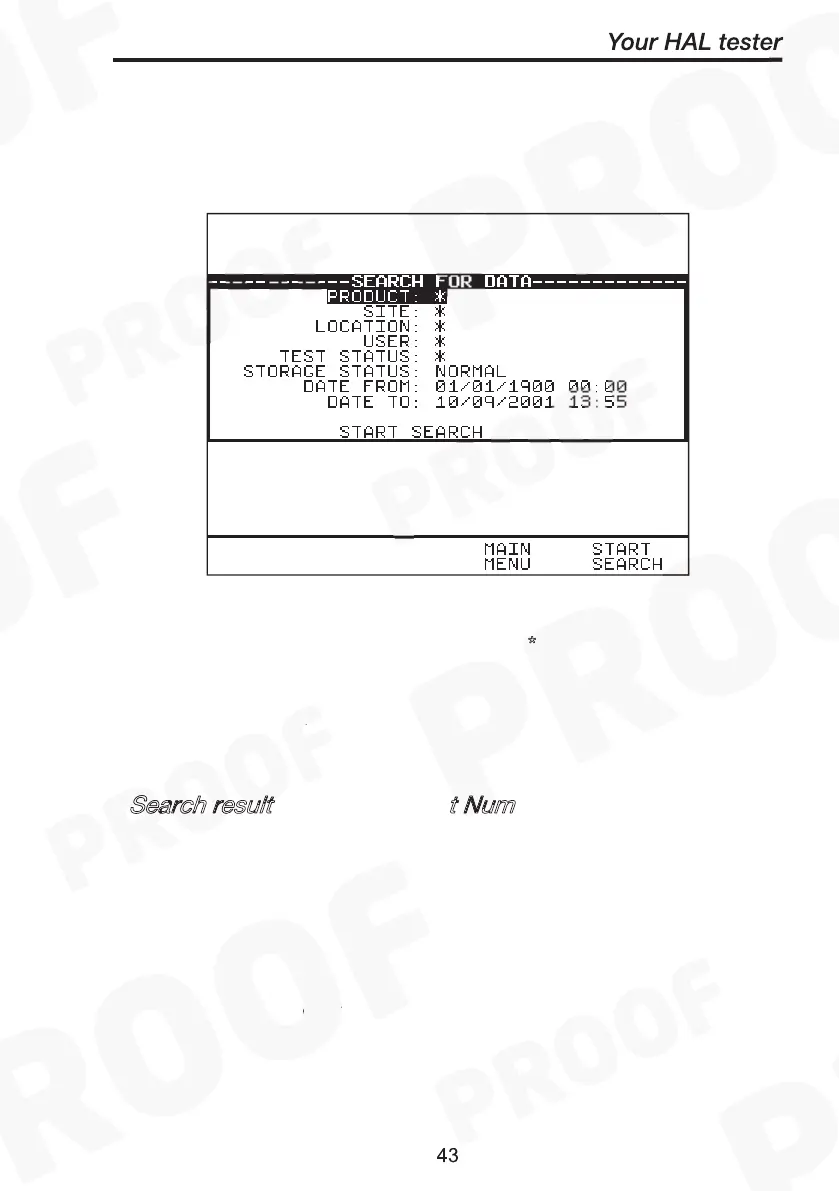
To view test results stored in memory, press View Data fast key or use
the encoder to highlight the View Test Results option on the Main Menu
and press Green to display the following Search menu: -
*
Search result through Product Number
*
Start Search
*
How to view (search) Test Results
Use the encoder to highlight the required search parameters and press
Green to select the desired search field. A ‘
* ’ denotes all product test
results related to the field parameter. To get
Quick
search pressing
Start Search now on the default screen without selecting any specifics
will display all results in the memory. Use Page Up/Down to see the full
list.
Search result
t
Num
Enter a
Product number
to search for the specific results. If the
Product number field is left blank then the character ‘
’ will be
inserted as default, indicating to search for all of the Products. Press
to begin. Alternatively use a Barcode scanner to enter a
specific product number for the search and press Start Search. A
search results will be displayed. A message No Records Found will be
shown when products number is incorrect or when other field’s data
could not be matched. If unsure use ‘
’ for the search.
How to view (search) Test Results
*
Search result through Product Number
*
Start Search
*


 To Next Page