H
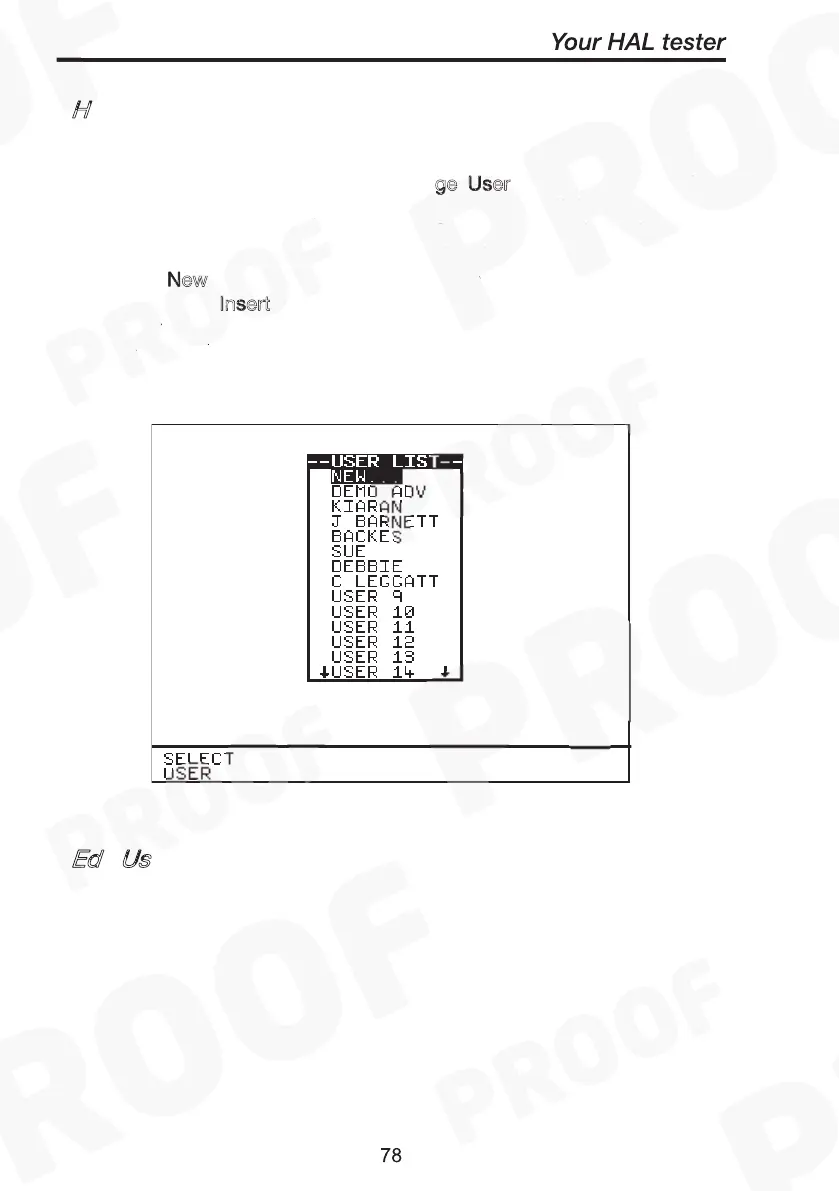
At the Main Menu screen select C
ge User and press Green (or
press C
fast key). Use the encoder to highlight a user name
and press S
fast key or press Green to select desired option.
Selected option will be automatically updated. For a user not found in
list, select N
ew from list and you will be prompted to enter name of the
new user. Press I
nsert to accept each data field entered and then press
green button to accept new User name. The total number of users
available in list is 20.
How to Change User Name
Change User
Change User
Select User
New
Insert
Ed
Us
To edit User name see sections on How to use Setup & Edit User list.
How to Change User Name
Change User
Change User
Select User
New
Insert
Edit User Name


 To Next Page