Chapter 6:Configuring your Wi-Fi network
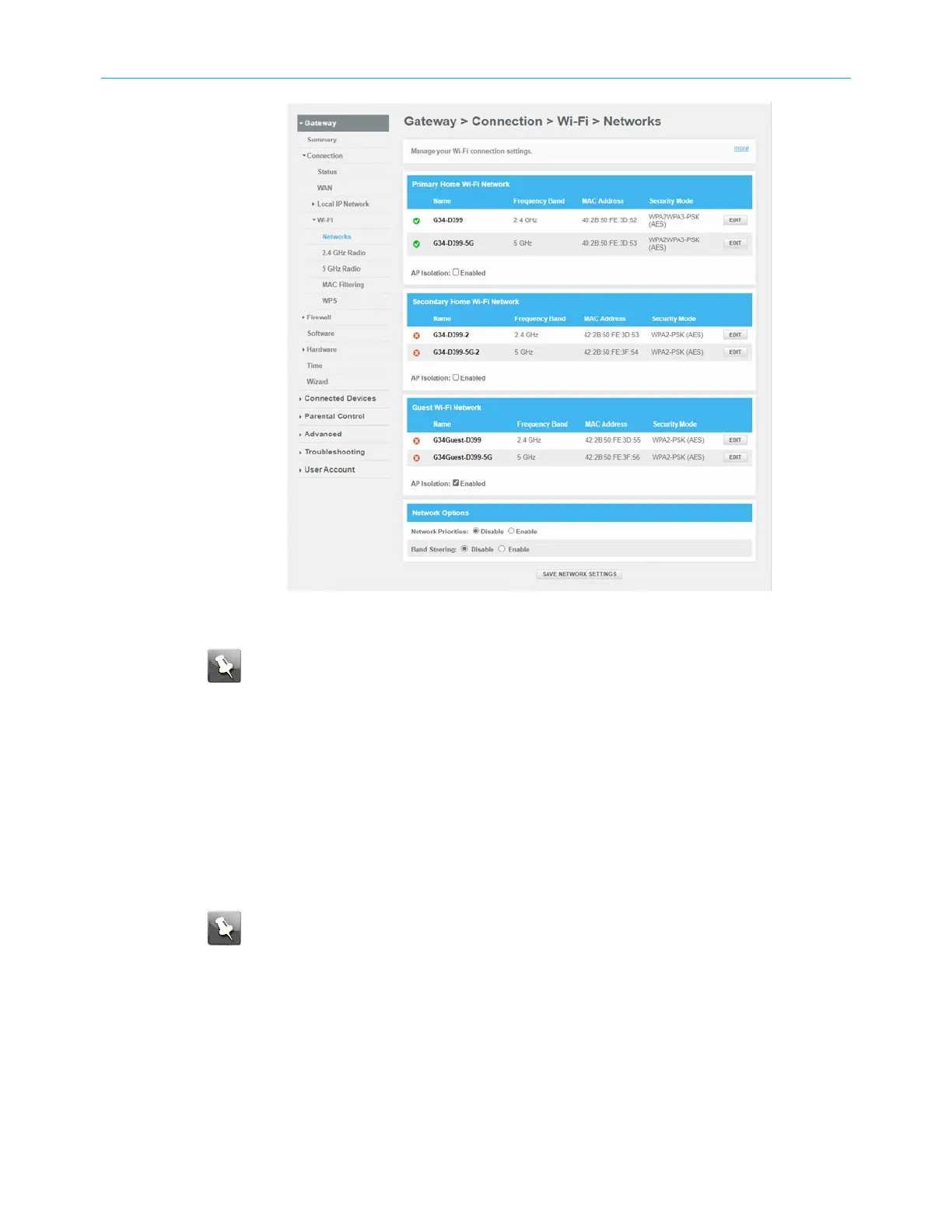
Figure 28: G34/G36 Wi-Fi connection screen (1 of 2)
Note: When AP Isolation is enabled, each of your Wi-Fi clients will be in its own
virtual network and will not be able to communicate with the other Wi-Fi clients.
This may be useful if several guests are using your Wi-Fi network.
15. To turn ON the 2.4 GHz
Wi‑Fi
frequency range for your Wi-Fi home network, click the
2.4 GHz Radio submenu and then click Enable button .
16. Select the wireless networking standard mode for your Wi-Fi home network from the
Mode drop-down list.
17. Select the Tx (Transmit) Power level of the Wi-Fi radio from the Tx Power drop-down
list.
18. Select a channel number (Auto, 1 through 11) from the Channel drop-down list to set
the communications channel for your Wi-Fi cable modem.
Note: For 2.4 GHz Wi-Fi networks, it is recommended to use Channel 1, 6,or 11,
if it is not listed as the Current Channel. In the Wi-Fi spectrum, there are multiple
channels that overlap and thus degrade Wi-Fi network performance. Channels 1,
6, and 11 are used for better network performance and stability because they do
not overlap.
19. Set the channel bandwidth for your Wi-Fi cable modem from the Channel Bandwidth
box.
20. To enable the dynanmic channel selection option, click Enable .
21. To set the DCS scan interval, you can choose from the DCS Scan Interval drop-down list.
SURFboard
®
G34/G36 DOCSIS
®
3.1 Wi-Fi
®
Cable Modem User Guide STANDARD Revision x.3 41



 To Next Page