Chapter 6:Configuring your Wi-Fi network
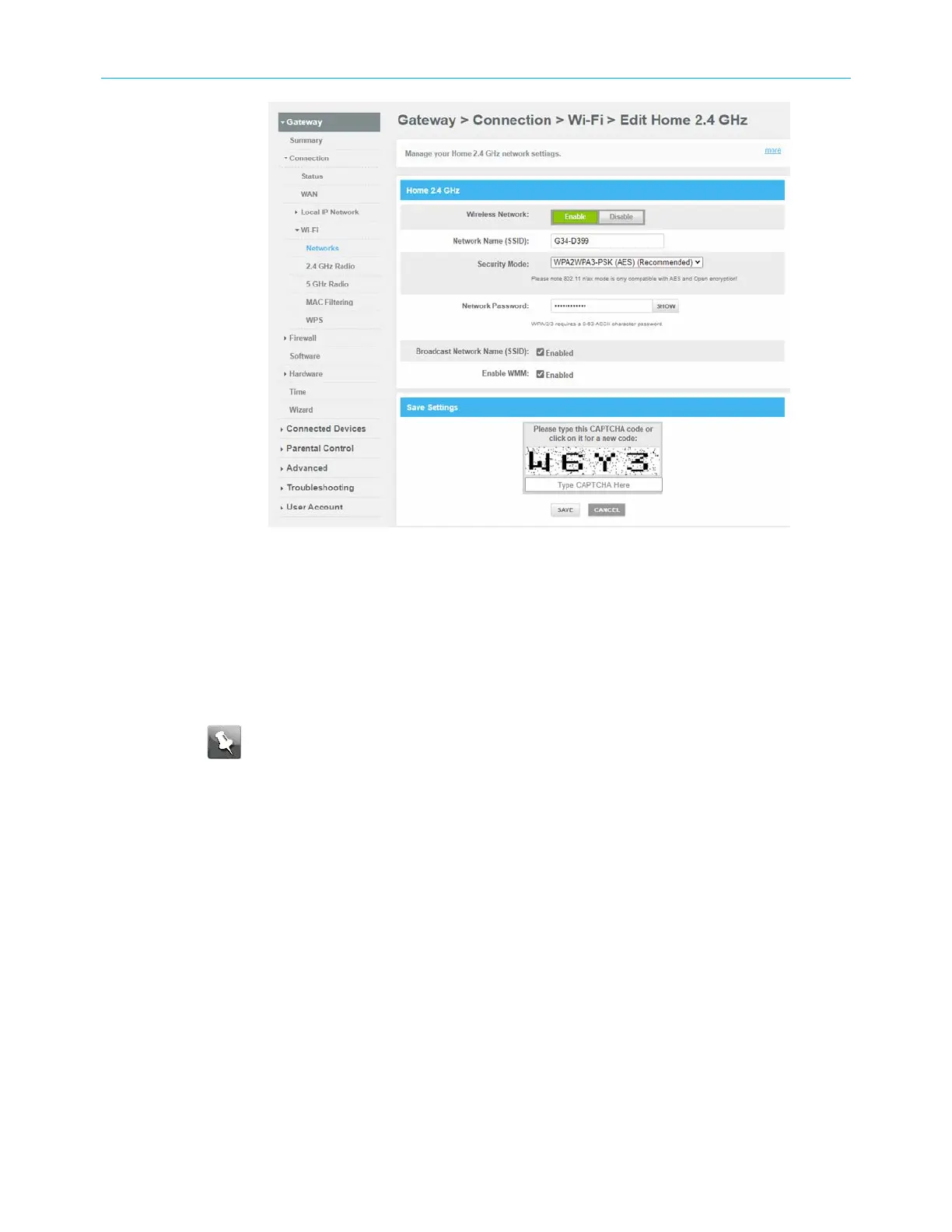
Figure 31: Sample G34/G36 Wi-Fi network setup screen
5. Ensure to select Enable in the Wireless Network field.
6. Enter a new network name in the Network Name (SSID) field.
The Wi-Fi network name cannot be the same name as any other SSID on your home
network. You can use any combination of lowercase and uppercase letters, numbers,
and/or special characters (symbols) up to a maximum of 32 characters.
7. Enter a new network password in the Network Password field if you want to change it.
Note: Remember that network passwords are case-sensitive and that you can
use any combination of uppercase and lowercase letters, and numbers. Special
characters and spaces are not acceptable.
8. Select the Show Network Password checkbox to view your network password.
9. Enter the four-digit CAPTCHA code located in the Type CAPTCHA Here entry box.
10. Click SAVE SETTINGS to update your new SSID.
Set up WPS on your Wi-Fi network
You can set up the Wi-Fi Protected Setup (WPS) PIN option on your G34/G36 to connect
WPS-enabled devices on your Wi-Fi home network.
1. Open a web browser and log on to the G34/G36 to open the G34/G36 Web Manager.
See Start the G34/G36 Web Manager (page33) for more information, if necessary.
2. Click the Gateway menu link and then click the Connection submenu options link.
3. Click Wi-Fi > WPS to open the Gateway Connection
Wi‑Fi
screen.
SURFboard
®
G34/G36 DOCSIS
®
3.1 Wi-Fi
®
Cable Modem User Guide STANDARD Revision x.3 44



 To Next Page