Chapter 7:Protecting & monitoring your Wi-Fi network
8. Enter the starting port number of the website or online application in the Start Port
field.
9. Enter the ending port number of the website or online application in the End Port field.
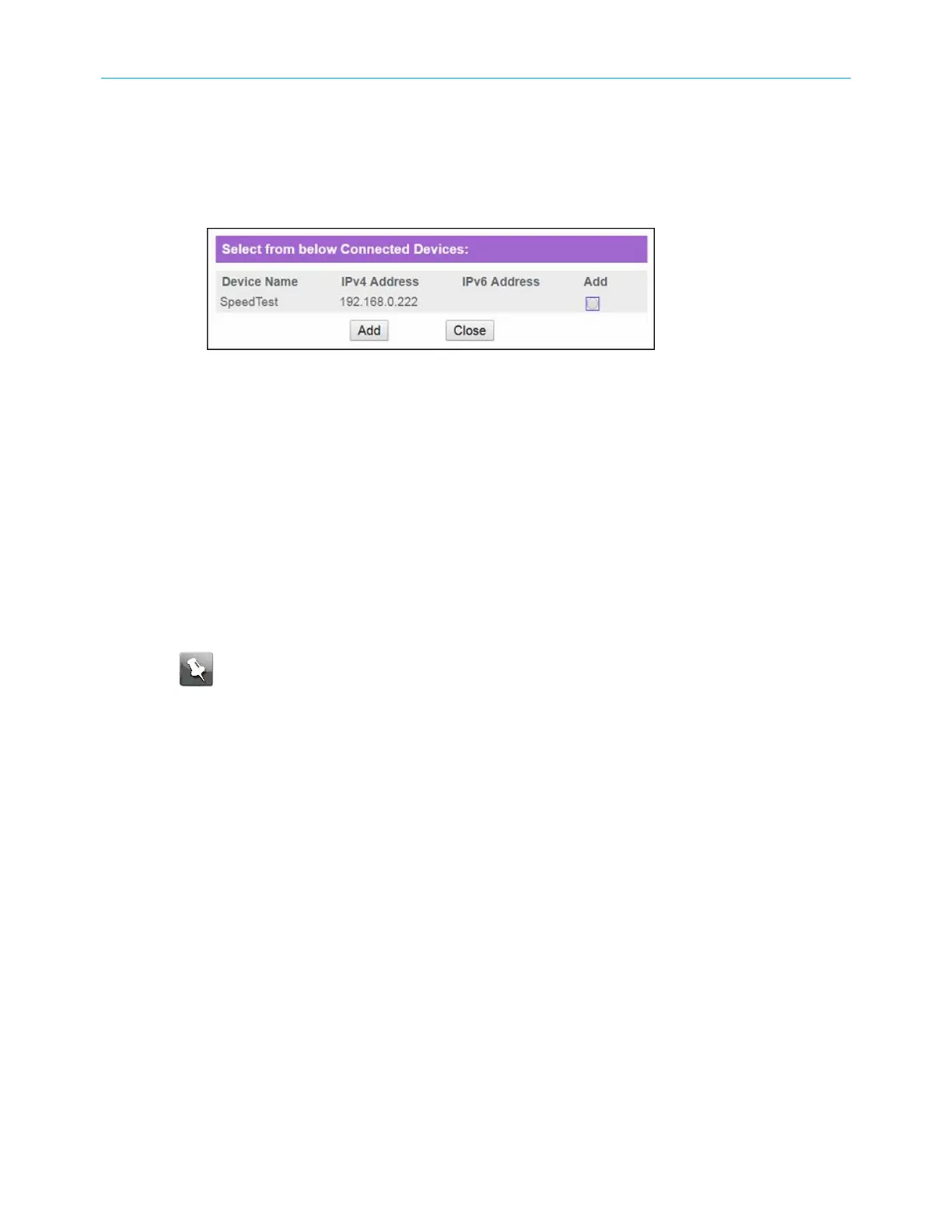
10. Click CONNECTED DEVICE button to display the list of connected devices on your Wi-Fi
home network.
Figure 48: G34/G36 Connected Devices screen
11. Select the Add selection box for the device or website you want to connect to.
12. Click Add to exit.
13. Click SAVE.
Set up Port Triggers
You can use Port Triggers to set up your G34/G36 to monitor outgoing traffic on specific
ports on your home network. Port Triggering can be useful for some applications such
as video conferencing, online chatting, and online gaming that may require specific port
numbers with bi-directional traffic to function properly.
Note: If the G34/G36 firewall is enabled and custom port triggers are set up, then
you must configure the firewall to allow traffic through those custom ports. See Set
up firewall protection (page48) for more information.
To configure Port Triggers:
1. From any G34/G36 Web Manager screen, click the Advanced menu link on the G34/G36
Web Manager screen.
2. Click Port Triggering from the Advanced submenu options list to display the Port
Triggering Configuration screen.
SURFboard
®
G34/G36 DOCSIS
®
3.1 Wi-Fi
®
Cable Modem User Guide STANDARD Revision x.3 56



 To Next Page