Chapter 8:Managing your Wi-Fi cable modem and connected networks
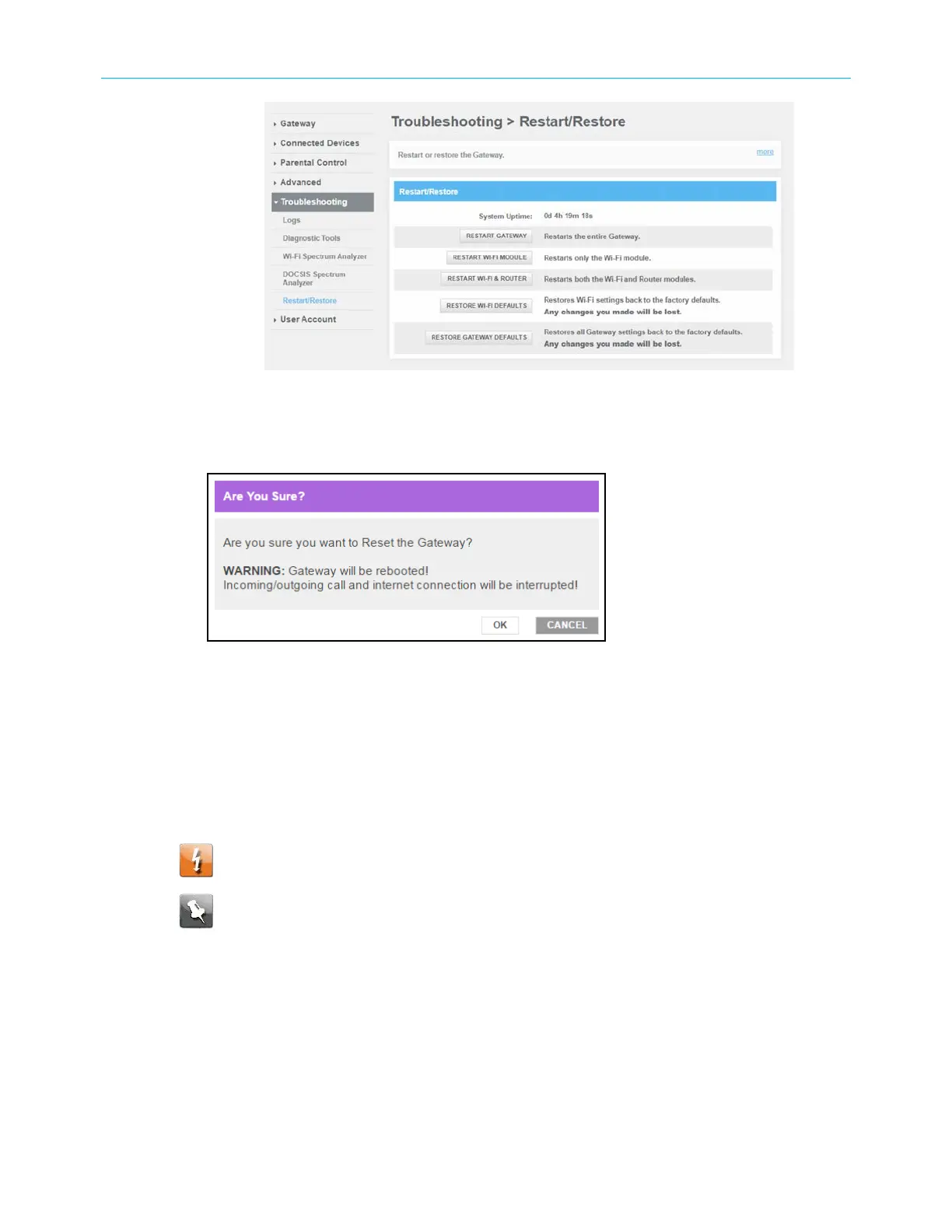
Figure 65: G34/G36 Restart/Restore settings screen
3. Click RESTART GATEWAY located in the Reset / Restore Gateway table.
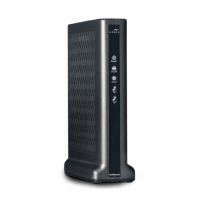
The following message will display:
Figure 66: Restart the Gateway message box
4. Click OK to reboot the G34/G36 and then log back in.
Restore the G34/G36 default configuration
settings
Warning: This action will delete your current G34/G36 configuration settings and
allow you to restore the default (original) G34/G36 configuration.
Note: After the configuration settings are restored, the G34/G36 will automatically
reboot and you will have to log in using the default username (admin) and your
current admin password.
To open the Reset/Restore Gateway screen:
1. From any G34/G36 Web Manager screen, click the Troubleshooting menu link.
2. Click Reset / Restore Gateway from the Troubleshooting submenu links to display the
Troubleshooting Reset / Restore Gateway screen.
SURFboard
®
G34/G36 DOCSIS
®
3.1 Wi-Fi
®
Cable Modem User Guide STANDARD Revision x.3 70



 To Next Page