Chapter 4:Setting up a Wi-Fi network connection
3. Select Connect automatically to set up your Wi-Fi devices to automatically connect to
your Wi-Fi network without having to log on using a user password.
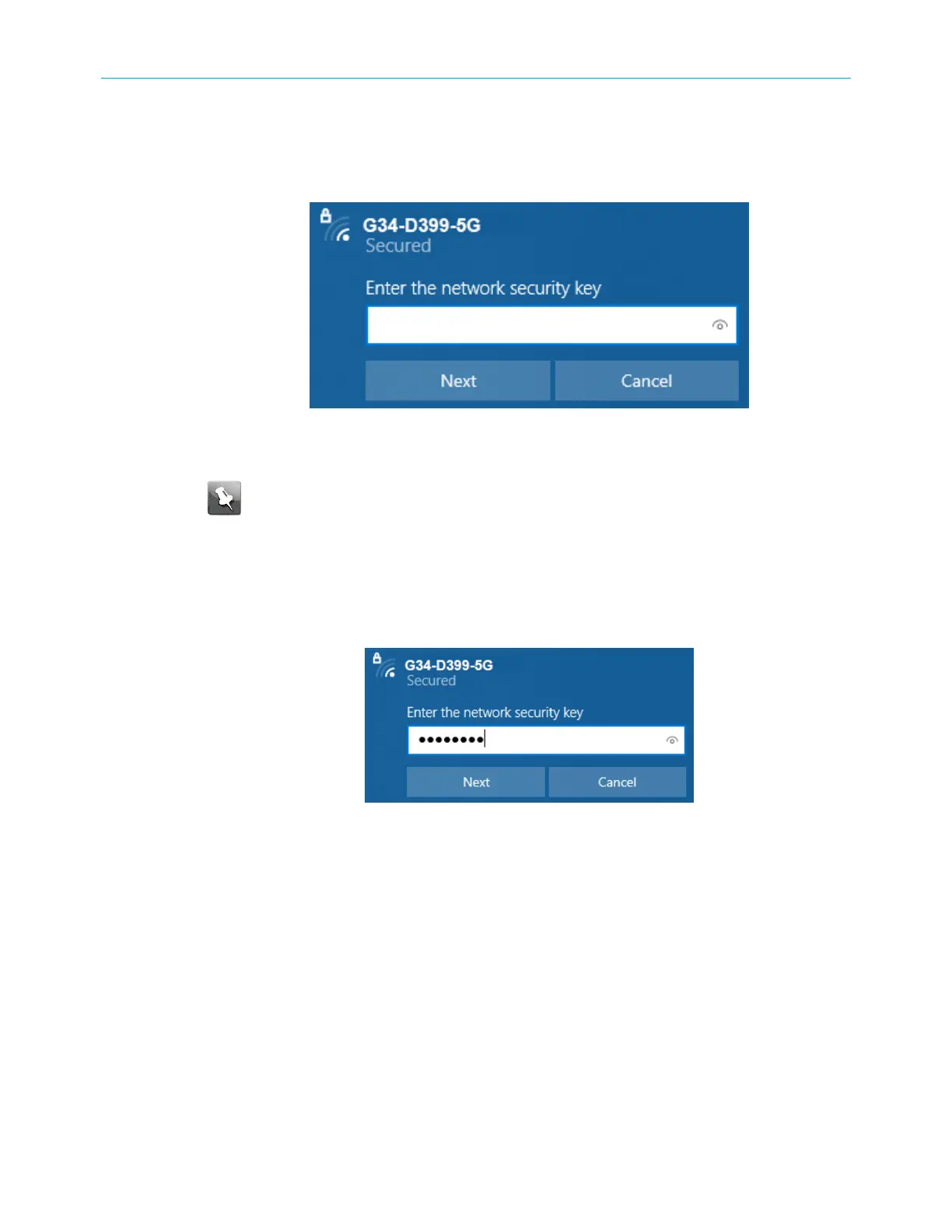
4. Click Connect to open the Connect to a Network window and set up your new network
password.
Figure 12: Network security key window
5. Enter the Network Security Key (your Wi-Fi network password) in the Security key field.
Note: You can use the default Wi-Fi Security Key code listed on the G34/G36
Wi‑Fi
cable modem label or enter your own personal Wi-Fi network password.
See Change the login password (page46) for more information on creating
login passwords.
If you have already changed your Wi-Fi network password using the G34/G36 Web
Manager, enter that password in the Enter the network security key field and then click
Next.
Figure 13: Network security key window
Connect using the Windows control panel
1. From the Windows taskbar on your computer, click Start button and then click Control
Panel.
2. Click Network and Sharing Center to open the Network and Sharing Center window.
Figure 14: Control panel-network and sharing center window
SURFboard
®
G34/G36 DOCSIS
®
3.1 Wi-Fi
®
Cable Modem User Guide STANDARD Revision x.3 25



 To Next Page