Chapter 4:Setting up a Wi-Fi network connection
2. Select Wi-Fi to turn it ON.
Your device will automatically start searching and then display a list of available
Wi‑Fi
networks.
3. Select your Wi-Fi network name (SSID) from the list.
4. If prompted, type your Wi-Fi Security Key (network password). Please note that your
network password may be case-sensitive.
5. Select Connect. If your Wi-Fi network connection is successful, "Connected" will
display under your network name.
Apple computer
From any screen on your client device:
1.
Click (Wi-Fi icon) to display a list of available Wi-Fi networks.
2. Select the Wi-Fi network name (SSID) for your home network from the list.
3. If prompted, enter your network password in the Password field.
Note: Checkmark Remember this network if you want your Mac computer/
client device to automatically connect to your home network when you log
on. Your computer must be within range of your Wi-Fi network to connect to
it.
4. Click OK.
Apple mobile device
From the Home screen on your client device:
1. Select Settings to open the Wi-Fi screen.
2. Select Wi-Fi to turn it ON.
Your device will automatically start searching and then list the available Wi-Fi
networks.
3. Select the Wi-Fi network name (SSID) for your home network from the list to
connect.
If your Wi-Fi connection is successful,
✓
will display next to the Wi-Fi network name.
Note: For more information on setting up your Wi-Fi network connections,
refer to the user documentation for your specific client device.
Quick connect using the Windows task bar
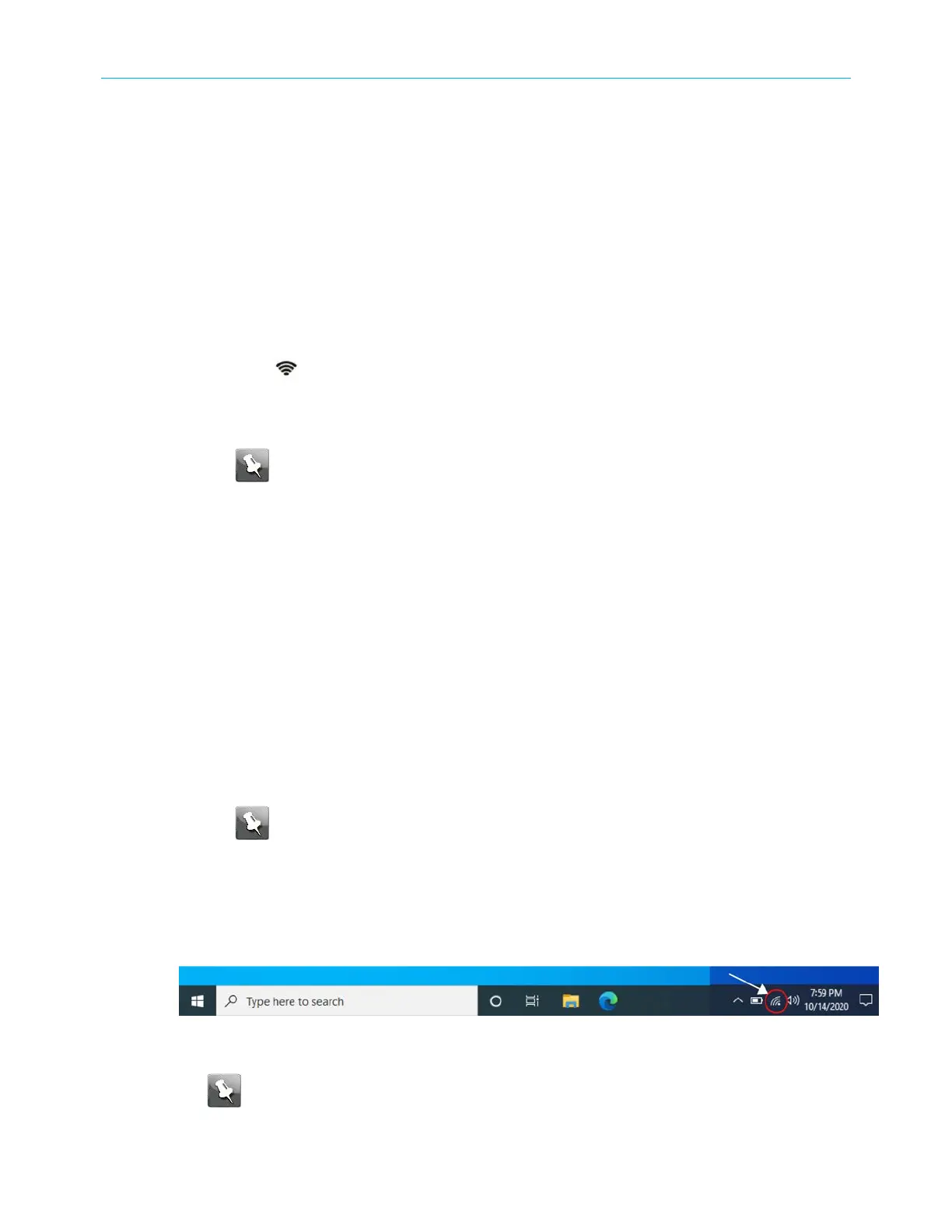
1. From the Windows taskbar on your computer, click the Wi-Fi Link icon to open the list
of available Wi-Fi networks.
Figure 9: Sample Microsoft Windows taskbar icons
Note: If the Wi-Fi Link icon is not visible, left click on the Show hidden icons
button on the Windows taskbar to open the list of additional icons.
SURFboard
®
G34/G36 DOCSIS
®
3.1 Wi-Fi
®
Cable Modem User Guide STANDARD Revision x.3 23



 To Next Page