Chapter 6:Configuring your Wi-Fi network
22. Click SAVE SETTINGS to save the changes.
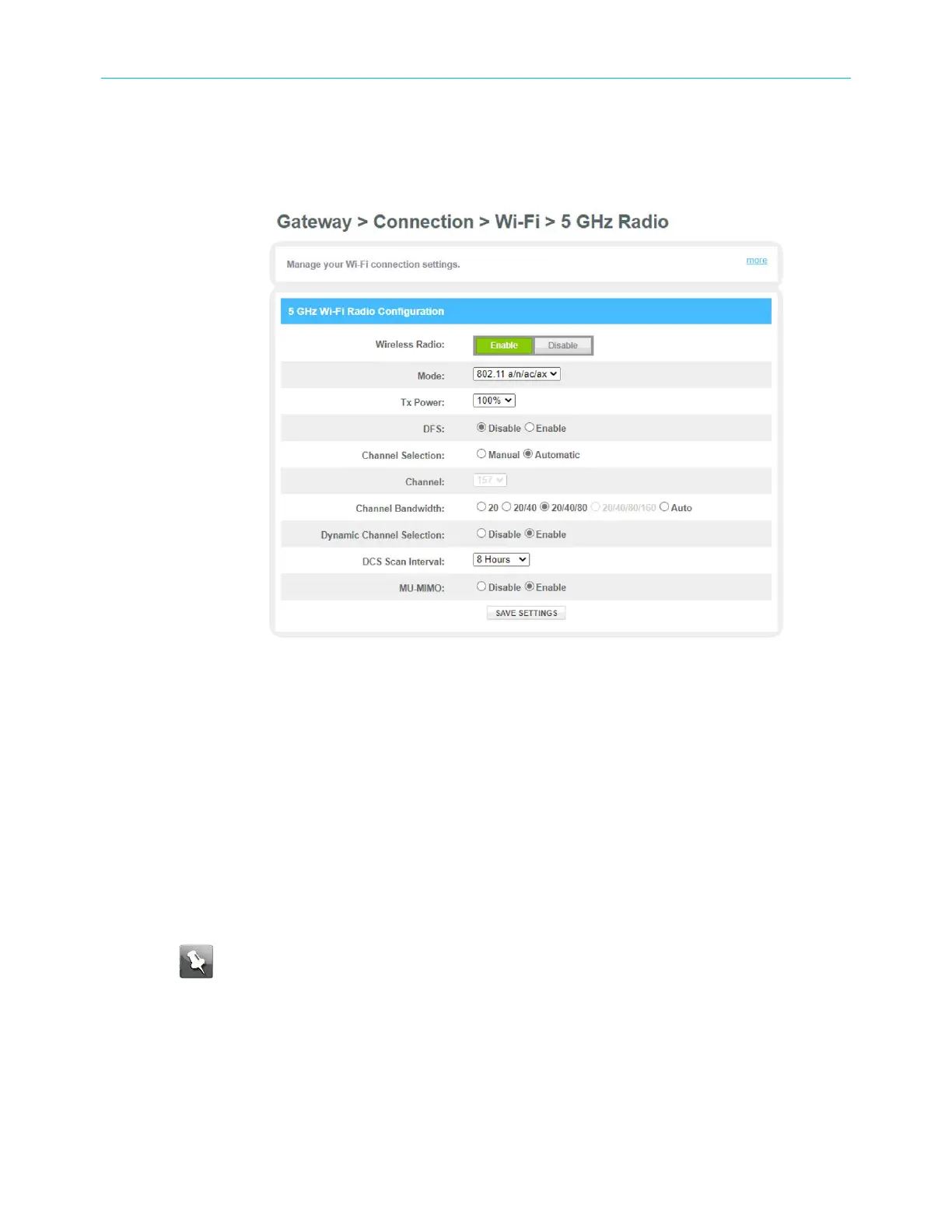
23. To turn ON the 5 GHz
Wi‑Fi
frequency range for your Wi-Fi home network, click the 5
GHz Radio submenu and then click Enable button .
Figure 29: Wi-Fi connection 5GHz Radio screen
24. Perform steps 16 through 22.
Change your Wi-Fi network name (SSID)
The SSID (Service Set Identification) is the Wi-Fi network name assigned to your G34/G36
Wi-Fi network. The default SSID (listed on the
Wi‑Fi
cable modem label) is automatically
populated in the network configuration screens. A list of available Wi-Fi networks (SSIDs)
near your home (for example, neighbors or local businesses) will display when you or
someone else in your home attempts to establish a Wi-Fi network connection. For security
purposes and quick recognition of your Wi-Fi network, ARRIS recommends that you change
the default SSID.
Note: When you change the SSID, any Wi-Fi devices that are connected to your
Wi‑Fi
network will be disconnected. The Wi-Fi devices must be reconnected to your
Wi-Fi network using the new SSID.
To change your Wi-Fi network name (SSID):
1. Open a web browser and log on to the G34/G36 to open the G34/G36 Web Manager.
See Start the G34/G36 Web Manager (page33) for more information, if necessary.
SURFboard
®
G34/G36 DOCSIS
®
3.1 Wi-Fi
®
Cable Modem User Guide STANDARD Revision x.3 42



 To Next Page