Chapter 4
Setting up a Wi-Fi network connection
ARRIS recommends that you first verify that your computer (or laptop) can access the
Internet using a wired Ethernet connection before configuring your Wi-Fi home network.
For Internet connections in your home, you must have access to an Internet service before
you can set up a Wi-Fi network connection. If you do not have an Internet service already
set up in your home, contact a broadband service provider of your choice for assistance.
Before proceeding with the mobile app download, check that the G34/G36 and your
connected client device (e.g., laptop or personal computer) are connected to the Internet.
There are four network connection options available to set up your Wi-Fi network
connection on your home network. Choose one of the following:
■
Set up a Wi-Fi network connection using your mobile device (page20)
■
Set up a Wi-Fi network connection using your client device (page22)
■
Quick connect using the Windows task bar (page23)
■
Connect using the Windows control panel (page25)
Set up a Wi-Fi network connection using your
mobile device
The ARRIS SURFboard Central mobile app is a quick and easy-to-use option to set up your
Wi-Fi home network connection(s) using your iOS or Android mobile device.
1. Check that your mobile device is connected to your Wi-Fi home network.
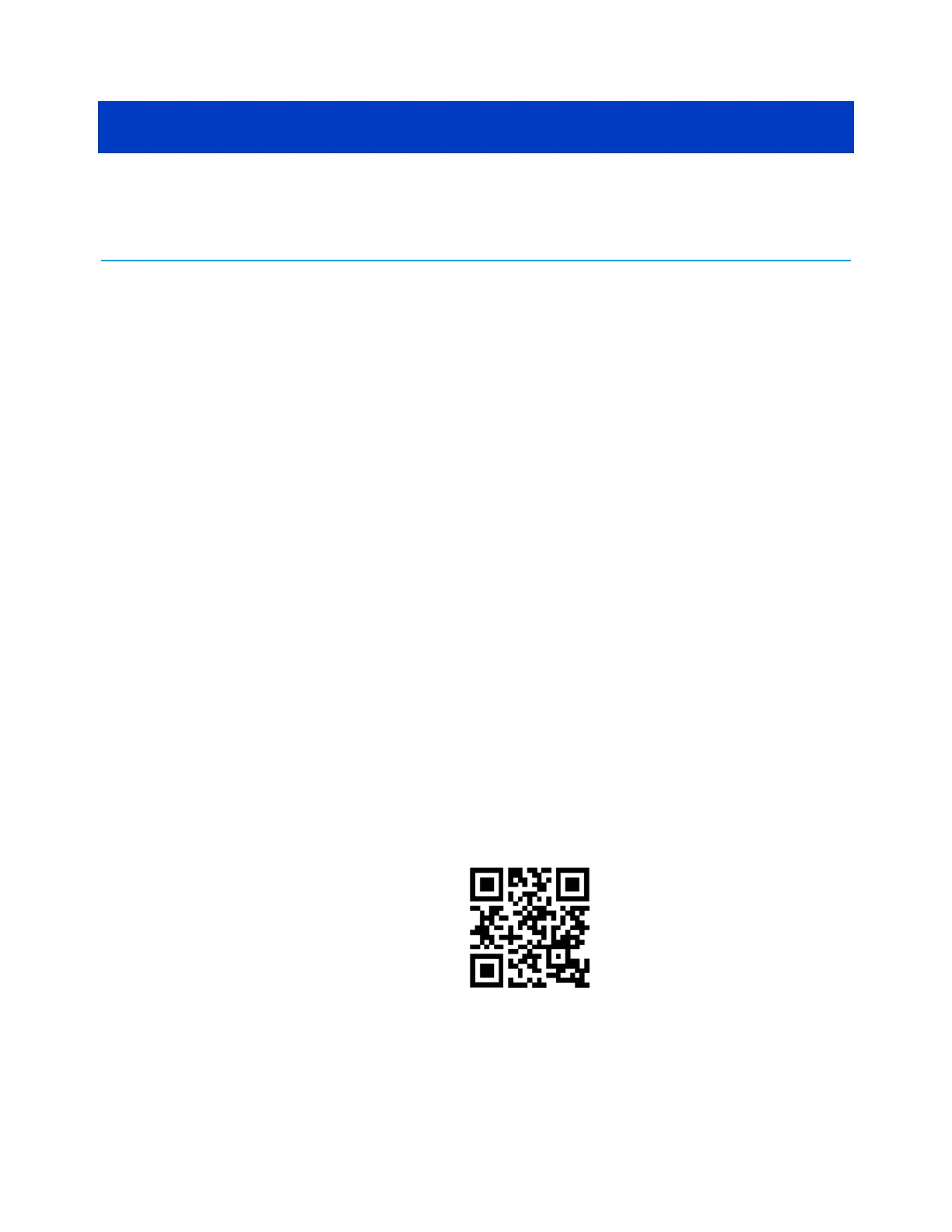
2. Scan the QR code to download the ARRIS SURFboard Central mobile app from the Apple
App Store or Google Play Store on your iOS or Android mobile device.
Figure 5: ARRIS SURFboard Central mobile app download QR code
The SURFboard Central mobile app screen displays.
SURFboard
®
G34/G36 DOCSIS
®
3.1 Wi-Fi
®
Cable Modem User Guide STANDARD Revision x.3 20



 To Next Page