Chapter 7:Protecting & monitoring your Wi-Fi network
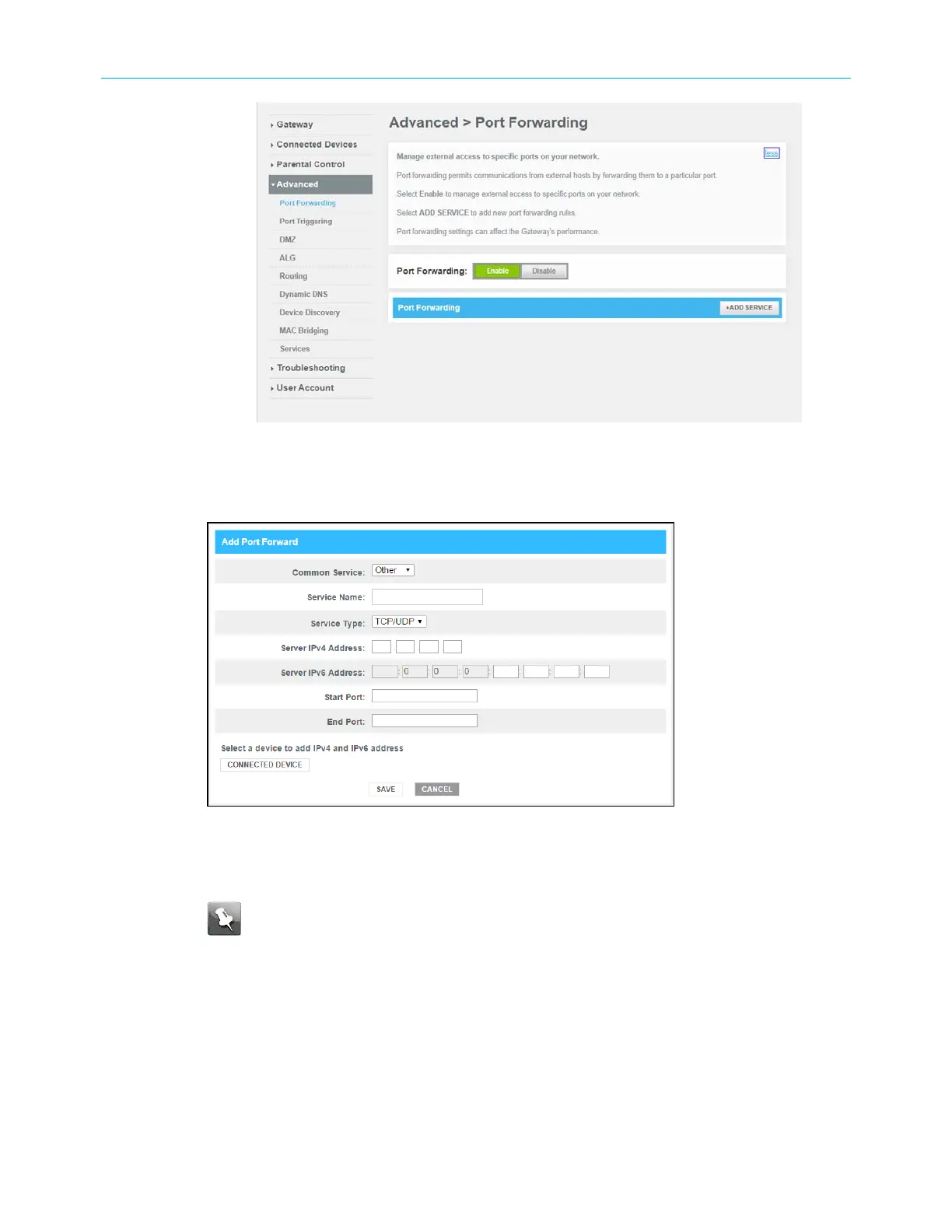
Figure 46: G34/G36 Advanced Port Forwarding screen
3. Click the Port Forwarding Enable button.
4. Click the +ADD SERVICE button to open the Add Port Forward screen.
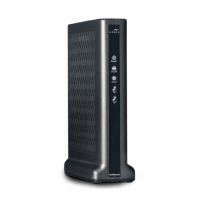
Figure 47: Add Port Forward screen
5. Select FTP, AIM, HTTP, PPTP, HTTPs, Telnet, SSH, or Other for the Internet data transfer
protocol from the Common Service drop-down list.
Note: When Other is selected, the Service Name field will display. Enter a name
for the service type you will be using.
6. Select TCP/UDP, TCP, or UDP for the Internet data transmission protocol from the
Service Type drop-down list.
7. Do one of the following:
■
Enter the IP address of your local computer that you are setting up for port
forwarding in the Server IPv4 Address field.
■
Enter the IP address for your local computer that you are setting up for port
forwarding in the Server IPv6 Address field.
SURFboard
®
G34/G36 DOCSIS
®
3.1 Wi-Fi
®
Cable Modem User Guide STANDARD Revision x.3 55



 To Next Page