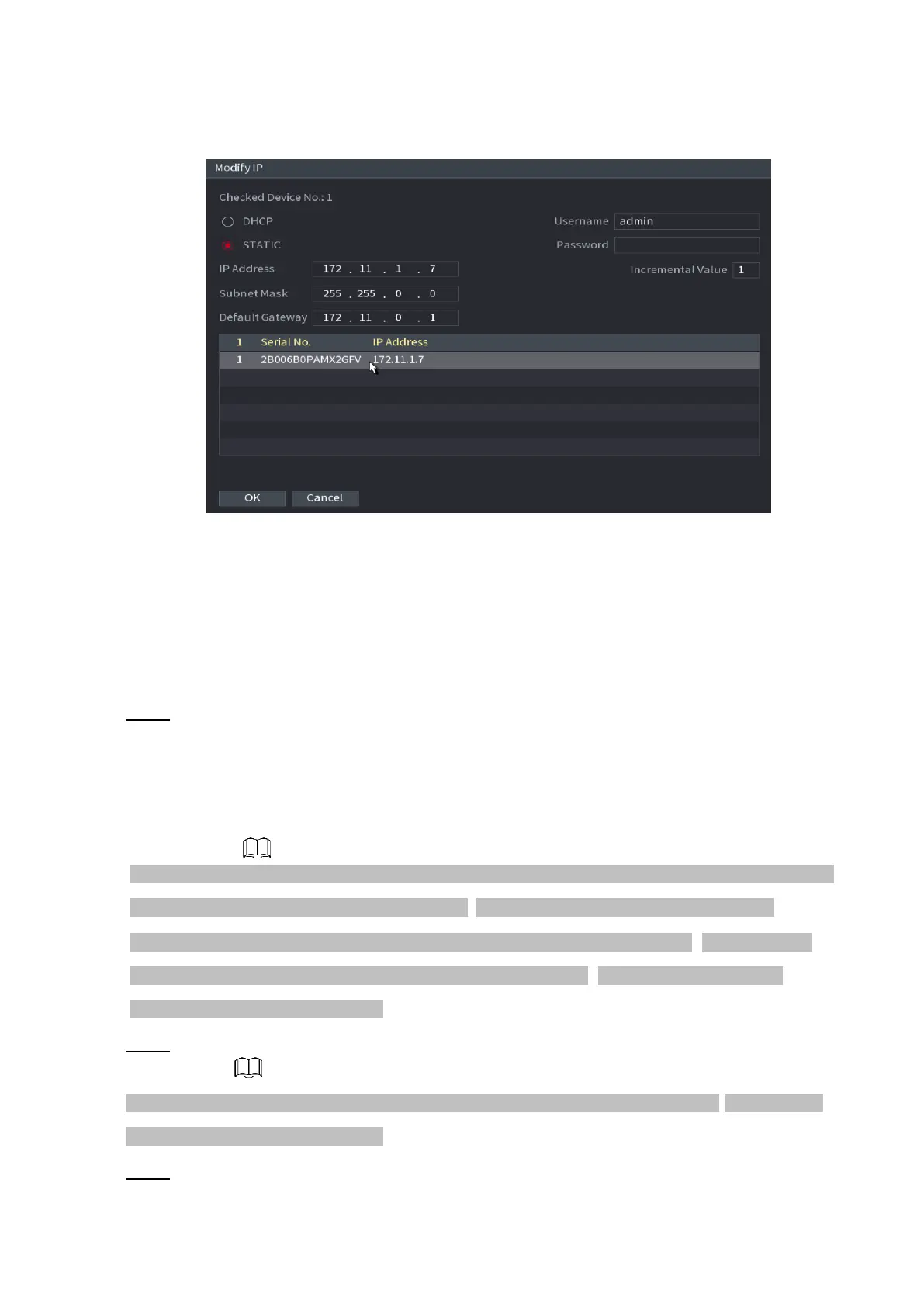
⚫ Figure 1-44
⚫
⚫
⚫
⚫
⚫
⚫
⚫
⚫
⚫
⚫
⚫
⚫
⚫
⚫
⚫ Step 2 Select IP mode.
⚫ Check DHCP, there is no need to input IP address, subnet mask, and default gateway. Device
automatically allocates the IP address to the camera.
⚫ Check Static, and then input IP address, subnet mask, default gateway and incremental value.
⚫ If it is to change several devices IP addresses at the same time, input incremental value. Device can add
the fourth address of the IP address one by one to automatically allocate the IP addresses.
⚫ If there is IP conflict when changing static IP address, device pops up IP conflict dialogue box. If
batch change IP address, device automatically skips the conflicted IP and begin the allocation
according to the incremental value
⚫ Step 3 Input remote device user name and password.
⚫ When change IP addresses of several devices at the same time, make sure the cameras user
name and passwords are the same.
⚫ Step 4 Click OK button to save settings.
⚫ After the modification and then search again, device displays new IP address.



 To Next Page