1.3.1 Preview
⚫ On Preview interface, you can view the monitor video of each channel. The corresponding channel
displays date, time, and channel name after you overlay the corresponding information. Refer to the
following table for detailed information. See Table 1-16.
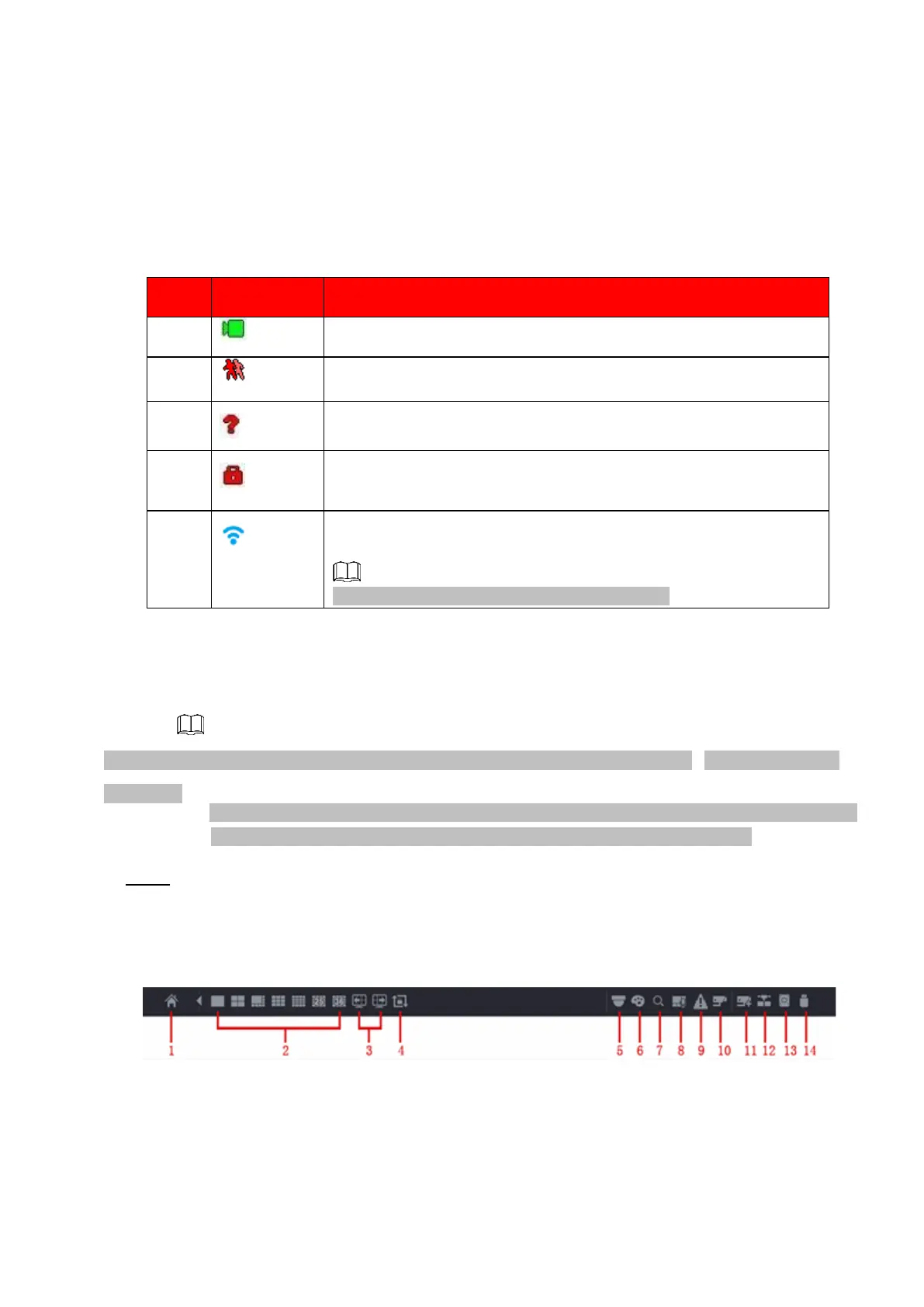
Table 1-16
When current channel is recording, system displays this icon.
When motion detection alarm occurs, system displays this icon.
When video loss alarm occurs, system displays this icon.
When current channel is in monitor lock status, system displays this
icon.
When the device connects to the network camera remotely, system
displays this icon.
This function is for some series products only.
1.3.2 Navigation bar
⚫ You can quickly perform operation through the icon on the navigation bar.
⚫ Different series products may display different navigation bar icons. Refer to the actual product for detailed
information.
⚫ Select Main Menu > SYSTEM > GENERAL > General to enable navigation bar function
and then click Apply; otherwise you cannot see the following interface.
⚫ Step 1 On the preview interface, left click mouse,
⚫ You can see navigation bar. See Figure 1-62. Refer to Table 1-17 to view detailed information.
⚫ Figure 1-62
⚫
⚫
⚫



 To Next Page