⚫ Use the security code received in your email box to reset the password within 24 hours; otherwise the
security code becomes invalid.
⚫ Wrong security code entrance up to five times will cause the security code locked for five minutes. After five
minutes, you can continue to use this security code.
⚫ Step 5 In the Security code box, enter the security code received in your reserved email box. Step 6 Click
Next.
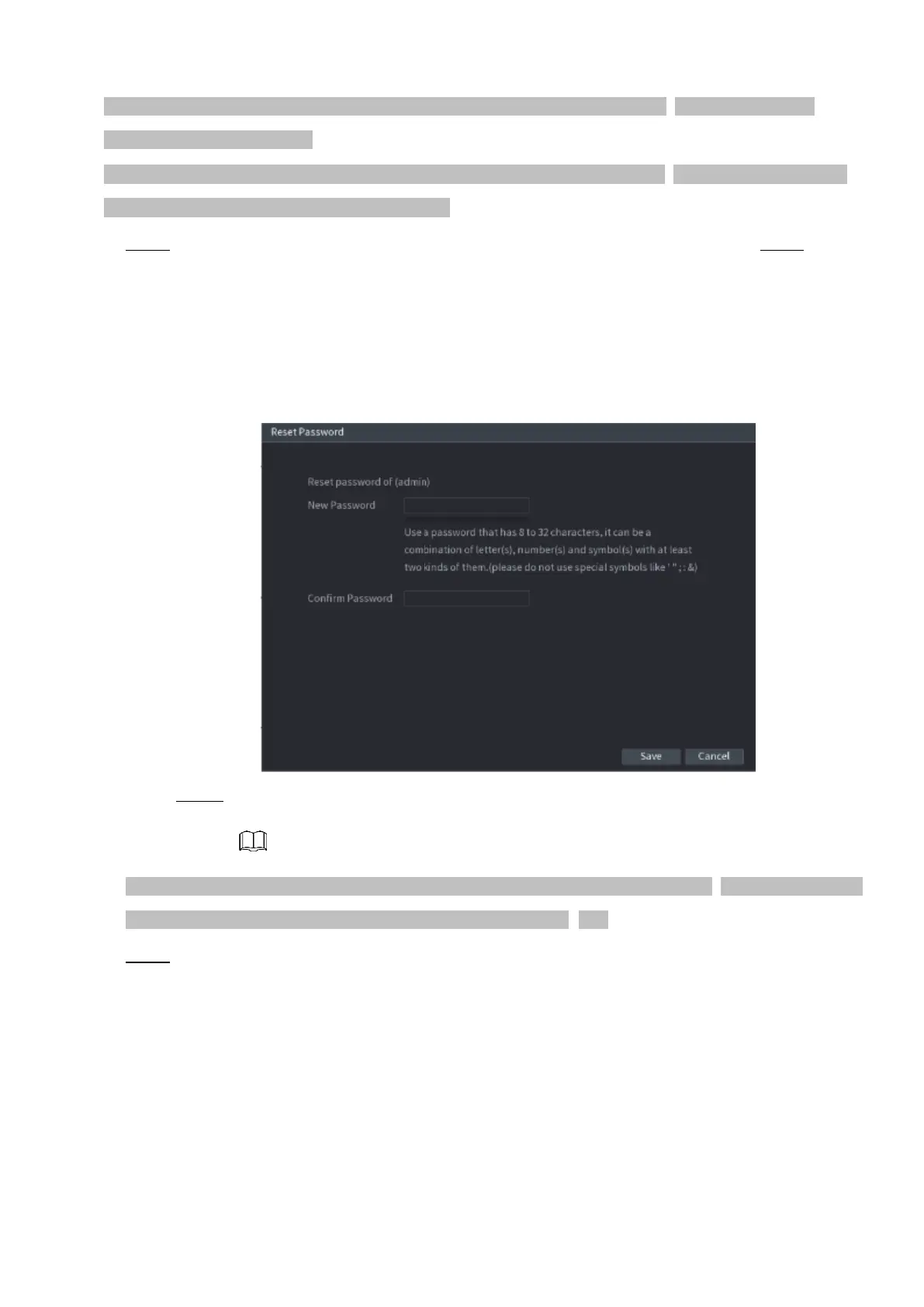
⚫ The new password resetting interface is displayed. See Figure 2-5.
⚫
⚫ Figure 2-5
Step 7 In the Password box, enter the new password and enter it again in the Confirm
Password box.
⚫ The new password can be set from 8 characters through 32 characters and contains at least two types from
number, letter and special characters (excluding"'", """, ";", ":" and "&").
⚫ Step 8 Click Save. The password resetting is started.
⚫ After resetting is completed, a pop-up message is displayed to indicate the result and you will see the
login interface is displayed. Then you can use the new password to login the web.
2.4 Web Main Menu
⚫ After you have logged in the Web, the main menu is displayed. See Figure 2-6. For detailed operations,
you can refer to "4 Local Basic Operation".



 To Next Page