6 • HD-MD4X2-4KZ-E and HD-MD4X1-4KZ-E Web Interface Configuration Guide — Doc. 8907B
Updating Firmware
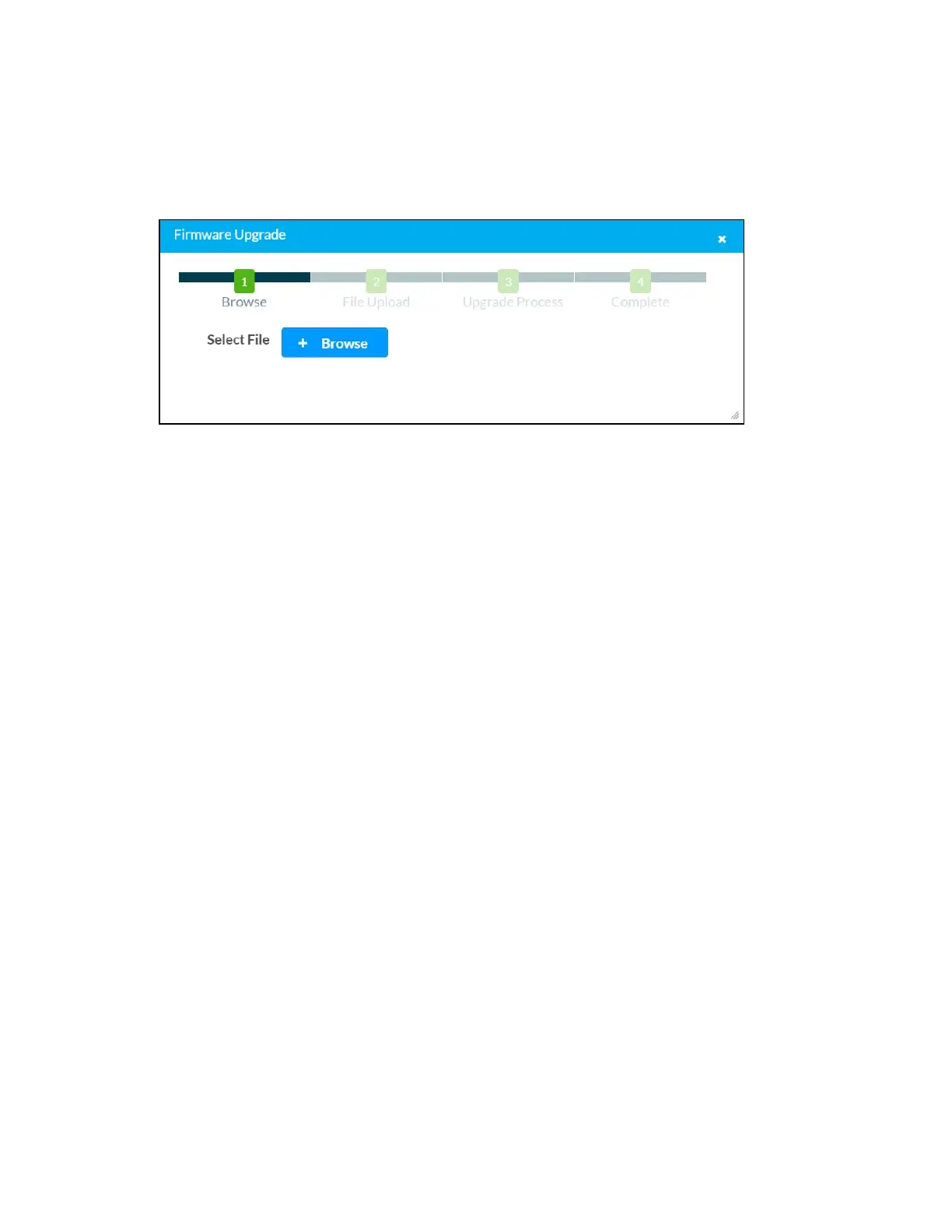
1. Click Update Firmware in the Actions drop-down menu.
2. In the Firmware Upgrade dialog, click + Browse.
3. Locate and select the desired firmware file, and then click Open. The selected firmware file
name is displayed in the Firmware Upgrade dialog.
4. Click Load and wait for the progress bar to complete and for the OK button in the
message to become clickable.
5. Click OK. The device with new firmware can now be accessed.
Downloading Logs
Click Download Logs in the Actions drop-down menu.
The log file is downloaded to the Downloads folder of the PC.






 To Next Page