10 • HD-MD4X2-4KZ-E and HD-MD4X1-4KZ-E Web Interface Configuration Guide — Doc. 8907B
l
4K60 444 HBR HDR
l
4K60 444 2CH HDR DCI
l
4K60 444 HBR Non-HDR
l
4K60 444 2CH HDR10+
l
4K60 444 HBR HDR10+
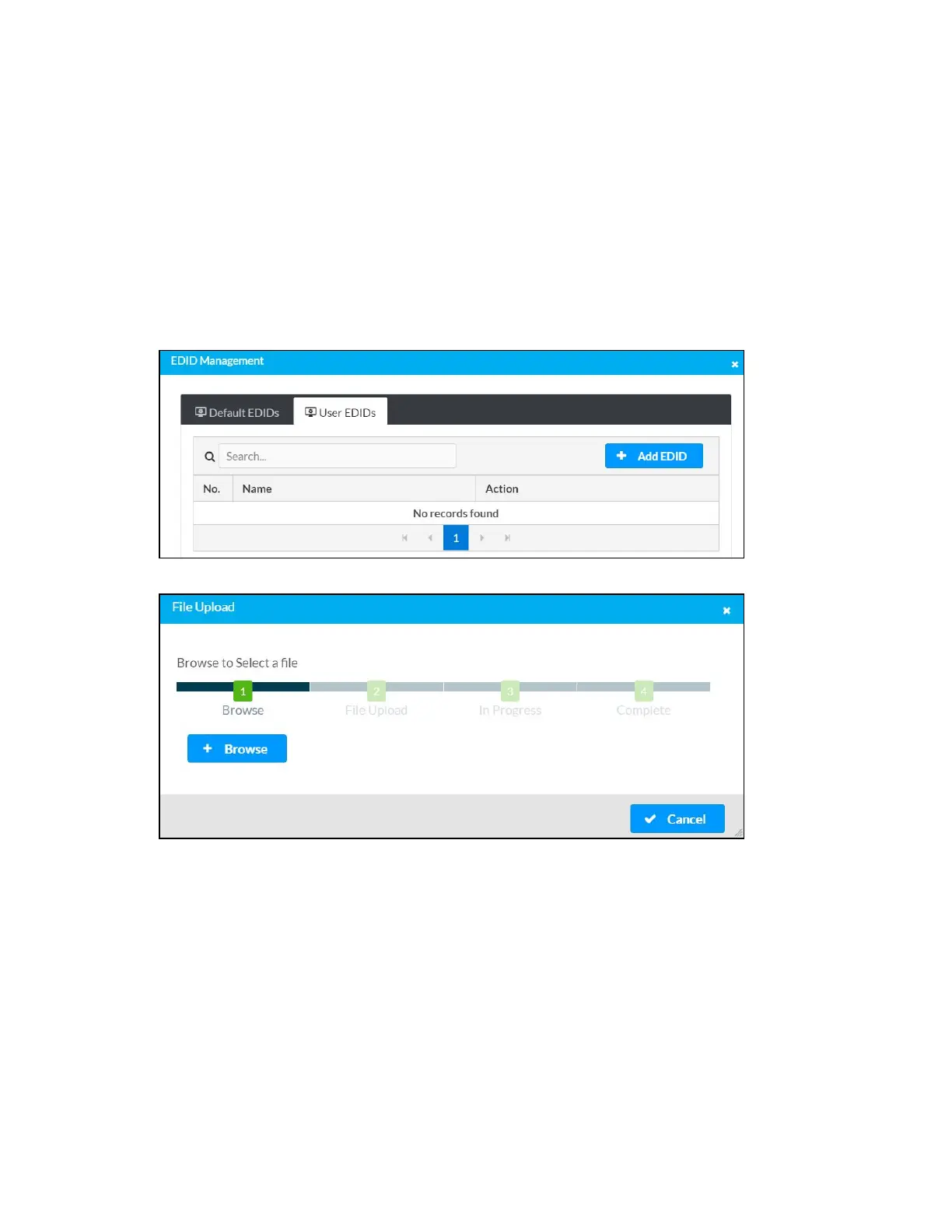
To Load a Custom EDID File
1. In the EDID Management dialog, click the User EDIDs tab and then click the + Add EDID
button.
2. Click the + Browse button in the File Upload dialog.
3. Navigate to the desired custom EDID file (.cedid extension), select the file, and then click
Open.
4. Click Send EDID. A prompt appears asking for confirmation that the EDID file be uploaded
to the device.
5. Click OK.
Once the EDID file is sent successfully the following occurs:
l
In the Global EDID section of the Inputs panel, the custom EDID file name is added to the
Send EDID to all inputs drop-down list.
l
In the Inputs section of the Inputs panel, the custom EDID file name is added to each
individual input EDID drop-down list.






 To Next Page