AP20 Installation and Operating Guide Page 102
AP20 Installation & Operating Guide Document # 9301H39200 Ver. 1.25
Serial
The AP20 can be configured to allow an external device to send an RS232 command to the
AP20, which, when receiving the specified serial command, will then execute any
predefined action or macro.
o The baud rate and number of stop bits must be set in the Automation Serial page to
match the settings used by the external RS232 device. See 4.5.5 Automation Serial
Port Setup be
low.
o The RS232 device must be connected to the Control port on the back of the AP20.
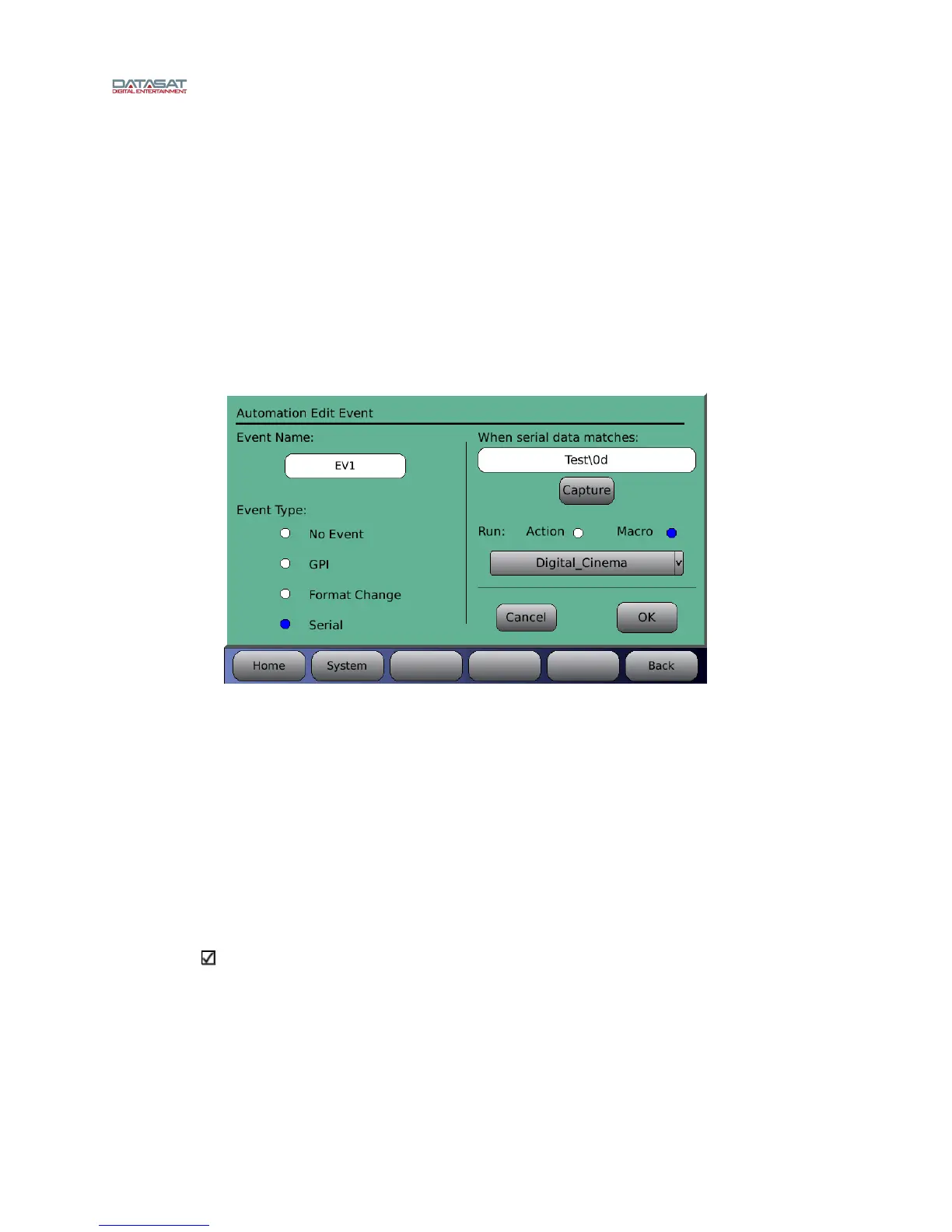
In the example below a serial command named “Test<cr>” is created to switch the AP20 to
the Digital Cinema format. In this example the macro named Digital_Cinema already exists
to switch the AP20 to the Digital Cinema format.
Figure 85. Automation Edit Event screen – Serial
Enter the serial command that will trigger the macro. The maximum size of the serial
command is 36 characters.
Option 1: Select the text box and the keyboard screen will appear. Type in the serial
command.
Option 2: Select the Capture button to automatically capture a command received from
the serial port. This assumes that there is an external serial control device connected that
can be manually triggered to send a single command.
Press the green StopCap button to complete the capture of the serial command. All serial
data that has been received between Capture and Stop Cap will be displayed in the text bar.
If more than the maximum characters have been received, then the data is truncated.
Note: Non-ASCII characters may be entered by a back slash (\) followed by their hex
value. For example, a CR character is 0D hex and can be included in the string as “\0d”.
Touch OK when finished, or touch Cancel to cancel this task.


 To Next Page