2
PHYSICAL LAYOUT
DO NOT PLUG IN YOUR MAINFRAME JUST YET.
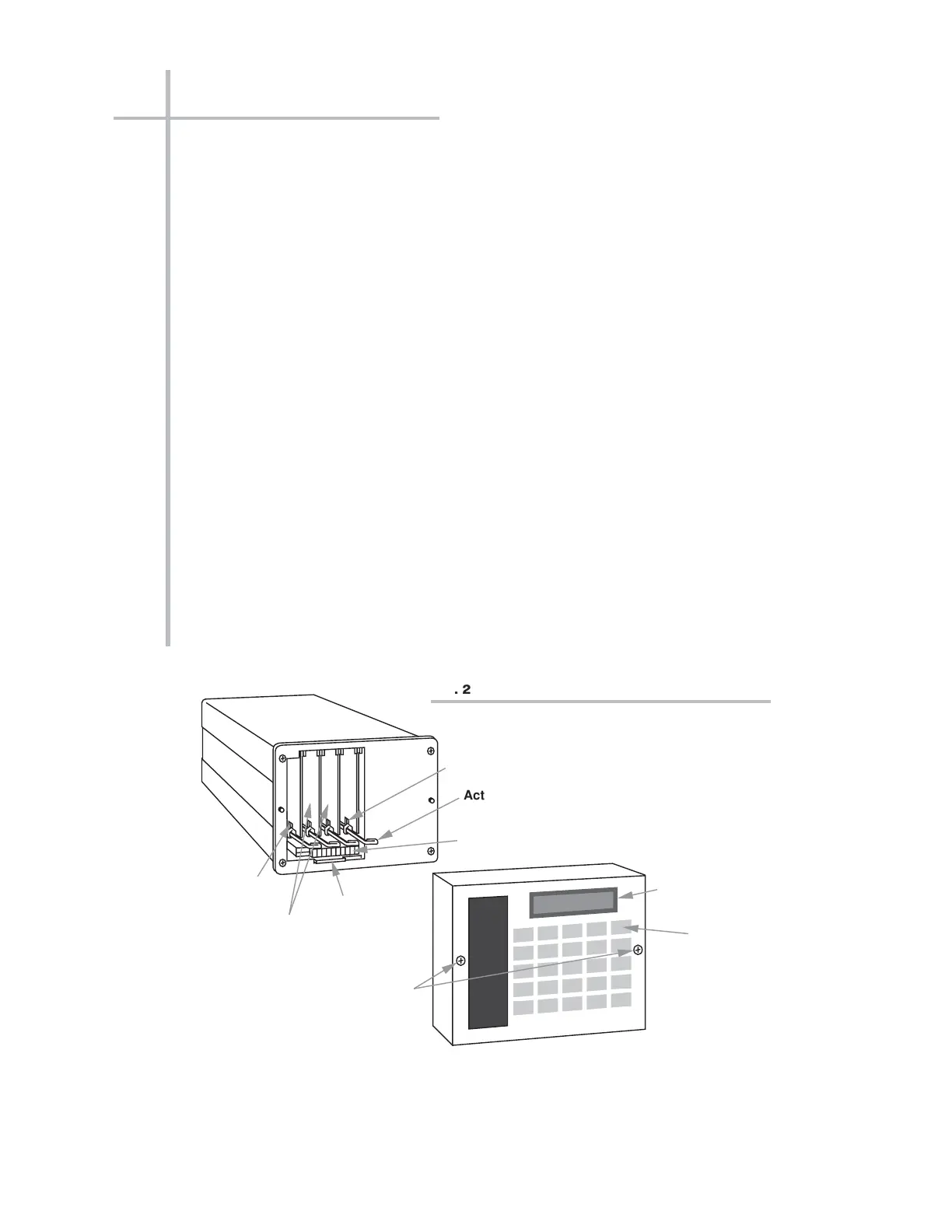
Study the appropriate front- and rear-view drawings below to familiarize yourself
with your mainframe’s most important physical elements. Be sure that you know
the locations of your particular mainframe’s
• A Slots and A Cards, including Central Processor/Interface Card, if present
(internal)
•
System Status Indicators (visible from the front)
•
Power Connector, Fuse, and ON/OFF Switch (rear panel)
•
Voltage Selector Switch (rear panel)
•
Plug-In Keyboard Connector (front or rear panel, depending on model)
•
Computer Interface Connector (rear panel)
•
RS-232 Protocol Switches (internal or rear panel, depending on model)
•
EEPROM Write Protect Switch (internal or rear panel, depending on model)
NOTE: To access the EEPROM Write Protect Switch and RS-232 Protocol Switch-
es of a mainframe of the “10K1/10K2” family, you will have to remove the front
bezel by gently prying it off the snap-on posts that secure it to the mainframe. For
the other A-sized mainframes, there is no reason to remove the front bezel (you
would have to unscrew it anyway), unless you need to add, remove, or “swap” A
Cards.
Shown in Fig. 2.4 is the Extended Keyboard you will use to set up your system.
The only difference in appearance between the 10P80A and 10P80D keyboards
is that the latter incorporates a 2-line LCD (“BILLBOARD”) for display of command
entries, system interrogation responses, and standard system prompting mes-
sages.
A - 3
PHYSICAL LAYOUT
“O
NTHE
A
IR
” (A-S
IZED
)
"A SLOT" No. 1
"A SLOT" No. 4



 To Next Page