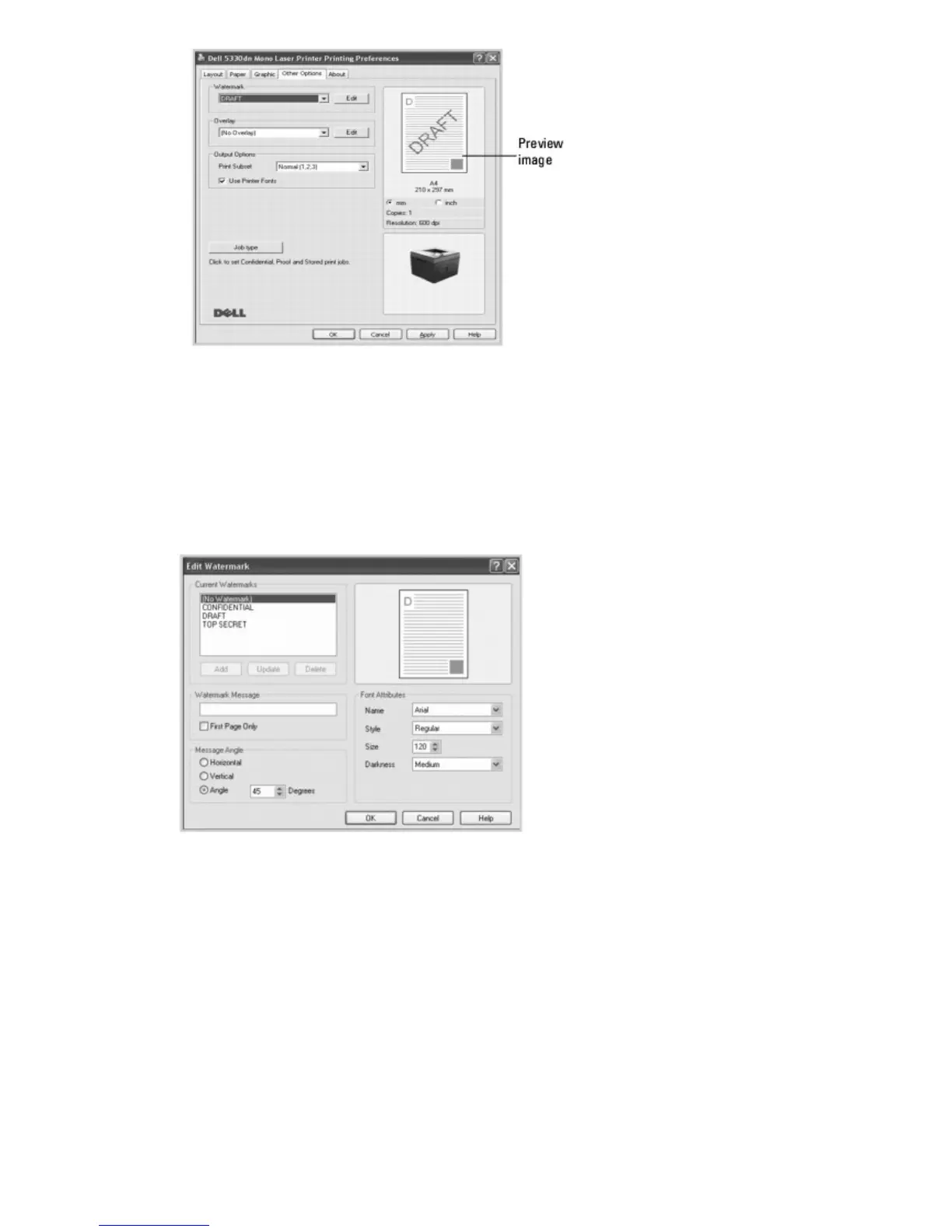
3. Click OK and start printing.
Creating a Watermark
1. To change the print settings from your software application, go to printer properties.
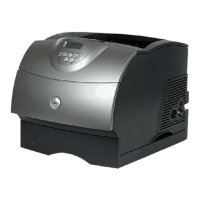
2. Click the Other Options tab and click Edit in the Watermark section. The Edit Watermarks window appears.
3. Enter the text message you want to print in the Watermark Message box.
The message displays in the preview image window. The preview image is provided so that you can see how the
watermark will appear on the printed page.
To print the watermark on the first page only, ensure the First Page Only box is checked. .
4. Select the watermark options.
You can select the font name, style and size and gray scale level from the Font Attributes section and set the
angle of the watermark from the Message Angle section.
5. To add a new watermark to the list, click Add.
6. When you have finished creating, click OK and start printing.









 To Next Page