For MAC OS 10.5~10.6, open System Preferences from the Applications folder, and click Print & Fax.
3. Click Add on the Printer List.
For MAC OS 10.5~10.6, press the "+" icon; a display window appears.
4. For MAC OS 10.3, select the USB tab.
For MAC OS 10.4, click Default Browser and find the USB connection.
For MAC OS 10.5~10.6, click Default and find the USB connection.
5. For MAC OS 10.3, if Auto Select does not work properly, select Dell in Printer Model and your printer name in
Model Name.
For MAC OS 10.4, if Auto Select does not work properly, select Dell in Print Using and your printer name in
Model.
For MAC OS 10.5, if Auto Select does not work properly, select Select a driver to use... and your printer name
in Print Using.
For MAC OS 10.6, if Auto Select does not work properly, select Select Printer Software... and your printer
name in Print Using.
6. Click Add.
Your printer appears on the Printer List and is set as the default printer.
Printing
Printing a Document
When you print with a Macintosh, you need to check the printer software setting in each application you use. To print
from a Macintosh, follow these steps:
1. Open a Macintosh application and select the file you want to print.
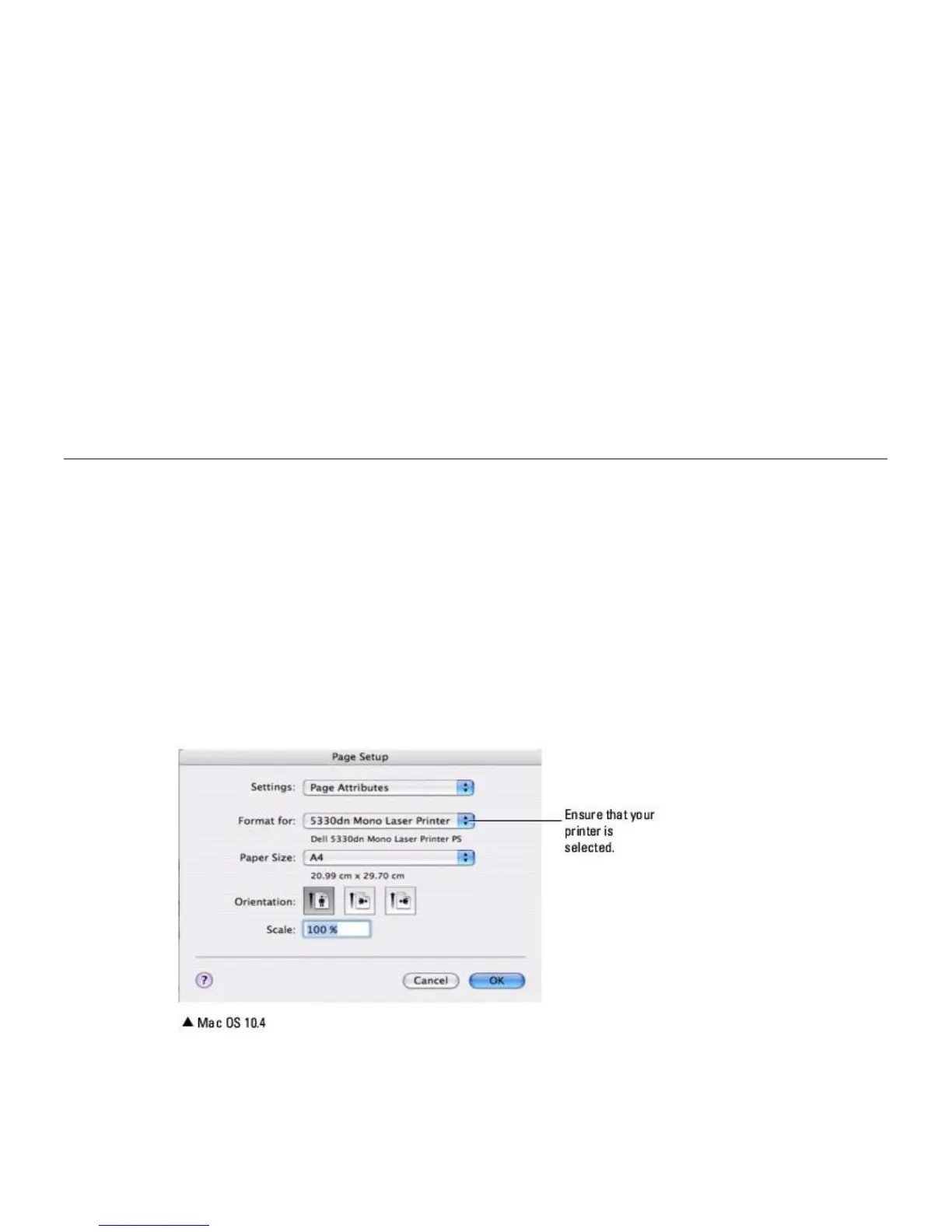
2. Open the File menu and click Page Setup (Document Setup in some applications).
3. Choose your paper size, orientation, scaling, and other options, then click OK.
4. Open the File menu and click Print.
5. Choose the number of copies you want and indicate which pages you want to print.
6. Click Print when you finish setting the options.









 To Next Page