Some keys on your keyboard have two symbols on them. These keys can be used to type alternate characters or to perform
secondary functions. The symbol that is shown on the lower part of the key refers to the character that is typed out when the
key is pressed. If you press shift and the key, the symbol that is shown on the upper part of the key is typed out. For example, if
you press 2, 2 is typed out; if you press Shift + 2, @ is typed out.
The keys F1-F12 at the top row of the keyboard are function keys for multimedia control, as indicated by the icon at the bottom
of the key. Press the function key to invoke the task represented by the icon. For example, pressing F1 mutes the audio (refer to
the table below).
However, if the function keys F1-F12 are needed for specific software applications, multimedia functionality can be disabled by
pressing Fn + Esc. Later, multimedia control can be invoked by pressing Fn and the respective function key. For example, mute
audio by pressing Fn + F1.
NOTE: You can also define the primary behavior of the function keys (F1–F12) by changing Function Key Behavior in
BIOS setup program.
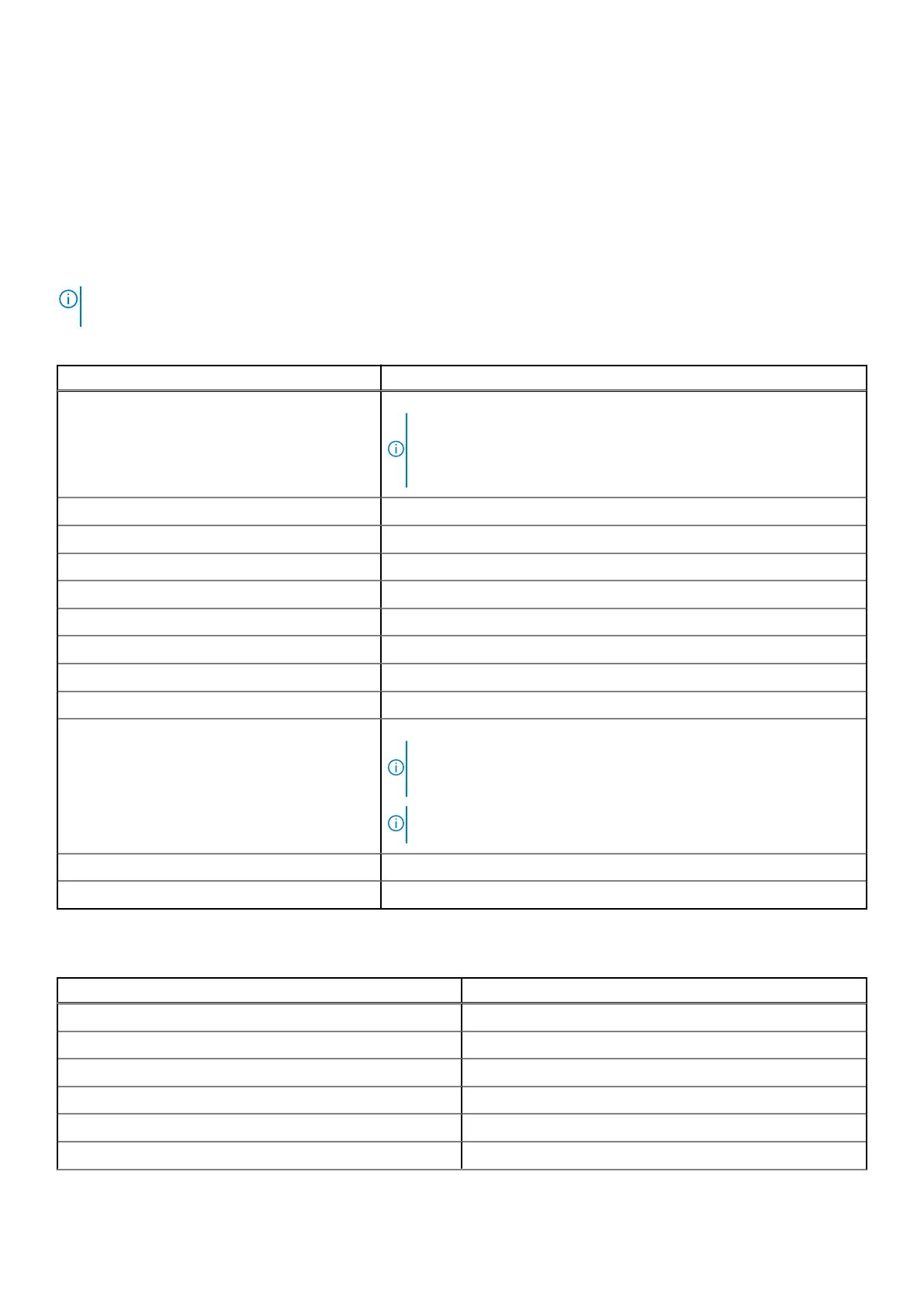
Table 15. List of keyboard shortcuts
Keyboard shortcut Behavior
Copilot Launch Copilot in Windows
NOTE: If Copilot in Windows is not available on your computer, the
Copilot key launches Windows Search. For more information about
Copilot in Windows, search in the Knowledge Base Resource at
www.dell.com/support.
F1 Mute audio
F2 Decrease volume
F3 Increase volume
F4 Play the previous track or chapter
F5 Play or Pause
F6 Play the next track or chapter
F8 Switch to external display
F9 Search
F10 Click keyboard backlight (optional).
NOTE: Non-backlight keyboards have the F10 function key without
the backlight icon and do not support the toggle keyboard backlight
function.
NOTE: Toggle to cycle the keyboard backlight status through off, low-
backlight, and high-backlight.
F11 Decrease brightness
F12 Increase brightness
The Fn key is also used with selected keys on the keyboard to invoke other secondary functions.
Table 16.
Secondary behavior
Function key Secondary behavior
Fn + F1 Operating system and application-specific F1 behavior
Fn + F2 Operating system and application-specific F2 behavior
Fn + F3 Operating system and application-specific F3 behavior
Fn + F4 Operating system and application-specific F4 behavior
Fn + F5 Operating system and application-specific F5 behavior
Fn + F6 Operating system and application-specific F6 behavior
Specifications of Precision 5490 21











 To Next Page