2. Remove the fingerprint-reader bracket from the power-button board.
3. Remove the power-button board with power-button FPC from the palm-rest and keyboard assembly.
Installing the power-button board with a fingerprint reader
CAUTION: The information in this installation section is intended for authorized service technicians only.
Prerequisites
If you are replacing a component, remove the existing component before performing the installation procedure.
About this task
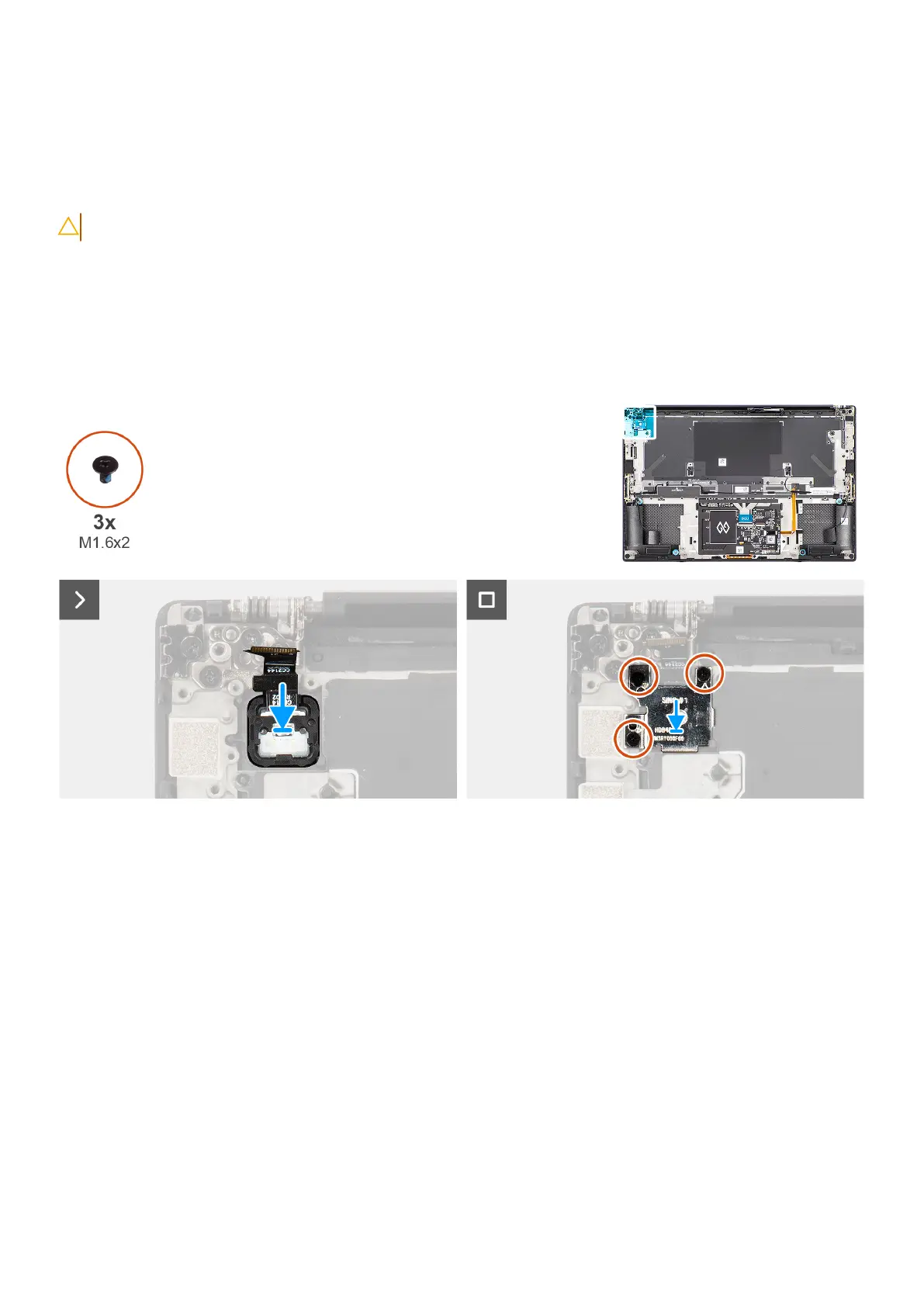
The figure indicates the location of the power-button board with fingerprint reader and provides a visual representation of the
installation procedure.
Figure 70. Installing the power-button board with fingerprint reader
Steps
1. Align and place the power-button board with a power-button FPC into its slot on the palm-rest and keyboard assembly.
2. Align and place the fingerprint-reader bracket on the power-button board.
3. Replace the three screws (M1.6x2) to secure the fingerprint-reader bracket to the power-button board.
Next steps
1. Install the system board.
2. Install the display assembly.
3. Install the audio jack.
4. Install the graphics-card fan.
5. Install the processor fan.
6. Install the battery.
7. Install the M.2 2230 solid state drive or M.2 2280 solid state drive.
8. Install the base cover.
9. Follow the procedure in After working inside your computer.
Removing and installing Field Replaceable Units (FRUs)
91






 To Next Page