DG-SC2100/DG-SC2100W User Manual
37
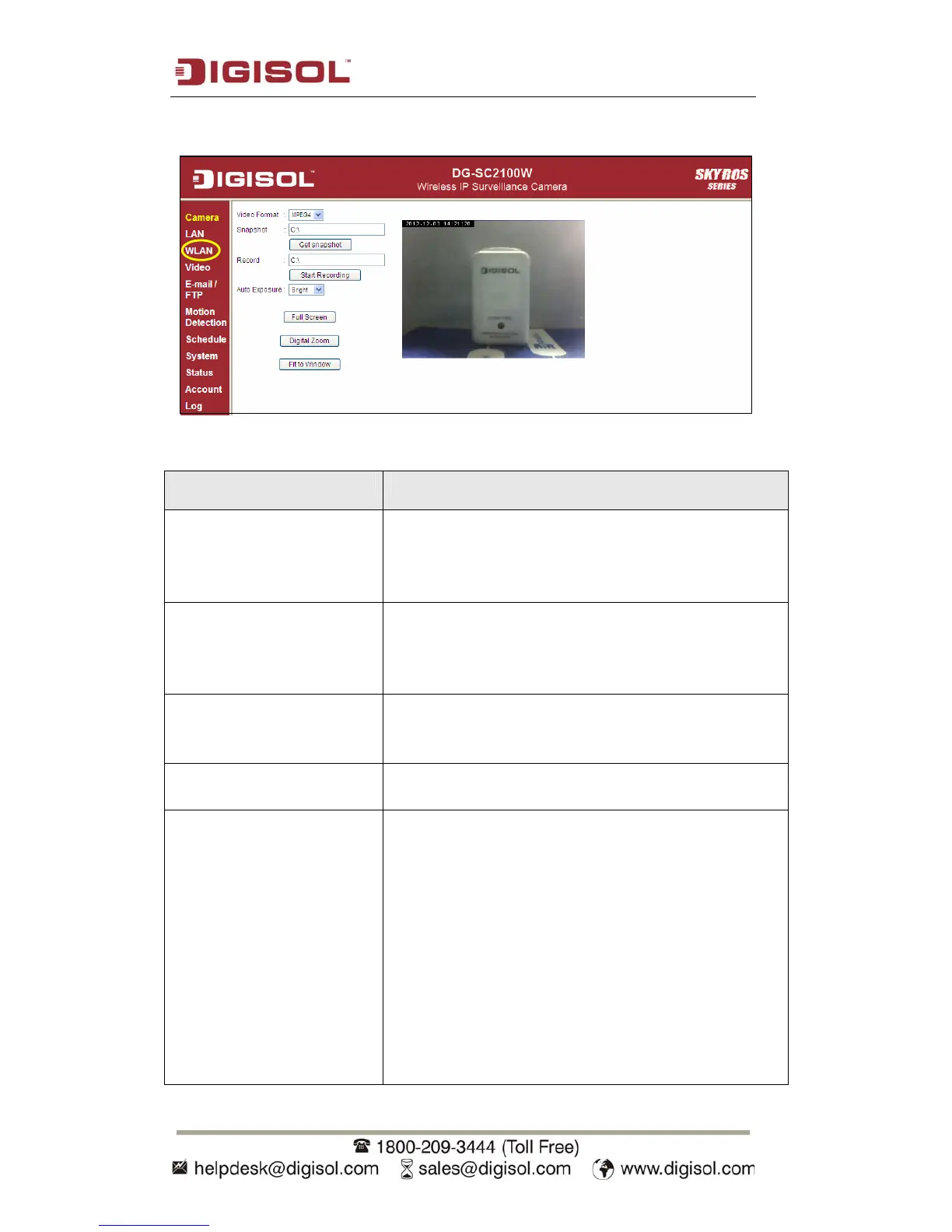
You can access this menu by clicking ‘WLAN’ on the web management interface.
The settings in this menu are described below:
Item Description
Self Pin Code A random 8-digit code will be displayed here. If the
wireless AP you wish to connect to supports
PINCODE, please input this code to the AP you wish
to connect.
Configure via Push Button If the wireless AP you wish to connect to supports
push button WPS configuration, click ‘Start PBC’ and
press the WPS button on the wireless AP to start
pairing.
Configure via PinCode If the wireless AP already generates an 8-digit code,
please input the SSID of the AP here and click ‘Start
PIN’ button to start pairing.
Wireless Connection Select ‘Enable’ to activate wireless network function
of this IP camera, select ‘Disable’ to disable it.
Network Type Select the network type of the wireless connection.
Available options are ‘Infrastructure’ (Connect the IP
camera to a wireless access point) and ‘Adhoc’ (This
IP camera will become a stand-alone wireless network
point, other wireless computers / devices can discover
this IP camera and connect to it without wireless
access point).
You can set to ‘Adhoc’ when you don’t have any
wireless access point, but your computer has wireless
network card. Set to ‘Infrastructure’ when you have


 To Next Page