DG-SC2100/DG-SC2100W User Manual
95
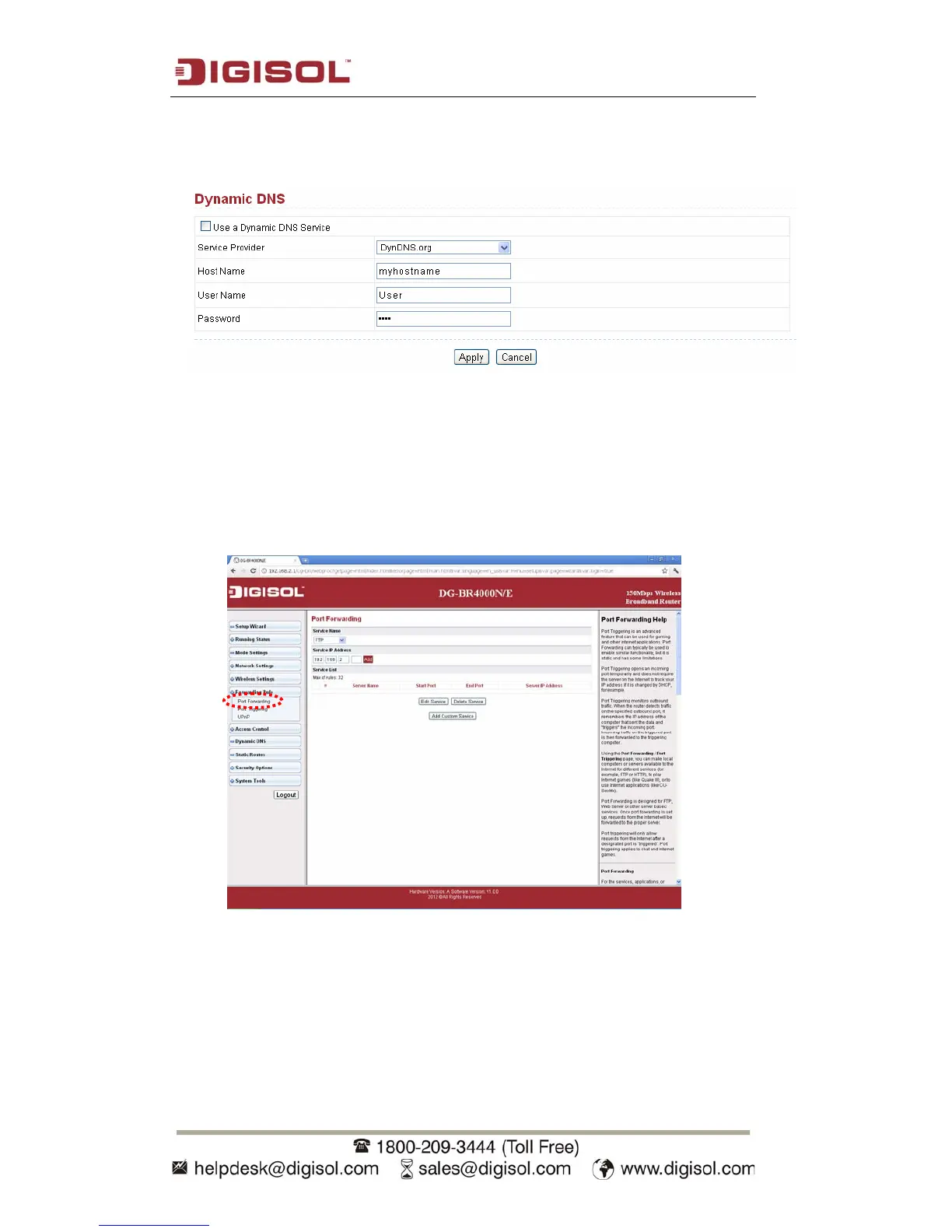
3. Enable Dynamic DNS function, select ‘DynDNS’ as service provider, and fill the
information you obtained from Dyndns.org into Domain name, Account and
Password field (these field names may differ on your router).
5.2 Open Ports Required by IP CAM
1. To access IP CAM located behind router or firewall, you must open ports on
router or firewall so you can access IP CAM from Internet.
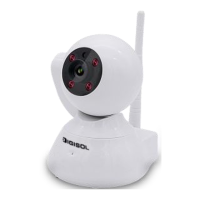
2. Go to your router’s setup page, and locate ‘NAT’, ‘Firewall’, ‘Port Mapping’,
‘Port Forwarding’, or similar setup items.
3. Enable this function, and fill IP CAM’s IP address in ‘Private IP’ (or similar field),
select ‘TCP’ or ‘BOTH’ as data type, and input these port numbers given below
for the services you wish to access from Internet in the port range field.
IP CAM web configuration and view live image: 80
RTSP: 554 and 50000 to 60000
Please note that if you changed the port number of web configuration /
view or RTSP, you have to change the port forwarding setting for your
router accordingly.


 To Next Page