DG-SC2100/DG-SC2100W User Manual
58
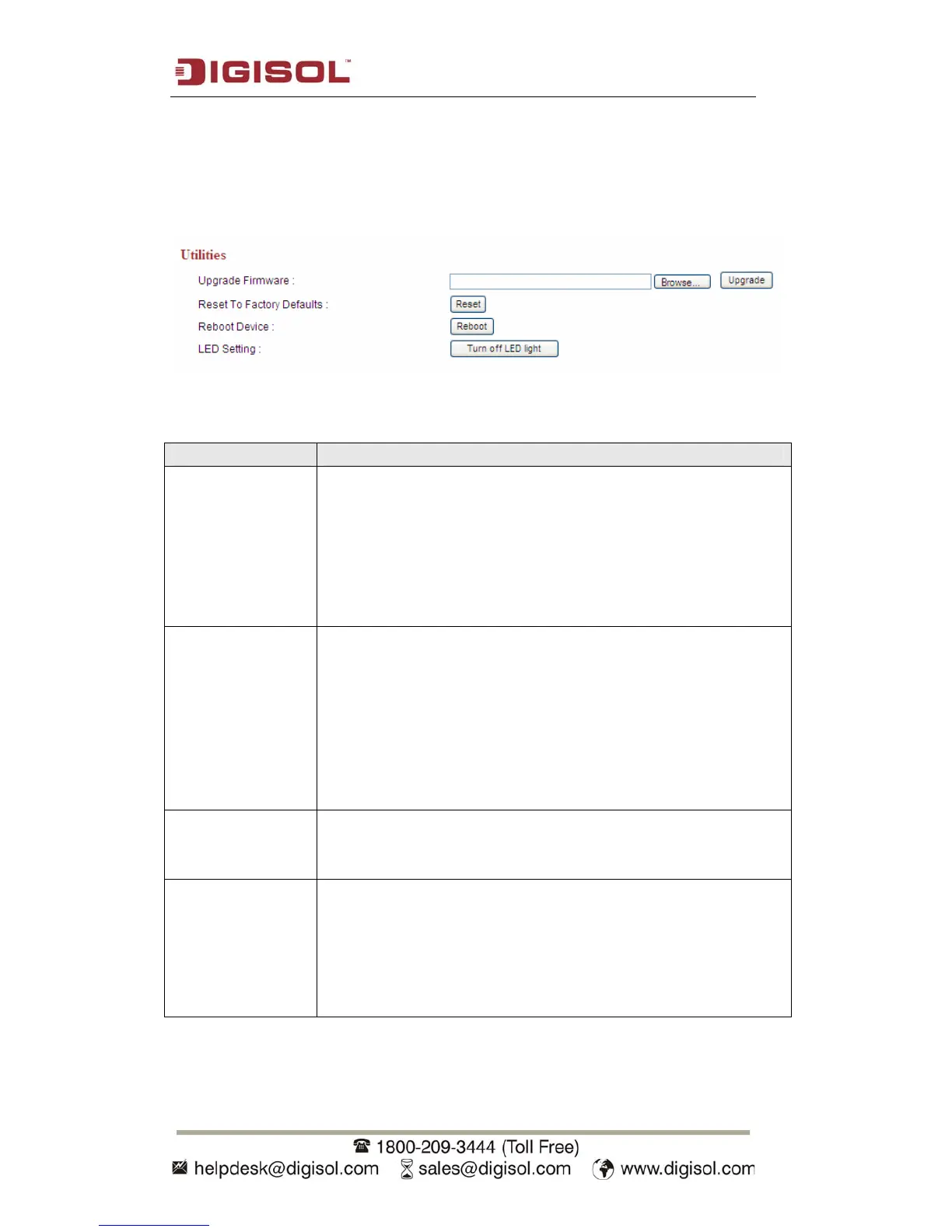
2.8.3 Utilities
This menu allows you to upgrade firmware, clear all settings, reboot the IP camera
and switch LED lights on/off.
The settings in this menu are described below:
Item Description
Upgrade Firmware Click ‘Browse’ button to select the firmware file that needs to be
uploaded. Then click ‘Upgrade’ button to start firmware upgrade
procedure.
It’s recommended to use wired Ethernet connection when you
use this function, and DO NOT DISCONNECT OR CLOSE WEB
BROWSER DURING UPGRADE!
Reset To Factory
Defaults
Clear all settings in the camera. Please think again before you do
this, and then click this button to reset all settings.
NOTE: IP address will be reset to default value ‘192.168.2.3’
also. You will need to change the IP address setting of your
computer if the IP address of your computer does not begin with
‘192.168.2’, and subnet mask is not ‘255.255.255.0’, else you
will not be able to connect to this IP camera again.
Reboot Device If you find the IP camera is responding slowly or behaves
strange, you can click this button to try to reboot the IP camera,
this may help.
LED Setting Switch the LED light of this IP camera off, so ‘LAN’ and
‘WLAN’ LED on the IP camera will stop working, in case you
don’t want other people to know that the camera is transferring
data.
You can click this button again to switch LED lights on again.


 To Next Page