TellerScan
®
TS240 User Manual
Rev 122013
Page | 15
LED Status Indicator (continued)
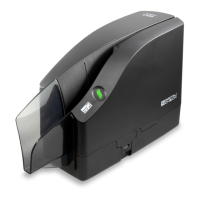
Green LED: The scanning application has successfully acquired the scanner and it is ready to be used.
Additional LED Information: After the TellerScan TS240 is synchronized with the application; the LED is
used to detect the presence of documents in the entry pocket and will turn ‘Orange’ when a document has
been loaded.
Once the scan cycle has started, the items in the ‘Entry Tray’ should feed into the path one at a time. When the
last has been scanned, the scanning process will stop and the items should be stacked in the ‘Exit Tray’.
A flashing ‘Red’ LED indicates an error. Select an eject option within the application, if available, or look for a
document in the path. If there is a stopped or jammed item in the path, remove it from the scanner. See the
‘Accessing the TellerScan TS240’ section for additional information on how to open up and access the
scanner.
If the LED is still showing a ‘Red’ color after clearing a document jam, press and hold the ‘Reset’ button for 1-2
seconds to restart the scanner.


 To Next Page