Document No. CO 004844K
2
of the screen.
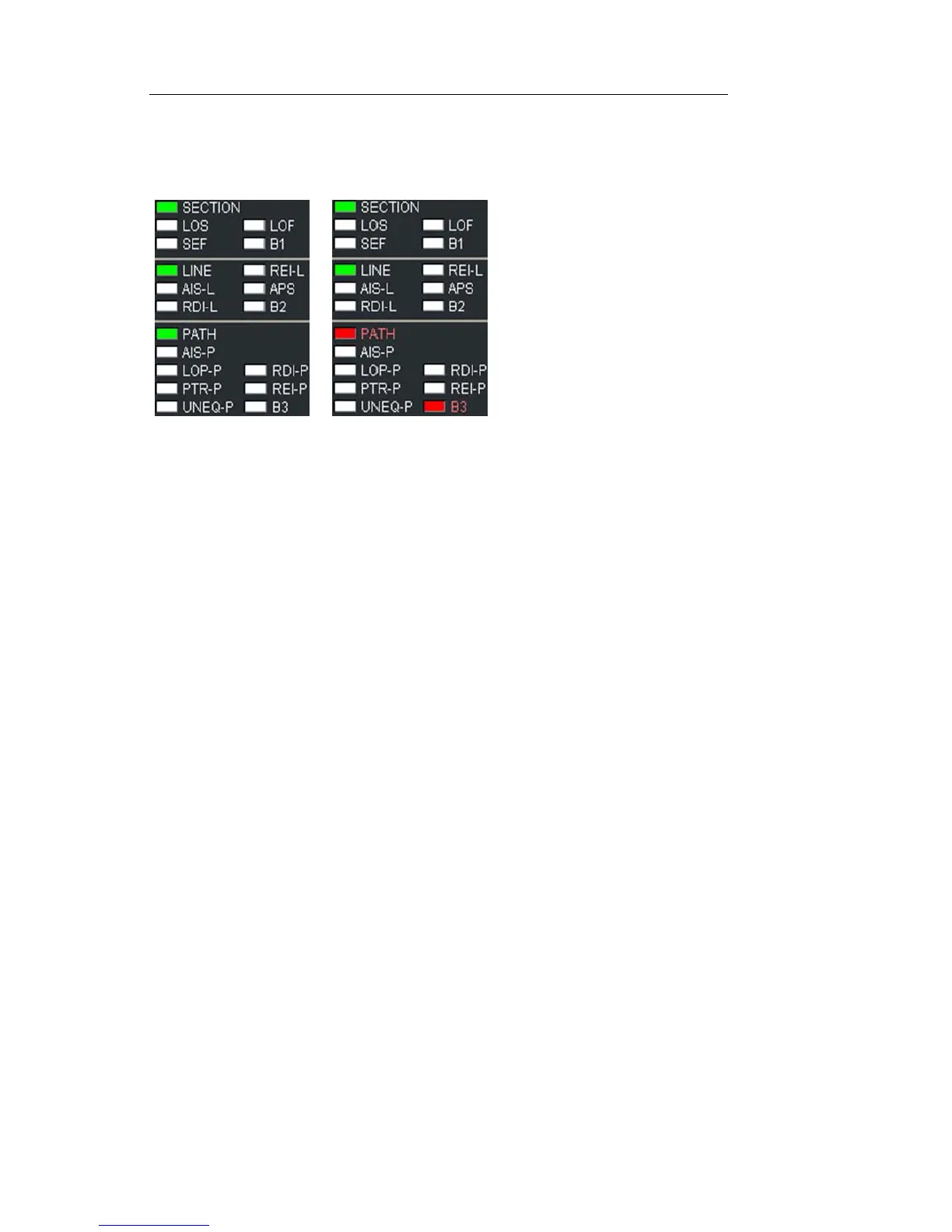
9. Confirm that no red LEDs are visible in Alarm and Status indicators.
Note that a red LED
indicates a real-time
alarm/error condition.
The red text indicates
history, that the condi-
tion has existed during
the current test.
10.Press Restart button. The NIC is now running a test.
11.Select Results and Scan. If the test is running error free, you will see
the message “No Errors or Alarms”. For error-rate, select Error. For a
listing of how many seconds each alarm has existed during the cur-
rent test, select Alarm. For a chronological list of all events since the
test started, select Event Log. For a graphical representation of error,
alarm and pointer conditions, select Graphs.
12.To save or print results, see Printing/Saving Results in this Quick
Reference Guide or in the User Guide.


 To Next Page
 Loading...