NIC Quick Reference Guide
3
Ethernet Testing Quick Start
The following steps outline the basic procedure for setting up a
NIC for an Ethernet test. A number of different modules support
Ethernet testing (MSA, NGMR, High-Density Ethernet, etc.).
The basic procedure is the same for all but certain steps, names
of menu items and indications differ depending upon which
module is being used. Also, certain specialized functions are not
included in this Quick Start. For full information on test setup,
see the Online Help Users’ Guide.
This Quick Start assumes that the test set is fully booted up
and that the device or system under test is connected.
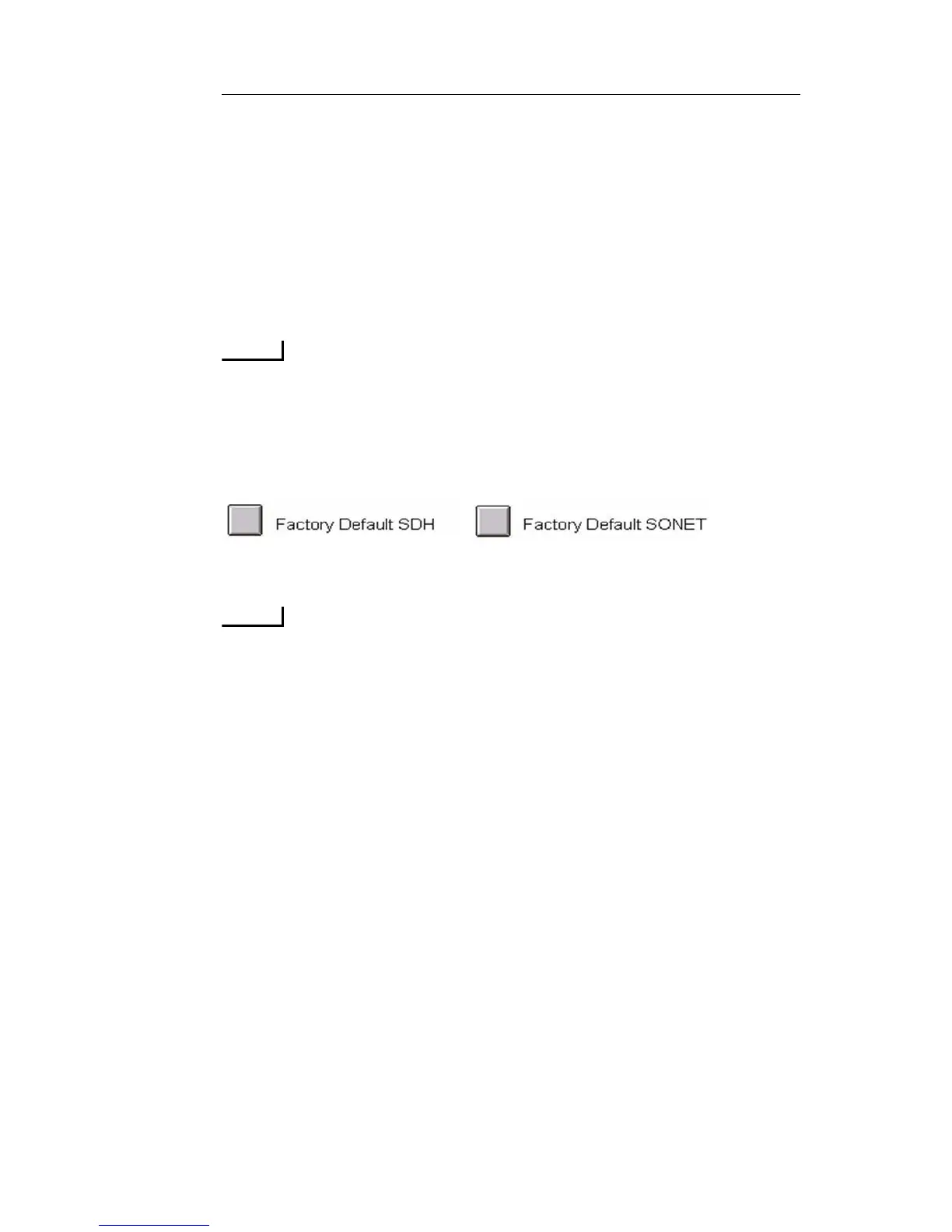
1. It is a good idea to restore the unit to factory defaults before begin-
ning any test. Select Save/Restore, then select Restore This Test Set
and choose either of the two following options:
2. For MSA (N61-N88, NL61-NL88) module...
The following rates require license-based Test Options
• GigE, 10/100/1000BaseT and 100BaseFX interfaces - Select
the Dual Enet tab then Port button and choose Port 1 or Port 2.
Both ports operate simultaneously but they are set up one at a
time.
• 10G LAN - Select SONET or SDH tab, then Interface and
choose 10G LAN. Then select Packet tab.
• 10G WAN - Select SONET or SDH tab, then Interface and
choose STM-64 or OC-192. Select Mapping and choose “AU-
4-64c Ethernet WAN” or “STS-192c Ethernet WAN”. Then
select Packet tab.
• 11G (10G LAN over OTU-1e/OTU-2e) - Select OTN tab, then
Interface and choose OTU-1e or OTU-2e. Select Mapping and
choose 10G LAN. Then select Packet tab.
• GFP - Select SONET of SDH tab, then set Interface and Map-
ping to any configuration that is applicable to GFP. Select Pay-
load Pattern and choose GFP. Then select Packet tab.
• ODU-0 - Select OTN tab, then Interface and choose either
OTU-1 or OTU-2. Select Mapping and choose either ODTU-


 To Next Page
 Loading...