Document No. CO 004844K
58
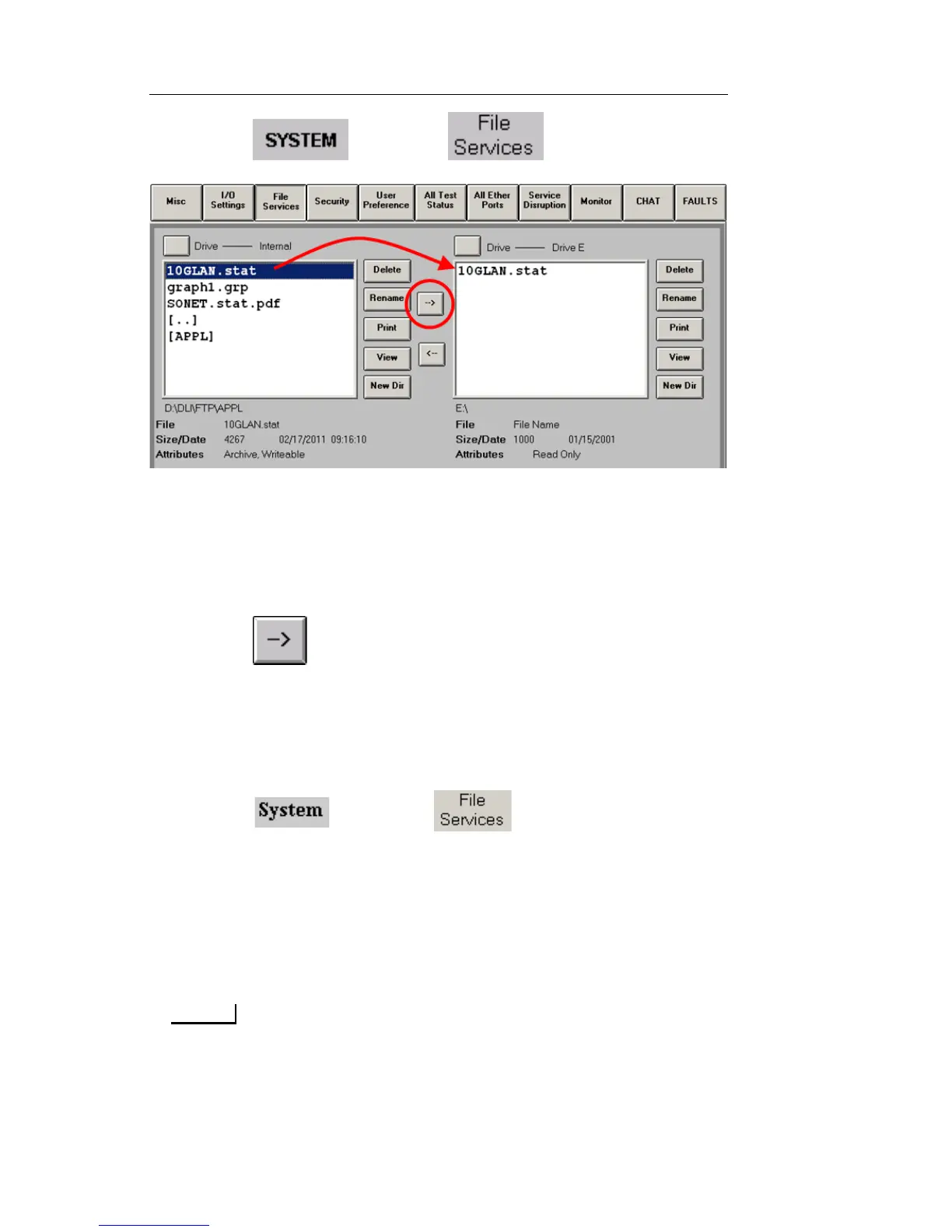
1. Select and choose . The File Services
screen appears.
2. From the Right file list box, set Drive to Drive E.
3. From the Left file list box, set Drive to Internal.
4. Select one or more files (click once to highlight filename) from
the Left file list box.
5. Select . The copied file(s) will appear in the Right file list
box.
6. Remove Flash drive, and transfer files to PC/Laptop.
Renaming a File
1. Select and choose . The File Services screen
appears.
2. Select a file from the Left file list box (click once to highlight the
filename).
3. Select Rename. A keyboard appears.
4. Use the keyboard to enter the new file name.
File names should be limited to 8 characters to left of the File
Extension, without any spaces.


 To Next Page
 Loading...