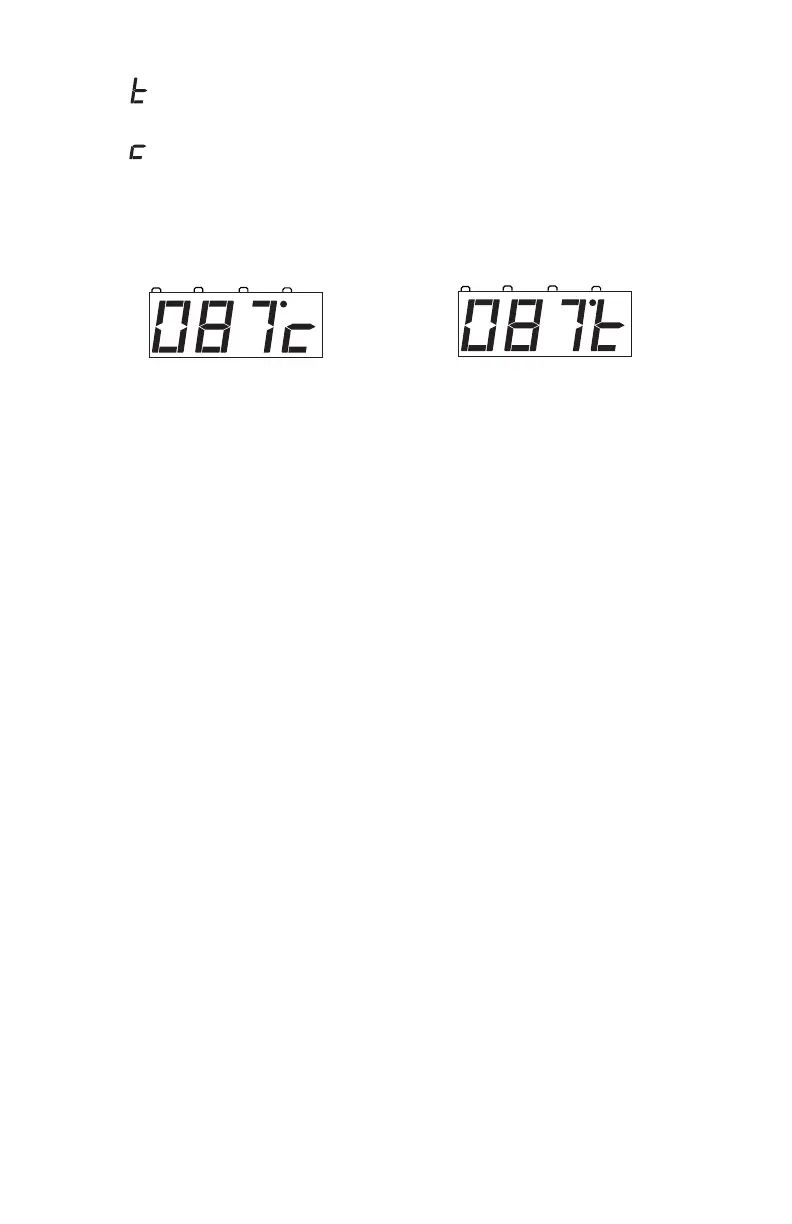
indicates that the switch is “thrown”
(for a turnout this means that the diverging route is set)
indicates that the switch is “closed”
(for a turnout this means that the mainline route is set)
The examples below show turnout address 087 first closed and then
thrown
4. Use the NUMERIC KEYPAD to enter the turnout address for the
turnout you want to change.
5. Press the c Key to close the turnout or press the t key to throw the
turnout.
Note: While you are in SWITCH mode, the THROTTLE KNOB &
DIRECTION LEVER will continue to control the loco address run-
ning on the throttle.
6. When you have finished your SWITCH operations, press EXIT to
return to normal operation mode.
24.0 Adding Throttles: LocoNet & Jump™ Ports
Sooner or later you will probably want to have one or more other people run
trains with you. This means you’ll have to add more throttles to your DCS50.
You can add any LocoNet throttle to your DCS50 or you can use one or two
smooth DC power packs as Jump throttles.
24.1 Adding LocoNet Throttles To Your DCS50
Any LocoNet throttle can be used with your DCS50. Simply plug the
LocoNet throttle into either LocoNet port on the back of your
DCS50 or into any LocoNet or Throttle Jack anywhere on your
LocoNet system. If you want to be able to plug in a throttle at a
remote location, we recommend using a UP5 Universal panel.
Your DCS50 can handle up to 10 LocoNet Throttles. If you need to run
more than 10 throttles, you can move up to a Super Empire Builder
and be able to run up to 22 throttles or to a Super Chief with the


 To Next Page