33
Before using the terminal
Editing characters
Selecting/cutting/copying/pasting text
Entered text can be selected/copied/cut/pasted to use.
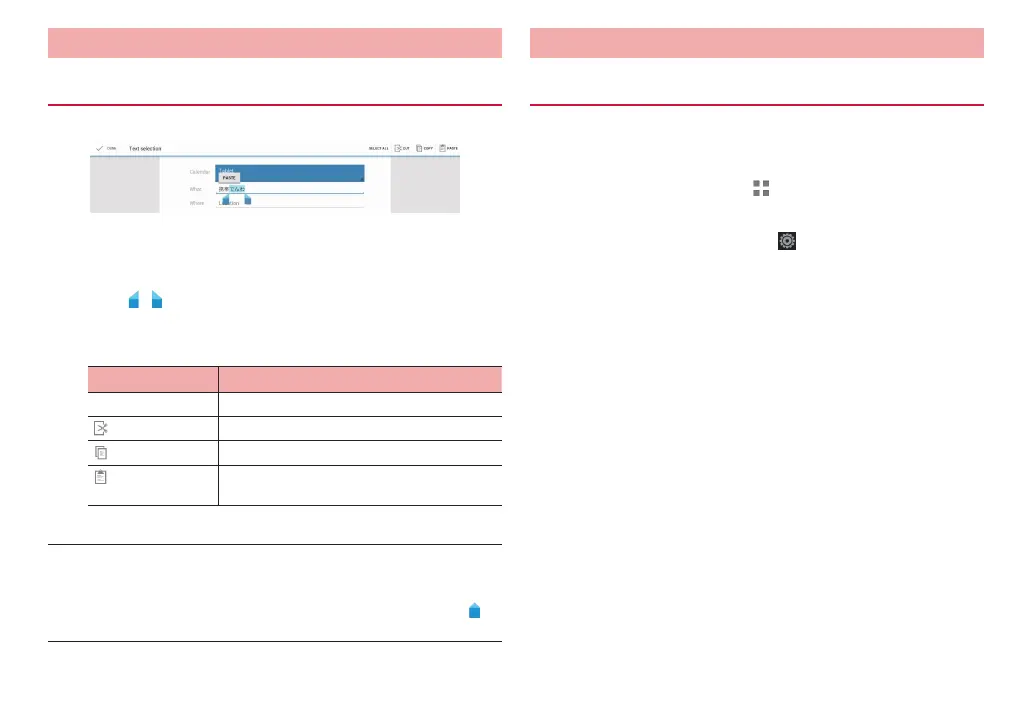
Text selection screen
1
Touch and hold an entered text
2
Drag
/
to select a text
3
Tap an icon/item
·
Displayed icon/item varies by application.
Icon/item Description
SELECT ALL Select all entered text.
CUT Cut selected text.
COPY Copy a selected text.
PASTE Paste cut/copied text to selected text to
overwrite.
■ Information
·
To paste cut/copied text, operate as follows.
When no character is entered: Touch and hold a character entry field
“PASTE”
When characters are entered: Tap on a position you want to insert
“PASTE”
Using user dictionary (FSKAREN for Huawei)
Registering a word to the user dictionary
It is convenient to register kanji with specific reading, frequently-used
abbreviation, etc. To call up a registered word in the user dictionary,
enter a head word in the character entry field to convert.
1
From the Home screen, → “基本機能/設定 (Basic
Functions/Settings)” → “Settings”
2
“Language & input” → Tap displayed on the right
of “FSKAREN for Huawei”
3
“Menu” → “User Dictionary”
4
“Add” → Enter a word/reading and select a part of
speech → “Register”
5
“OK” → “Close”



 To Next Page